






Executive summary
- Parents may want to check Wi-Fi history when a child’s phone shows an unfamiliar network, unexpected data use, or signs that it has been connecting through public hotspots—and they need to know whether this points to a safety or privacy risk.
- Android can usually show the Wi-Fi networks a phone has saved, but most phones do not provide parents with a complete, timestamped history of every connection. Also, a child can delete a Wi-Fi network from their “previously connected” list
- Router records may also reveal devices or domains used on your home network, while Android’s data-usage screens show which apps transferred data—not necessarily which sites were visited.
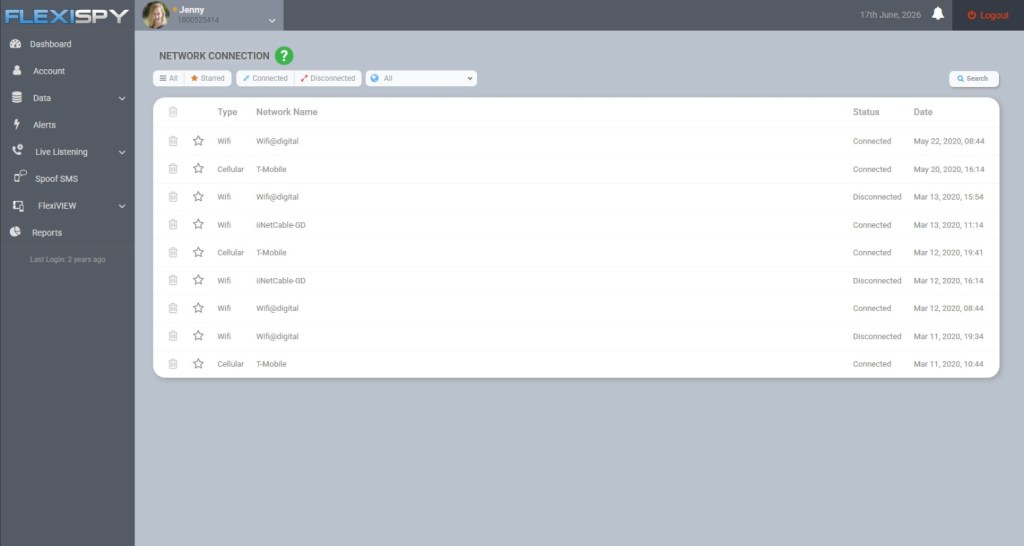
- For parents who need broader context, FlexiSPY can show a timestamp for each connection activity — letting you see a complete connection history — as well as information such as browser searches, app activity, and location
- In this article, we explain what each type of record can tell you, where to find it, and where its limitations begin.
Your child’s Android phone may move between home Wi-Fi, school networks, a friend’s router, public hotspots, and mobile data without much thought.
For a parent, checking those connections can help answer practical questions: Has the phone joined an unfamiliar network? Is one app consuming unusually large amounts of data? Is your child using public Wi-Fi without understanding the risks?
This is relevant to nearly every family with a teenager. In 2024, Pew Research Center found that 95% of U.S. teens had access to a smartphone. Its 2025 research found that 97% of teens used the internet daily, including 40% who said they were online almost constantly.
However, “Wi-Fi history” can refer to several different things. Before reaching for an app or opening the router settings, it helps to identify what you actually want to see.

What Does “Wi-Fi History” Mean on Android?
Parents commonly use the phrase to describe four different records:
| What you want to check | What it shows | Where to look |
|---|---|---|
| Saved or connected networks | Wi-Fi names the phone remembers or is using now | Android Wi-Fi settings |
| Connection activity | Connection duration, data transferred, or limited diagnostics | Android or manufacturer-specific settings |
| Home router activity | Devices connected to your router and, on some models, network or domain logs | Router app or administration page |
| Online activity | Apps, browser searches, websites, and other activity on the phone | Family tools, account activity, or parental monitoring software |
These records are not interchangeable. A saved network called School-Guest, for example, suggests that the phone connected to that network at some point. It does not prove when the connection happened, how long it lasted, where the phone was, or what your child did online — unless you use a tool like FlexiSPY
How to Check Saved Wi-Fi Networks on Your Child’s Android
The simplest check is the phone’s list of saved networks. Google explains that after an Android device joins a Wi-Fi network, the network is saved so the phone can reconnect when it is nearby.
On a Pixel or an Android phone using a similar layout:
- Open Settings on your child’s phone.
- Tap Network & internet.
- Tap Internet.
- Look for Saved networks or scroll through the Wi-Fi settings.
- Tap a network to review the available details or remove it with Forget.
The exact labels can change by Android version and manufacturer. Google’s current Android Wi-Fi instructions provide the baseline route, but Samsung, Motorola, Xiaomi, and other brands may organize the menu differently.
On a Samsung Galaxy phone
Try the following route:
- Open Settings.
- Tap Connections.
- Tap Wi-Fi.
- Open the three-dot menu.
- Select Advanced settings or Manage networks, depending on the One UI version.
The saved list may contain your home network, school or library Wi-Fi, hotels, cafés, relatives’ homes, and hotspots shared from other phones.
What parents should look for
An unfamiliar name is a reason to ask a calm question, not proof that something is wrong. Network names can be generic, renamed, duplicated, or deliberately spoofed. Start with context:
- Does the name match a school, sports center, café, or friend’s home?
- Is it an open network without a lock icon?
- Does your child remember joining it?
- Is the phone set to connect automatically?
If a network is no longer needed or cannot be identified, you and your child can select it and tap Forget. This stops automatic reconnection, but it does not create or recover a past connection log.
Can Android Show When Each Wi-Fi Network Was Used?
Usually, not in a simple history screen.
Standard Android shows saved networks and information about the current connection, but it does not normally present a parent-friendly timeline listing every Wi-Fi connection and disconnection. Some diagnostic information exists inside Android, but it may be temporary, technical, restricted, or overwritten.
This is where many online guides become misleading. A list of saved networks is evidence that a network was remembered—not a complete Wi-Fi history with dates and times.
Samsung’s Connectivity Labs may provide more detail
Some recent Samsung Galaxy devices include a hidden Connectivity Labs section within Intelligent Wi-Fi. Depending on the phone and One UI version, it may show daily Wi-Fi connection time, network usage, saved-network totals, frequency bands, and other diagnostics. A recent overview of Samsung’s Connectivity Labs demonstrates the available connection and usage information.
To check whether it is available:
- Go to Settings > Connections > Wi-Fi.
- Tap the three-dot menu and open Intelligent Wi-Fi.
- Scroll to the bottom and tap the Intelligent Wi-Fi heading repeatedly until Connectivity Labs is enabled.
- Open Connectivity Labs and review the available information.
This is an optional manufacturer tool, not a standard Android feature, and its contents can change between Samsung models and software versions. It may provide useful usage context, but parents should not assume it holds a permanent record of every named network.
How to Check Android Network Activity and Data Usage
If your concern is how much internet activity is occurring rather than which Wi-Fi name was used, Android’s data-usage settings are more useful.
Use the Settings search bar and search for data usage, mobile data and Wi-Fi, or app data usage. Depending on the phone, you may be able to:
- Compare how much data individual apps used.
- Select a date range.
- Separate mobile-data use from Wi-Fi use.
- Identify an app with an unexpected increase in activity.
For example, Google says the Android network-data screen for Google Play services can show the last 14 days or a custom period of up to 90 days. Other apps and manufacturers may offer different date ranges, so treat the phone’s own labels as authoritative.
Data usage is a volume measurement. If a messaging app transferred 2 GB, Android may show the app and quantity, but it will not necessarily reveal who your child contacted or what was sent. Likewise, heavy video use may explain a large number without indicating that anything unsafe happened.
For a broader view of screen time and app launches, see our guide to monitoring a child’s Android app usage.
How to Check Your Home Router From an Android Phone
Your router may show information that is not stored in an easy-to-read form on your child’s phone. You must own or administer the network to access these records.
Method 1: Use the router’s official app
Many internet providers and router manufacturers offer an Android app. After signing in, look for sections such as:
- Connected devices
- Device list
- Network map
- Activity
- Logs
- Parental controls
The connected-device list can tell you whether your child’s phone is currently using home Wi-Fi. Some routers also retain connection times or security events.
Method 2: Open the router administration page
If there is no app:
- Connect your Android phone to your home Wi-Fi.
- Open a browser and enter the router’s gateway address. Common addresses include
192.168.0.1and192.168.1.1, but yours may differ. - Sign in with the router administrator account—not merely the Wi-Fi password.
- Find the device list, system log, security log, or parental-control section.
Do not use a default administrator password. Change it to a unique password and keep the router firmware updated.
What router history cannot reliably show
Router capabilities differ considerably. Many consumer routers store little or no browsing history. Even when logs are available, you may see only devices, IP addresses, connection events, or domain names—not complete page URLs or the content viewed.
Router visibility can also be affected by:
- HTTPS encryption
- Encrypted DNS
- VPN use
- Mobile data, which bypasses the home router
- Activity on school, café, or friends’ Wi-Fi
- Short log-retention periods
Incognito mode does not make traffic disappear from the network itself, but that does not mean a typical home router will produce a complete, readable incognito browsing history.
Is Public Wi-Fi Dangerous for Children?
Public Wi-Fi is not automatically unsafe. The U.S. Federal Trade Commission explains that widespread HTTPS encryption makes public Wi-Fi safer than it once was. However, children can still join imitation hotspots, encounter unencrypted services, expose information through poor security habits, or leave automatic connection enabled.
Teach your child to:
- Confirm the correct network name with staff before joining.
- Avoid installing certificates or profiles prompted by an unfamiliar hotspot.
- Keep Android and apps updated.
- Use secure websites and trusted apps.
- Avoid sensitive account changes on a network they do not trust.
- Turn off automatic connection for public networks they rarely use.
- Tell you if a Wi-Fi login page requests unusual personal information.
The goal is not to make every unknown network look suspicious. It is to help your child recognize when a connection deserves extra care.
Why Wi-Fi History Alone Gives Parents an Incomplete Picture
A Wi-Fi name tells you about a connection point. It rarely tells you what happened through that connection.
For example:
Library-Guestdoes not show which apps were opened.- A large data total does not show which conversations took place.
- A router domain log does not explain the purpose or context of a visit.
- No home-router record does not mean the phone was offline; it may have used mobile data or another Wi-Fi network.
Google Family Link can help parents manage apps, Chrome-related settings, search controls, and location on supported supervised accounts. Google also notes that supervision features vary by the child’s device. Family Link does not provide a universal, timestamped Wi-Fi connection-history report.
When location is the real concern, use location tools rather than trying to infer a child’s whereabouts from an SSID. Our guide explains how to review a child’s Android location history and where Family Link’s limits begin.
How FlexiSPY Can Add Context Beyond Wi-Fi Connections
If a parent needs to understand more than the name of a connected network, FlexiSPY can provide additional information from a compatible Android device. Depending on the device, Android version, product tier, and enabled features, that context can include the timestamp of the Wi-Fi connection, browser searches, applications used, app screenshots, and location information.
Parents concerned about attempts to conceal network activity may also find our guide on how to tell whether a child is using a VPN useful.
Before using monitoring software, confirm compatibility and feature availability for the specific device and plan. Use it only on a device you own or are legally authorized to monitor, follow applicable law, and make monitoring part of an age-appropriate family safety agreement wherever possible.
Explore FlexiSPY to compare the currently supported Android features and compatibility requirements.
A Better Way to Respond to an Unfamiliar Network
Finding an unfamiliar saved network can feel alarming, but a measured response is more likely to produce useful information.
- Record the network name. Do not assume what it means based on the name alone.
- Ask where the phone may have connected. School, transport, shops, sports facilities, and friends’ homes are common explanations.
- Check whether it is secured. An open network deserves a conversation about public Wi-Fi habits.
- Review app data usage and related context. Look for unusual changes rather than treating ordinary background data as proof of misconduct.
- Forget unnecessary networks. Remove networks the phone should not automatically rejoin.
- Agree on a family rule. For example, your child should ask before joining an unknown hotspot or installing a Wi-Fi profile.
This approach keeps the focus on safety and digital judgment rather than surveillance for its own sake.
Frequently Asked Questions
Can I see every Wi-Fi network my child’s Android has connected to?
With native Android capabilities you can usually see networks that remain saved on the phone. This is not guaranteed to include every past connection because networks can be forgotten, removed, or no longer retained. Most Android phones do not provide a permanent, timestamped list of every Wi-Fi connection.
However, with FlexiSPY’s network connection feature – you can see a complete history of Wi-Fi connections made on your child’s device including the timestamp.
Does Android Wi-Fi history show websites visited?
No. Saved Wi-Fi networks show connection names, not browsing history. Browser or Google account activity, router logs, DNS tools, or authorized parental monitoring may provide other information, each with different limitations.
Can Google Family Link show connected Wi-Fi networks?
Family Link offers account, app, browser, search, and location controls on supported supervised devices, but it is not a comprehensive Wi-Fi connection-history tool.
Can I check my child’s Wi-Fi history remotely?
With FlexiSPY you can. However if you do not have FlexiSPY then the saved-network list generally requires access to the Android phone. A router app may allow remote access to your home network’s device information, but it cannot report connections made through mobile data or somebody else’s router. Broader parental tools may provide related activity remotely, but should not be described as a Wi-Fi connection log unless that exact feature is supported.
Does a VPN hide Android network activity?
A VPN can reduce what the local router or internet provider can see by encrypting traffic between the phone and the VPN service. It does not necessarily hide the fact that data was transferred, and it does not erase activity already recorded by apps, accounts, or authorized monitoring tools.
Can a saved Wi-Fi network reveal my child’s location?
It may provide a clue if the network name clearly belongs to a known place, but an SSID is not reliable proof of location. Names can be duplicated or changed. Use an appropriate location feature when location accuracy matters.
The Bottom Line
Checking Wi-Fi history on Android begins with understanding which record you need. Android’s saved-network list can identify remembered connections. Manufacturer diagnostics and data-usage screens can provide limited activity information. Your home router may identify connected devices or retain basic logs. None of these sources alone provides a complete account of what your child did online.
Start with the least intrusive source that answers the question. If you need broader context, combine network information with transparent family rules, Android’s built-in controls, and—where justified and lawful—parental monitoring tools such as FlexiSPY.