




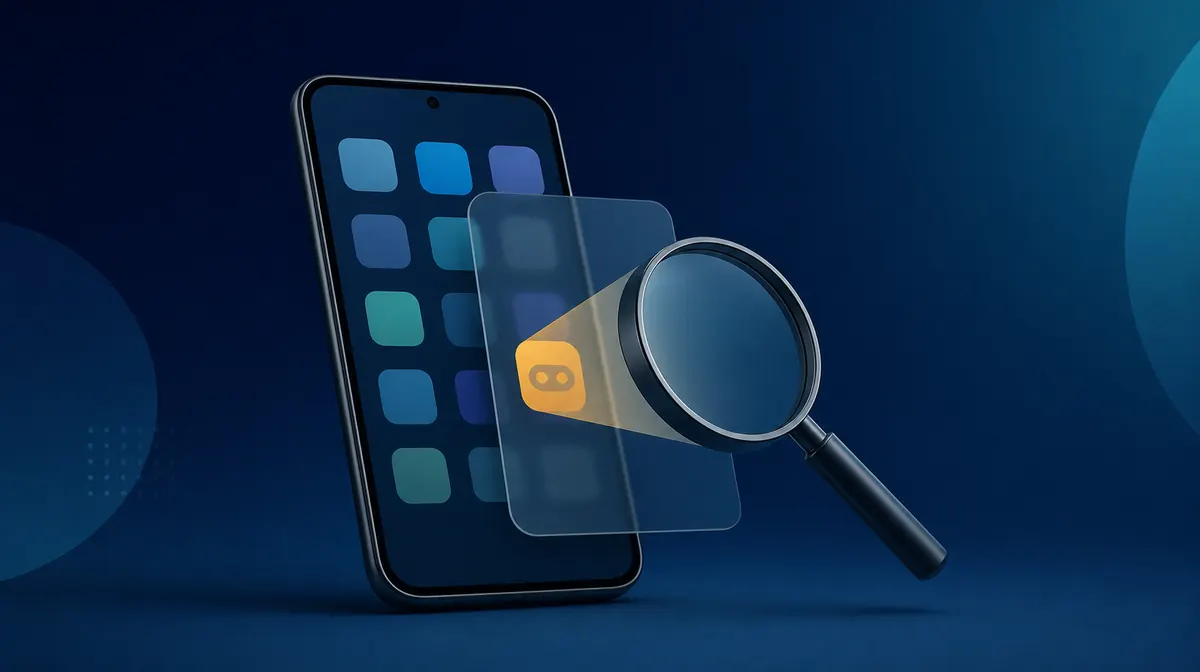
To find hidden apps on your child’s Android phone, check three places: the complete app list in Settings, the launcher’s hidden-app menu, and protected areas such as Android Private Space or Samsung Secure Folder. Start with Settings > Apps > See all apps, because an app hidden from the home screen will often still appear there.
Whenever possible, review the phone with your child. A hidden app can be a safety concern, but it can also be a harmless game, a private journal, or an app they expected you to disapprove of.
Quick checklist: where Android apps can be hidden
| Place to check | What you may find | What to remember |
|---|---|---|
| Settings > Apps | Most apps installed in the phone’s main profile | Usually the fastest and most complete first check |
| Launcher settings | Icons removed from the home screen or app drawer | The app remains installed |
| Android Private Space | Apps installed in a separate, lockable profile | Locked apps may not appear in the main app list |
| Samsung Secure Folder | Separate copies of apps stored in a protected folder | The folder icon itself can be hidden |
| Disabled apps | Apps still on the device but removed from normal use | They may disappear from the launcher |
1. Check the complete app list in Settings
The home screen and app drawer only show icons the launcher has been told to display. Android’s Settings menu gives you a better inventory of apps installed in the main phone profile.
- Open Settings.
- Tap Apps, Applications, or Apps & notifications.
- Select See all apps or App management.
- Review the list for names you do not recognize.
- Tap an unfamiliar app to view its permissions, storage, battery use, and mobile-data activity.
Do not assume every unfamiliar name is a secret app. Android includes system services with technical names, and phone manufacturers often install their own utilities.
If the menu offers a filter, check Disabled apps as well. Disabling an app can remove its icon without deleting its files from the phone.
2. Look for apps hidden by the home-screen launcher
Many Android launchers include a setting that hides selected apps from the app drawer. This is only a display change: the app normally remains installed and may continue to run.
- Touch and hold an empty area of the home screen.
- Open Home settings or Launcher settings.
- Look for Hide apps, Hidden apps, or similar wording.
- Review any apps selected in that menu.
On many Samsung phones, the option is called Hide apps on Home and Apps screens. Other phone makers and third-party launchers use different names, so use the Settings search bar if you cannot find it.
3. Check Android Private Space
Android Private Space is different from an ordinary hidden-app menu. It creates a separate profile in which a person can install another copy of an app and protect it with a lock.
According to Google, apps in a locked Private Space are stopped and hidden from places such as the launcher, recent-app view, sharing menus, and parts of Settings. That means the main See all apps list may not tell the whole story.
- Open Settings.
- Go to Security & privacy > Private space.
- Unlock the space if you are authorized to do so.
- Review the apps installed inside it.
If the Private Space container has been hidden, search for Private Space in Settings or the app drawer. Availability and menu paths vary by device; Google’s Private Space guide has the current instructions.
4. Check Samsung Secure Folder
Samsung Secure Folder can hold separate copies of apps, accounts, photos, and files. Its icon can also be removed from the Apps screen, so you may need to find it through Settings.
- Search Settings for Secure Folder.
- On many Samsung phones, go to Security and privacy > More security settings > Secure Folder.
- Unlock the folder if you have the authority and credentials to access it.
- Review the apps stored inside.
- Check whether Add Secure Folder to Apps screen is turned off.
Samsung changes menu paths between One UI versions. If these steps do not match the device, consult Samsung’s Secure Folder instructions.
5. Check for disguised apps
Some apps try to blend in by using a generic name or an icon that looks like a calculator, calendar, or utility. An innocent-looking icon is not proof that an app is dangerous, so inspect how it behaves before drawing conclusions.
- Permissions: A basic calculator should not normally need contacts, location, camera, and microphone access.
- Storage use: A simple utility using a large amount of storage may contain photos, videos, messages, or other saved data.
- Background activity: Check whether the app uses significant battery or data when it is supposedly unused.
- Developer: Look up the developer name and compare it with the app’s claimed purpose.
- Install source: Find out whether it came from Google Play or another source.
Look for a pattern of inconsistencies. Password managers, accessibility tools, work apps, and security products can legitimately request broad permissions.
6. Use Google Play as a cross-check
Open the Play Store, tap the profile icon, and select Manage apps & device. This can help you identify apps installed through Google Play or associated with the Google account.
It is not a complete hidden-app detector. It may not show apps installed from another source, associated with a different account, or placed inside a locked profile.
7. Run a Google Play Protect scan
If you are concerned that an unfamiliar app may be harmful, run Play Protect after identifying it.
- Open the Google Play Store.
- Tap the profile icon.
- Select Play Protect.
- Tap Scan.
Google says Play Protect checks apps for harmful behavior and may warn about, disable, or remove a harmful app. See Google’s Play Protect guidance for current settings and scan instructions.
How FlexiSPY can help you review installed apps
For ongoing checks on a child’s Android phone you manage, FlexiSPY provides Installed Applications and Application Activity reports on its Android plans. These reports can help you review ordinary installed apps and see which apps are being used from the web dashboard.
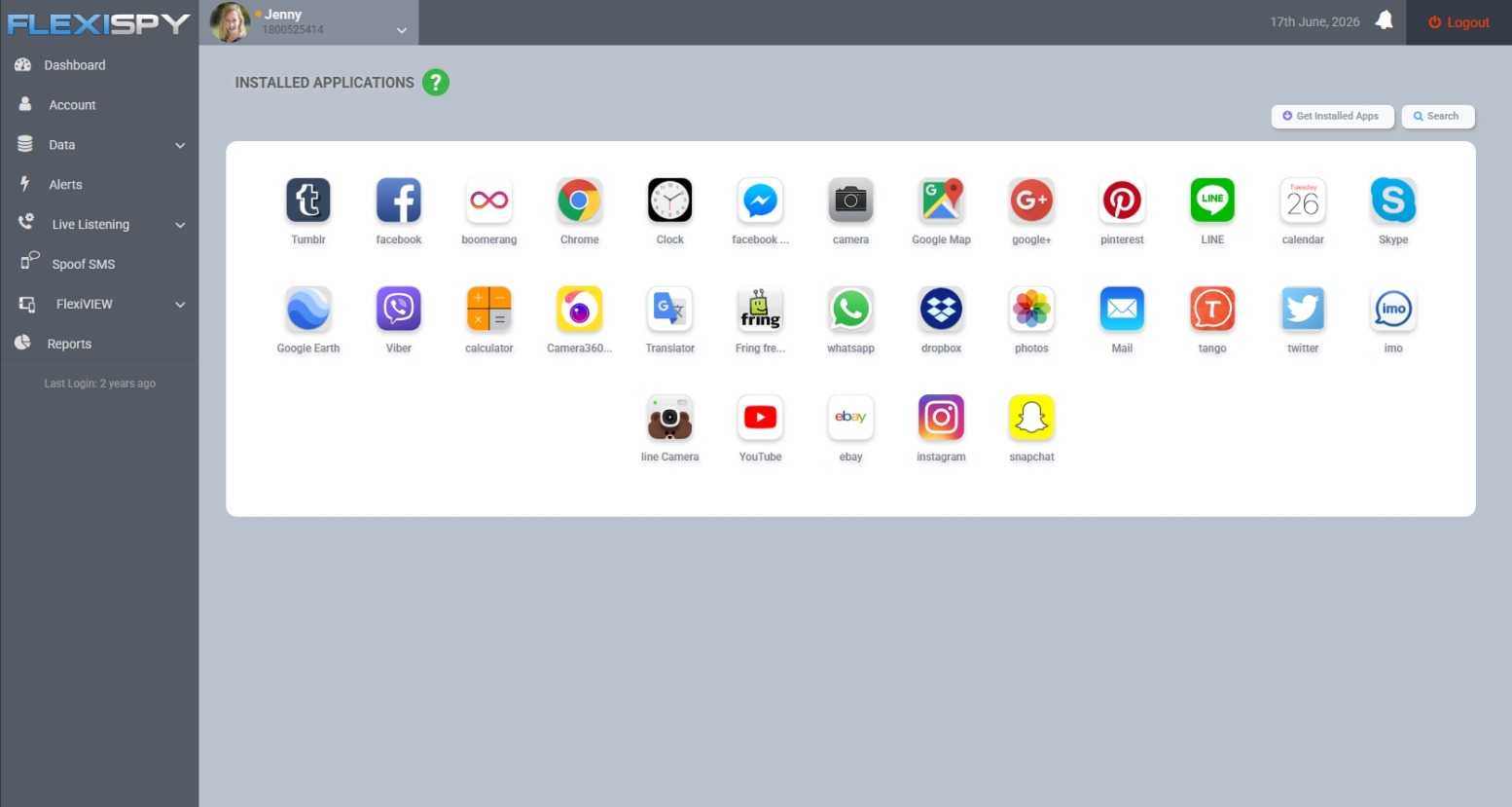
This can be useful when an app’s launcher icon has been hidden or when you need a clearer record between in-person phone reviews.
What to do when you find an unfamiliar app
Finding the app is only the beginning. Before deleting it, work out what it is, what information it can access, and why your child installed it.
- Identify the app. Check its developer, Play Store listing, permissions, install source, and recent activity.
- Ask your child about it. Give them a chance to explain what they use it for and why it was hidden.
- Assess the actual risk. Look for contact with strangers, location sharing, explicit content, hidden purchases, or misleading age information.
- Reduce unnecessary access. Revoke permissions the app does not need and turn off unwanted notifications, purchases, or location sharing.
- Remove it when appropriate. Uninstall harmful or unsuitable apps from a device you are responsible for managing.
If the app contains evidence of threats, grooming, blackmail, or sexual exploitation, preserve relevant screenshots and account details before removing it. Contact the platform, school, or appropriate authorities when the situation warrants it.
Turn the discovery into a better phone rule
A technical inspection can solve today’s mystery, but it will not prevent the same conflict next week. Agree on clear rules for which apps require permission, what kinds of privacy your child can expect, and when you will review the phone together.
A younger child may need regular app checks. A teenager may respond better to narrower checks tied to a specific concern, with more privacy restored as they demonstrate sound judgment.
If you need controls beyond app inventory, our guide to the best parental control apps explains how different approaches compare.
Use monitoring only on a device and account you are legally authorized to manage. Privacy, consent, and recording laws vary by location, so check local law or seek legal advice if your authority is unclear—especially when the device belongs to another adult.
Frequently asked questions
Do hidden apps appear in Android Settings?
Apps hidden only from the home screen or app drawer usually still appear under Settings > Apps. Apps inside a locked Private Space or another protected profile may not appear in the main list.
Can an Android app look like a calculator?
Yes. Some vault apps use calculator-style icons or interfaces, but many ordinary calculator apps are legitimate.
Check the app’s developer, permissions, storage use, and behavior instead of judging the icon alone.
Can the Play Store reveal every hidden app?
No. It is useful as a cross-check, but it can miss apps installed outside Google Play, apps connected to another account, and apps inside a separate protected profile.
What is the fastest way to check for hidden apps?
Compare Settings > Apps > See all apps with the visible app drawer. Then check the launcher’s hidden-app menu, Android Private Space, and Samsung Secure Folder if those features are available.
Lascia un commento