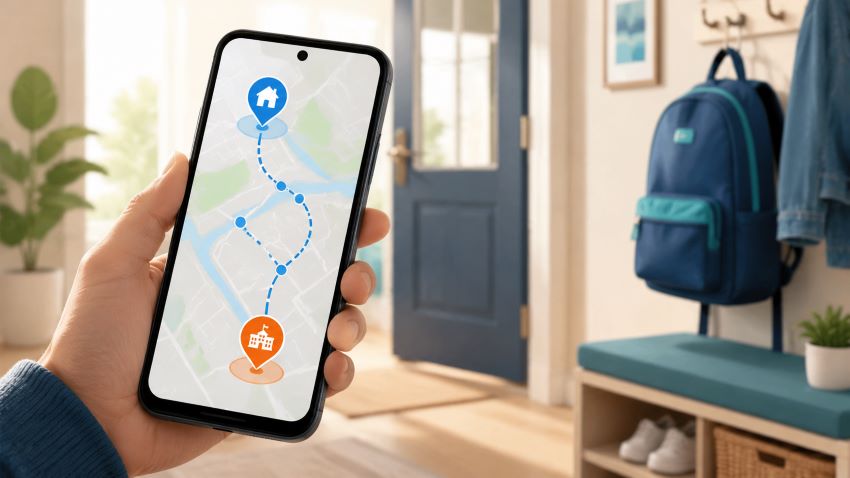
Executive Summary
- To see where your child’s phone is now, open Google Family Link, tap Location, and choose your child.
- To see places the phone visited earlier, look for Your Timeline in Google Maps on your child’s phone.
- However, Google Maps Timeline is not available for every child. Google says children under 13—or the minimum age in their country—cannot use Timeline when their account is managed with Family Link.
- FlexiSPY offers a simpler dashboard for checking location history and setting location alerts, as well as providing more monitoring data
Almost every U.S. teen ages 13–17—95%—has or can use a smartphone at home, according to a 2024 Pew Research Center survey. That phone can help a parent check whether a child got to school, arrived home, or followed their normal route.
The confusing part is that Android does not keep all location information in one place. This guide walks you through the options in simple steps.
Before you start: Talk to your child about location tracking and explain why you use it. Only monitor a phone that you own or have legal permission to monitor. Laws are different from place to place, especially for older teenagers and adults.
First, understand the two types of location information
Android gives parents two main ways to check location:
- Current location tells you where the phone is now, or where it was a short time ago.
- Location history shows places the phone visited earlier.
These are not the same thing.
| If you want to know… | Use… | What it does |
|---|---|---|
| “Where is my child now?” | Google Family Link | Shows the phone’s latest known location |
| “Did my child arrive at school?” | Family Link place alerts | Sends a notice when the phone arrives or leaves |
| “Where has my child been today?” | Google Maps Timeline | Shows earlier places and routes, if Timeline is available and turned on |
| “What did my child search for in Maps?” | Google Maps Activity | Shows searches and directions, not places the phone definitely visited |
Timeline is simply Google’s name for its location-history feature.
How to see your child’s current location
Use Google Family Link when you want to know where your child’s phone is right now.
- Open the Family Link app on your phone.
- Tap Location near the bottom of the screen.
- Tap your child’s name or picture.
- A map should show the phone’s latest location.
If Google asks you to set up location sharing, tap Set up location, select your child, and then tap Turn on.
Do not worry if the map takes a little time to appear. Google says Family Link may not find the phone when:
- The phone is turned off.
- The phone is not connected to mobile data or Wi-Fi.
- The phone has not been used recently.
- Location sharing is turned off.
If your child uses more than one phone or tablet, Family Link normally shows the device used most recently. Google provides more help in its Family Link location guide.
Make the location more accurate
If the map shows the wrong place:
- Open Family Link.
- Tap Location and choose your child.
- Tap the three dots in the top-right corner.
- Tap Location settings.
- Choose your child’s phone.
- Turn on Location Accuracy or High Accuracy.
The names may look slightly different on some Android phones. Look for an option containing the words location and accuracy.
How to get an alert when your child arrives or leaves
You can ask Family Link to notify you when the phone reaches a familiar place, such as home or school.
- Open Family Link and choose your child.
- Tap Location.
- Tap Family places.
- Tap New place.
- Enter the address and give the place an easy name, such as “School.”
- Save the place.
- Choose the saved place and turn on Arrives, Leaves, or both.
This is helpful if you only want reassurance that your child arrived safely. However, it will not show every place the phone visited during the day.
How to see where your child has been
Google Maps Timeline may show earlier stops, routes, and times. You normally need to check it on your child’s Android phone because Google now stores most Timeline information on the device.
Step 1: Check whether Timeline is available
Open Google Maps on your child’s phone. Tap the round profile picture in the top-right corner.
If you see Your Timeline, you can continue to the next step.
If you do not see it, there may be a simple reason. Google says children under 13—or under the minimum age in their country—cannot see a Timeline when their account is managed with Family Link. Older teens may also have different settings depending on how their Google Account was set up. You can read Google’s child-account rules for Maps.
If Timeline is not available, use Family Link’s current-location map and place alerts instead. Do not try to get around an age restriction.
Step 2: Choose the day you want to see
- Open Google Maps on your child’s phone.
- Check that your child’s Google Account is shown in the top-right corner.
- Tap the profile picture or first letter of their name.
- Tap Your Timeline.
- Tap Today at the top of the screen.
- Choose the date you want to review.
You may see a map, a list of stops, and the times the phone was near each place. Google may also guess whether the person was walking, driving, cycling, or using public transport.
Remember that these are Google’s best estimates. The official Google Maps Timeline guide warns that Timeline can sometimes choose the wrong shop or building, especially when several places are close together.
Step 3: Turn on Timeline if the page is empty
If you can open Timeline but there is nothing there:
- Tap your profile picture in Google Maps.
- Tap Your Timeline.
- Tap the three dots.
- Tap Location & privacy settings.
- Check that Location is on.
- Check that Timeline is on.
Google leaves Timeline off unless the user chooses to turn it on. Turning it on today will not bring back trips from last week or last month.
Why older location history may disappear
Google can automatically delete Timeline information after 3, 18, or 36 months. To check this setting, open:
Google Maps > profile picture > Your Timeline > three dots > Location & privacy settings > Auto-delete Timeline
Most Timeline information is saved on the phone. This means it can be lost if the phone is reset, replaced, or damaged.
Google offers an optional encrypted backup. “Encrypted” means the saved copy is protected so other people cannot easily read it. To check for a backup option, open Timeline and look for the small cloud symbol near the top of the screen.
Backing up can be worthwhile. In 2025, Google confirmed that a technical problem deleted some users’ Timeline information. People without a backup could not recover it, according to The Verge.
What to do when the map looks wrong
Location history is useful, but it is not perfect. It tracks the phone—not the child—and it can make mistakes.
Before worrying, check these five things:
- Is it the correct day? Make sure you did not choose yesterday or another date.
- Is it the correct Google Account? Some phones have more than one account.
- Was the phone turned on? A phone with no power cannot send its location.
- Did the phone have internet access? Poor mobile service or no Wi-Fi can delay an update.
- Could Google have chosen a nearby place? A map may show the coffee shop next door when the phone was really at the pharmacy.
Ask your child about an unexpected result before assuming the map is correct. A calm question such as “The map has a gap around 4 p.m.—do you know why?” is more helpful than treating the phone as perfect evidence.
Quick fixes for common problems
| Problem | Try this first |
|---|---|
| Family Link shows no location | Check that the child’s phone is on and connected to the internet |
| The location is old | Ask the child to unlock and use the phone, then refresh Family Link |
| The location is wrong | Turn on Location Accuracy and restart the phone |
| Timeline is missing | Check the child’s age and Google Account settings |
| Timeline is empty | Make sure both Location and Timeline are turned on |
| Part of the route is missing | Check for poor signal, low battery, or no internet connection |
| Older history is gone | Check the Auto-delete and backup settings |
Test the setup before relying on it. Take the phone on a short trip, check whether Family Link updates, and test an arrival alert at home.
Is FlexiSPY easier than Android’s built-in tools?
Google’s free tools are a good place to start. The main problem is that the information is spread across Family Link, Google Maps, and Google Account settings. That can be frustrating for a parent who simply wants a clear answer.
FlexiSPY puts location information in one online dashboard.

After it is installed on a supported Android phone, an authorized parent can sign in from a web browser to check the latest location, review location history, and set a location alert. The FlexiSPY dashboard supplied with this article shows a Latest Location map, while the Alerts screen includes a Location option.
| Feature | Google’s free tools | FlexiSPY |
|---|---|---|
| See the latest location | Yes, in Family Link | Yes, in the FlexiSPY dashboard |
| Review earlier locations | Only when Maps Timeline is available and already turned on | Location history is designed to appear in the dashboard |
| Get location alerts | Yes, for saved Family Link places | Yes, through FlexiSPY location alerts |
| Find everything in one place | No, you may need several Google screens | Yes, monitoring information appears in one dashboard |
| Cost | Free | Paid plan required |
| Setup | Uses Google’s built-in apps | Requires installation and permission on a supported phone |
FlexiSPY may be the better choice if you find Google’s menus confusing, cannot use Timeline, or want location history and alerts together. Features can vary by phone model, Android version, and plan, so check compatibility before buying.
For a closer look at the location tools, read How To Track Android GPS Locations With FlexiSPY. Parents who want a wider view of phone habits may also find A Parent’s Guide to Monitor Android App Usage and Screen Time useful.
CTA: If Google Family Link and Maps Timeline do not give you the clear history you need, compare FlexiSPY’s Android monitoring options. Check that location history and alerts work with your child’s phone before choosing a plan.
Agree on simple family rules
Location tracking works best when everyone understands how it will be used. Your family rules might be:
- We check location for safety, pickups, missed check-ins, and emergencies.
- We do not watch the map all day without a reason.
- We explain which parent or guardian can see the information.
- We review the rules as the child gets older.
- We protect the parent account with a strong password and two-step verification.
Two-step verification means the account needs a password and a second check—often a code sent to your phone. It makes it harder for someone else to open the account.
Frequently asked questions
Can Family Link show everywhere my child has been?
No. Family Link mainly shows the phone’s latest location. It can also alert you when the phone arrives at or leaves a saved place. It does not show a complete route for the whole day.
Where has my child been today on Android?
On your child’s phone, open Google Maps, tap the profile picture, tap Your Timeline, and choose today’s date. This only works if Timeline is available and was already turned on.
Why is Google Maps Timeline missing?
Google says supervised children under 13—or under the minimum age in their country—cannot use Timeline. It may also be missing because the wrong Google Account is selected.
Is a Maps search the same as a visit?
No. Searching for a place or asking Google for directions does not prove the phone went there.
Can location history be changed or deleted?
Yes. A person can edit or delete Timeline information. Google may also delete it automatically after 3, 18, or 36 months, depending on the account setting.
Does location history work when the phone is off?
No. The phone cannot record a continuous route while it is turned off. You may see a gap in the history.
Is FlexiSPY better than Family Link?
Family Link may be enough if you only want the phone’s current location and simple place alerts. FlexiSPY is a better fit when an authorized parent wants location history, location alerts, and other permitted phone information in one dashboard. Check the phone’s compatibility, your plan, and local laws before installing it.
The bottom line
Start with Family Link if you only need to see where your child’s phone is now. Use Google Maps Timeline if you want to review earlier places and the feature is available on the child’s account.
If Google’s tools feel confusing or do not give you enough history, FlexiSPY offers a more straightforward dashboard for authorized parental monitoring. Whichever option you use, remember that the map can be wrong. Use it as a safety aid and keep talking openly with your child.