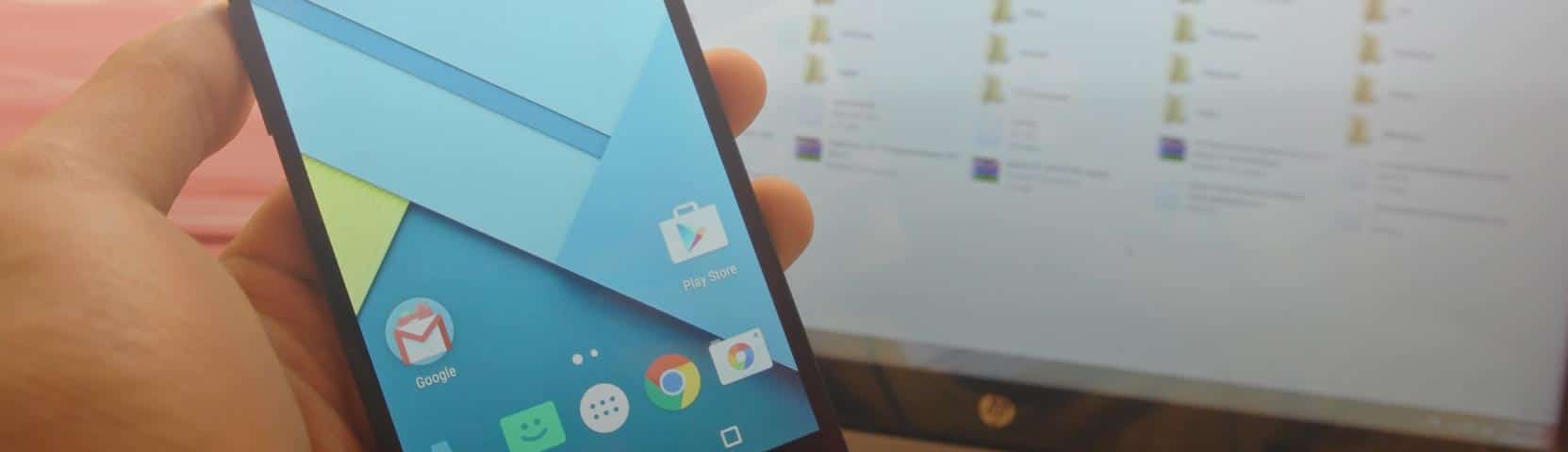
Great news! You can now install and run FlexiSPY PREMIUM and EXTREME on Android devices running up to OS 5.1.1!
Our Android development team has been hard at work since the last version on Android (Lollipop 5.0) was updated to 5.1.1, so we are excited to announce our compatibility!
We often hear about the rise in teen bullying, and the growing risk that the internet is exposing them to. but just try searching the web for a solution to this problem and see what you find.
We’re caught up in the comments: blaming school boards, parents, and today’s society. It’s hard to sift through the cloud of blame to find a fix, it’s even harder to believe that there is a fix.
But there are tools which can help us keep tabs on our teens and better ensure their safety. One solution is to place an app on the very thing that’s always by their side, the thing that’s often times leading them into trouble in the first place, their smartphone.
So to help you on your quest for improving the safety and well-being of your child, we’ve compiled, in no particular order, 6 of our favorite apps for doing the job.
1) Family Tracker
Family Tracker is a GPS tracking application that tracks the location of Android phones, tablets, and Apple phones, as well as send free text messages between them. The app is limited though in that it only captures the phone’s gps location, and is a visible app that can’t be hidden.
2) iEmergency
iEmergency advertises itself as a crisis management app which lets you quickly send an SOS to up to 4 people on a specified list.
3) Sex Offenders Search
This app is unique in that you install it onto your own phone. The Sex Offenders Search app connects you to the National Sex Offender Registry to locate registered sex offenders and predators in your area.
4) FlexiSPY
Warning, shameless plug incoming! But really, One of the best ways to keep your teen safe is to have a good hold on all aspects of their online life. FlexiSPY is available on Android and iPhone devices, AND taps into the most important areas of your teens life.
You can monitor GPS and track SMS, as well as IM’s like Facebook, WhatsApp, KiK, and more. Images and videos are captured, and calls are recorded. There’s even an option to make the app invisible, that way your teen doesn’t spoil your monitoring efforts by deleting the app.
5) SecuraFone
Ever curious about whether or not your teen is obeying the speed limit? SecuraFone is an iPhone app that you install onto your teens phone. It then activates the phone’s GPS and attempts to calculate the speed that they are driving based on the movement of their gps. While not 100% accurate, it’s still a useful app to have in your toolbox.
6) Life360 Locator
Last but not least, Family Locator by Life360 promises that it’s the most accurate family locator on the market. With this app you can create “groups” of your loved ones, and monitor their GPS locations + send them messages through the app which must be installed on everyone’s phone.
Wrapping it up
By now you should have the perfect toolset for keeping your teens safe, from offline and online dangers.
Of course, These are just a our favorite apps out there that get the job done. Do you have any others to add? Let us know in the comments!
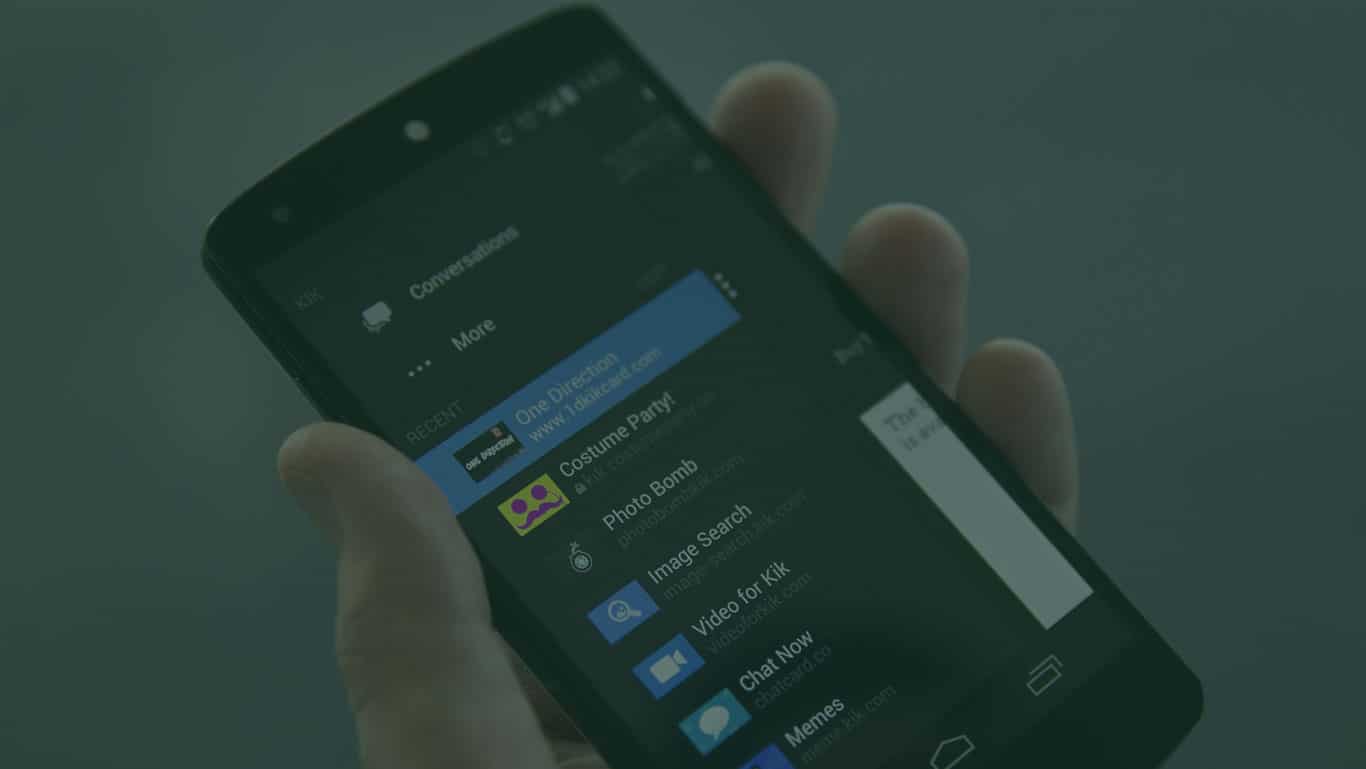
We’ve been listening carefully to what IM’s our customers want to be able to monitor, and lately we’ve received a lot of requests for KiK Messenger.
So, we are very happy to announce that in our latest FlexiSPY for Android release, you can now Spy on KiK Messenger!
Why spy on kik messenger?
Founded in 2008, Kik Messenger is a chatting app that has recently exploded in popularity, now holding over 200 million registered users. If you are now using a spy app that doesn’t monitor KiK, you’re missing out, as there’s a very real chance that the person you want to keep tabs on is using this chatting app.
Compatibility & Update Options
For now this feature is Android only, but we are looking at the possibility of KiK Messenger Spy for iPhone in the future.
If you already have FlexiSPY installed on an Android device running in Full Mode, you can remotely update the FlexiSPY app from your dashboard, just look for the flashing update icon, click it, and you’ll be good to go.
If you don’t have FlexiSPY yet, then now’s the perfect time to buy, as the new KiK Messenger spy feature is already included in the new release.
We’ve been running a poll on the blog for the past couple of months. The poll asks our customers what they’d like to see discussed on the blog in the future, and so far there’s been a ton of responses. In this article we wanted to address one that caught our eye.
The question was “Can I use FlexiSPY on a phone in China?”
While this is a great question, we wanted to further expand on it. So we’ve altered it and instead will be answering “Does FlexiSPY have any geographical limitations?”
Q: Does FlexiSPY have any geographical limitations?
A: The short answer to the question is no. When FlexiSPY is installed and activated, it does not need to fit a geographical rule to work. But, let’s get into why -as well as the fine print.
Explained further
There are a few requirements when installing FlexiSPY. One of them is that during installation and activation, the phone will need to have a SIM card in it. But after you’ve installed our software, it doesn’t matter where the phone is. The only other need is that it’s connected to the internet.
Why it works this way
FlexiSPY collects data on the phone, and after there is enough to upload, it’s securely sent to your dashboard. From your dashboard you can view the collected data.
But what if the phone doesn’t have internet for some time?
No worries, FlexiSPY is intelligent and will queue the data for uploading. Once the phone gains some form of internet again, it will being the syncing process.
Things to keep in mind
One thing you might want to consider when using FlexiSPY is the phone’s data usage.
For example, say you have set FlexiSPY to capture videos that are on the phone. Uploading the videos to your dashboard will use a good deal of the phone’s data plan. If the phone is roaming in another country, charges could incur that weren’t expected.
We have built FlexiSPY with this scenario in mind though.
From within your dashboard, you can set data uploads to be WiFi only. This means FlexiSPY will wait until the phone connects to a WiFi connection before the data syncs.
Conclusion
As long as you properly install and activate FlexiSPY, there is no need to worry about the geographical location of the phone.
Of course, if you still have any questions, or would like to tell us what you think about this, please leave us a comment in the comments section below!
The pressure for a demo has always been on from site visitors who haven’t joined the FlexiSPY fan club yet. but making a demo takes time and resources, and while our development team is constantly working on keeping our software pushing ahead, we had always felt that allocating resources to the creation of a demo was a waste of time compared to keeping our team dedicated to product development.
It turns out though, that it didn’t take too much effort to get the demo up and running, and now we’ll have the “please add a demo”headachego away.
What you can do with the demo
With the demo you don’t need to install any software onto a phone, you just head over to the demo from the link below, click login, and you’ll then be greeted with what you’d normally see after logging into your paid FlexiSPY account. The only limitation with the demo is that you can’t install our software onto a phone with it—that’s reserved for paying customers.
So, if you’ve been wanting a better glimpse into what you’re getting with FlexiSPY—before you buy—then now is a good time to check out what we have to offer!
If you have any questions about the demo, or any suggestions, please let us know in the comments section below, we are happy to take your suggestions and questions.
It’s one of the more common questions we get asked “How can I change my FlexiSPY User ID or Password?” Luckily, it’s not that hard to do, and if you follow through this short tutorial, you’ll be up and running with your new login creds in no time.
Getting Started
Step 1 – Head over to your account settings:
Your account settings are located near the bottom of your dashboard.
Step 2 – changing your user id:
Next to the field labeled User ID there is a button that says Edit which you’ll want to click.
In the box with your current User ID, highlight it and then enter in the username you desire. Make sure you write it down somewhere incase you forget it on a later date.
Finally, you’ll need to enter in your current password before you can save the changes.
Step 3 – changing your password:
Next to the field labeled Password there is a button that says Edit which you’ll want to click.
After clicking Edit the Edit Your Password module will appear.
Enter your current password into the field called Current Password
Enter the new password you’d like into the New Password field. Then confirm the password within the Confirm New Password field below. (Note that if you ever forget your password, you can reset it directly from the login screen of the portal.
And that’s it, you should now know how to change your FlexiSPY username and password.
If you still have any questions (or suggestions,) feel free to let us know in the comments section below or through one of our social media channels.
NOTICE: All data older than 90 days is automatically deleted.
One of the more common questions we get asked by our customers is how they can go about downloading the data that FlexiSPY has captured to their computers.
We do offer a solution for doing exactly this and we will explain further into the article, but first we’d like to reveal that we are working on a new system for downloading captured data which our customers should find more convenient (to stay updated on this we recommend that you follow us on one of our social media channels).
Now though, let’s look at how to download the captured data for backup purposes.
Getting Started
To download the captured data, you will first need to specify which data you want, there are two ways for doing this depending on the type of data you are trying to download.
Here are the text steps for downloading your data:
Click the Data tab of your portal.
Click the data tab for the data you want to download (SMS, MMS, IMs etc.)
Click Search
Here you can set what you want to search for.
In this record type
Choose the type of data you want to search within (e.g. SMS messages, IM messages, web sites visited etc.).
In this direction
Choose whether the data is incoming or outgoing.
For this keyword
Type in the keyword you want to search for.
For date range
Choose the start and end date to search between.
Click Search when you have finished to search for your data, the results will then be listed.
You can then choose to export as csv or if you prefer, xls.
For XLS files, open them with Microsoft Excel
For CSV files, open them with Microsoft Excel or Microsoft Word
Download your media files
To download media files from your accounts, such as call recording files, follow the steps below.
IM’s (Facebook messenger, LINE, WhatsAPP, Viber, etc,) by their nature are one of the top things on a phone that people want to be able to spy on, and FlexiSPY is proud to be the spy application that monitors over 13 IM clients, the most in the business.
But there is an inherit problem with all IM applications, and that is that IM’s often auto-update themselves, sometimes up to 2-4 times a week. These frequent updates by the IM’s don’t usually bring some great new feature that tech publications will write up about, the updates are actually the kind that dont bode so well for spy software, encryption updates. These updates render parts of spy software unusable, and it takes time for us to update our software to be compatible with the updated IM again.
The workaround
By doing what we describe below, you will be inline with full support for FlexiSPY.
#1 ) Turn Off Automatic Updates
Here’s how to turn off automatic updates so that the target device is never notified and never downloads an available update.
Open up google play store on the device (this is the native app for downloading applications to the phone.)
On the Play store, swipe to the right side or tap the toggle button so that you end up in the settings menu.
In the settings section remove the checkmark from “App updates available”
Finally, Tap on “Auto-update apps” and choose “Do not auto-update apps”
Once done, the target phone will no longer receive notifications of available updates, and it will also no longer auto update.
Functional Limitation
Some apps may cease to function properly if their version is too old. Don’t worry – except for WhatsApp, If this happens nothing breaks. The user would open up their app and an in-app message will tell them that they need to update the app. The message will direct them to the Play store where the user will then tap on the “Update” button.
Downgrading IM’s
But what if one of the phones IM applications has already been updated to a version that FlexiSPY doesn’t yet support?
The answer in this case is to downgrade the IM app to the version that currently has full support by FlexiSPY.
Here’s how to downgrade the IM app of your choice to one fully supported by FlexiSPY. Note that to check which version you should download of the IM app, checkout our compatibility page, here.
Step 1 – Uninstall the current the version of the app you will want to downgrade.
– You can do this by doing the following (Go to the settings on your target device -> Find and open application manager -> Open the app you want to uninstall and click “Uninstall”)
Step 2 – Find the earlier version of your app.
Android drawer is a good place to get old versions of your app if you’d like to find the APK’s for yourself. Head there, type in your IM app name and then scroll down to find the version that corresponds with FlexiSPY’s version. (Or directly download the correct APK files from the chart we’ve made below:)
IM Client
Version supported
BBM
2.5.1.46
Facebook
46.0.0.26.153
Facebook Messenger
62.0.0.1.75
Google Hangouts
7.0.113317058
LINE
5.11.0
Skype
6.23.0.702
Viber
5.8.0.1736
WeChat
6.0.2.58
Yahoo Messenger
1.8.8
After downloading the appropriate APKs for your incompatible IM app, turning off the app update notification settings, and turning off auto update, all as described in this article, you should no longer have any issue with FlexiSPY not capturing all of the IM data.
We hope this has been informative, but if you have any questions about the content in this post please comment below and we’ll be happy to respond! Also, for more posts like this, please signup to our mailing list here which will then notify you of future posts on how to use certain FlexiSPY features!
Two of our most powerful features, Spycall & Call intercept rely on having the monitor number being setup correctly. But there is sometimes confusion when it comes to how to setup the monitor number, and even what the monitor number actually is. So we’ve written this brief guide which if you follow through to the end, should give you the information needed to get it set up without hassle.
To start our guide, let’s look at what the Monitor Number actually is.
What is the Monitor Number
The monitor number is the phone number that you want a notification to be sent to when a spycall, call intercept, or SIM change is initiated.
Uses for the Monitor Number
Take SpyCall for example. With SpyCall you can secretly create a phone call with the target phone and listen in on the phones surroundings. But the requirement of SpyCall is that a monitor number be set, e.g. the phone that you want to use to tap into the target phone. For SpyCall it might be better to use a second phone as the monitor number, because if you use your main phone as the monitor number and need to call the target phone, it’s automatically going to tap in.
The same principle applies with the monitor number for call intercept. In call intercept, you set the monitor number which will receive an sms text when a call from a specified number to the target phone (or any phone at all) takes place.
The last use for the monitor number being set is for SIM change notifications -the monitor number will get a notification when the target phone has changed it’s SIM card.
Setting the Monitor Number Correctly
Setting the monitor number is region dependent meaning that regardless of your country, you will need to know the country code. For example, in the USA the country code is +1. But if you live inside the USA you would never normally dial +1 before the start of the number. This doesn’t matter with FlexiSPY, and you will still need to use the country code. For example, say that someone would normally dial (868) 345-7567 to reach you. If you are in the USA with country code +1 then then the number would be +18683457567
We hope this has been informative, but if you have any questions about the content in this post please comment below and we’ll be happy to respond! Also, for more posts like this, please signup to our mailing list here which will then notify you of future posts on how to use certain FlexiSPY features!
When you purchase FlexiSPY you can choose whether or not to automatically renew your software subscription so that you do not lose service.
If you want to stop your FlexiSPY subscription automatically rebilling then you can do this as follows
Contact us by submitting a ticket
Cancel the recurrence by logging into the Avangate portal that you were given when you first made your purchase. Avangate are the [payment processor that actually charges your credit card,
To turn off the automatic renewal option you log in to your MyAvangate account which was created for you automatically at the time of purchase.
Log in to your MyAvangate account at https://secure.avangate.com/myaccount using the same registered email address that you used to purchase FlexiSPY.
Once you have logged in you need to click My Products and your FlexiSPY subscription will be listed.
In the subscription section make sure you click the stop automatic subscription renewal You can also uncheck to be notified if the subscription is about to expire.
Click Save to save your changes.
After doing that you will not be automatically renewed again for your FlexiSPY subscription purchase.
Recently we came across a website blasting Highster Mobile as a scam. Not your typical spy phone review site though, this one provides several insights on how it came to its decision for labeling highster as a shady software.
In this article we are going to address those points with our own findings from our sister site, spyphonereview to see if calling Highster a scam is appropriate or not.
Examining the Claims of the article
Claim #1 – Highster Mobile does not work and has bad support:
Looking at the list on non-working features shown above, it was no suprise to us that users of Highster would be experiencing problems with the software. One comment from a reader of spyphonereview is a great representation for the majority of Highster uses. Here’s the comment:
“I fell for the Highster scam. I thought I had found some legit reviews of it and therefore decided to give it a try. It really doesn’t work as advertised at all. It does record SMS, sometimes. The GPS didn’t work AT ALL. When I emailed their “Tech support” they said I needed to install the latest version, which came as the same install package as the original (I reinstalled, just giving them the benefit of doubt, and wasn’t surprised to see it’s the same thing). All of the commands are SMS based, which is horrible. They do work, except for the GPS command, but the user gets to then see the messages and they can be sent from ANY device. Hell, you could probably send the messages to yourself. I’ve installed this product on a LG L90 D415 which is rooted. Another fun thing to note is that the facebook messenger was being logged, but every single conversation and every comment therein was marked as December 31, 1960. There were no markings of who made which comment in each conversation thread, and the conversation was all out of order as well. The other red flag for this product for me was that the last “news” on it was in October 2013. I wish I’d of seen that before handing over my CC #. I also found the uninstall instructions, and all of the other “knowledge base” instructions to be insulting. They literally told you how to just basically operate your phone. If you follow their uninstall procedure, you’d NEVER be able to uninstall the product. Thankfully, I have a decent amount of knowledge about the android ecosystem and was able to get it uninstalled properly.”
And this isn’t the only negative review of Highster out there. We were able to find endless reviews of Highster on sites that no business wants to be listed on.
Besides the blog comments of apparent Highster customers, we scouted for different ways to verify the claims, and we found the proof when we looked at the data of our trade-in program.
In our trade-in program, we offer aggrieved customers of various spy phone products the chance to trade in the time remaining on their copy for a copy of FlexiSPY. When we trawled through the data we found that a disproportionate amount of trade in participants were, guess who, Highster Mobile.
Highster Mobile’s Support:
While we don’t have direct experience with their support (not for lack of trying,) on many of the scam report pages a common complaint is not only Highster’s Poor support, but also their shady refund policy. Grabbed from the site, one of the claims against highster states this about their support:
“They have such a shafty refund policy – in which their is no refund policy. Even if you have not used tnot issue yo a refund whatsoever. This is the worst refund policy I have ever seen. I also noticed after requesting a refund, that they changed their terms and agreement just to try and trick me into thinking i didn’t read their fund policy correctly.”
As pointed out in the article, one the biggest clues in gauging whether or not these are false claims against Highster is the circumstance that Highster are in right now with payment processor Avangate. Payment processors like Avangate has a low tolerance for software where many refunds and chargebacks are requested, so with Highster being excommunicated from Avangate just a few days ago, it makes you wonder.
Claim #2 – Highster Mobile and Easy Spy are the same product but they have been banned by Avangate marketplace.
This goes with what we were saying in the section about Highster Mobile’s support but also reveals that Highster has many clone companies on the marketplace, all of which have now been banned by Avangate. Rebranding a product under a new name is a common practice for shady software dealers, this is just further evidence of Highster being a company that you wouldn’t want to deal with.
Claim #3 – Highster Mobile is a one-time payment spy product.
FlexiSPY was the first spy phone software to hit the market, in-fact we invented the spy phone. So we’ve seen many copy cats come and go throughout the years. One factor seems to be omnipresent in all of the failed copy cats, and that is the promise of a one-time payment. We ask this question, would a bad software company offer monthly plans? No way.. Within the first couple of days of using software that turns out to be useless, you’d either request a refund (good luck getting one from highster) or you’d simply cancel further payments. What Highster and these one time payment companies do are hook you with this promise meanwhile getting the most possible money that they can from you, it’s a calculated maneuver that seems to have caught up with Highster.
Conclusion
From the complaints circulating over the web, and as well as our own tests of Highster, the signs are there to stay away. If you were unfortunate enough to have already purchased Highster Mobile and are unable to get a refund from them then we’d like to extend the offer of our trade-in program to you. Just visit our trade in page application to get started.
We’ve all seen it before. Camera pans in onto a woman as she types into google “how to track a phones gps location.” She clicks on the first link in the search results. A page appears on her computer screen, telling her to type the phone number into the field and press enter.
A few spins of the loading wheel later and boom! Her husband’s gps location pops up with a red bracket indicator, X marks the spot, and he’s not at the bar!
This is how gps tracking technology is portrayed in just about every soap opera that exists. So it’s no wonder that we believe that it’s so simple to get a person’s gps location.
But how can you really track someone via their phone’s gps?
Misconceptions
Unless you are law enforcement, you probably don’t have this kind of access to gps tracking technology. right?
While not as easy as typing in their phone number and clicking a big button, there are ways to track someones gps location.
The first thing to know about gps tracking is that you will need to physically install spy software onto the phone that you are wanting to spy on. This doesn’t mean that you will be attaching a big antenna to their phone, it just means that you will need to have their phone in your hand.
bear in mind that iOS devices like an iPhone will need to be jailbroken first before you even think about getting your spy on as Apple keeps things secure for the most part.
If the phone you want to track is an Android phone then you are in luck and no further alterations will need to be made.
Finally, you will also need to be able to get past any lock screen that the phone has..
Which spy software fits your needs?
You will need to do a bit of research on which spy software to purchase, or you can just take our word for it and choose our top pick. Either way, a good jumping point for research would be the website spyphonereview There’s actually a team of testers there that put spy phone software through the reins and then publish their results, unlike other review sites.
After you purchased the spy software of your choosing, you then need to install and activate it onto the persons phone that you want to spy on.
If you chose FlexiSPY then you are in luck and here’s a quick setup guide for getting started.
Will they ever get it right?
Recently hollywood has been paying more attention to the techniques used in actual hacking, like the show Mr. Robot which has been praised for its showing of real spy tools, including an episode where they showed FlexiSPY being used. But this is just one show that is putting in the research time. You can bet that there are sure to be many more distasteful displays of how this type of software works to come.
If you enjoyed this article, you can participate in the discussion through the comments section below, or through our social media.
Its not every day that our blog team get’s to write about television. Luckily for us though, a series has come out with some surprisingly realistic hackery going on, here are our thoughts on it.
While we appreciate the show researching and using real spy software, FlexiSPY was being implemented in a cloak and dagger way. Because of this, we feel that now is a good time to say again that you should always check with your local laws before installing FlexiSPY onto any phone. We also recommend that you have a read of our legal disclaimerto ensure the use of our software for your intended purpose is legal.
Nevertheless, it is cool to see television shows putting a more realistic spin on what spy technology can do, and we hope that this trend continues!
If you are interested in this sort of thing, you can read more about our software through our website by clicking here.
Just a few hours after 8.4 was released, news broke out that an official iOS 84 Jailbreak was available, made possible by the Jailbreak team TaiG.
Immediately after being released, our iOS developers were hard at work integrating FlexiSPY with the jailbreak, and now they’ve done it, FlexiSPY now supports iOS 8.4, and you are now safe to update the iOS device to this version.
Update now or risk being stuck
While jailbreaking is perfectly legal, and will not brick your device in any way, Apple likes to keep things locked down. Based on their past efforts to prevent jailbreaking, it is likely that they will soon make another update to iOS, an update which will render the jailbreak null.
Once Apple pushes a new iOS release, and if you update to that release, expect to be stuck with an un-jailbreakable device for 3-6 months, and of course, if you want to run FlexiSPY on an iPhone or iPad, it must be jailbroken first, which we’ve written a guide for.
Once you’ve taken care of the jailbreak, you can go ahead and re-install FlexiSPY or install for the first time, which you can do by purchasing a license on our site, here
Important update: on May 28th, mSpy temporarily re-enabled the feature for their app to be either visible or hidden.
Hot on the heels of the story that Mspy had been hacked, our competitive analysis made another important discovery.
Mspy no longer allows you to hide the Mspy phone application, making it complete visible to the person that is using it.
There is nothing wrong with this at all – after all, a parent may want to let their child know that they are being monitored, and an employer should make it clear to their employees that they are spying on them.
Our team first discovered this change on May 25th, when after doing our routine competitor analysis tests, we realized that the Mspy app was visible on our test phones, and that it had lost the ability to become hidden.
Earlier versions of Mspy used to provide an option inside their control panel to allow the parent or employer to make the visibility choice. We have now confirmed that Mspy have removed this option.
To make changing to FlexiSPY easier for unhappy Mspy customers, we would like to point out that we have a Trade In Offer, where you can recoup some of your losses against a copy of FlexiSPY.
3 years after mSpy was hacked, and their customer data leaked on the web, it is reported by KrebsonSecurity that millions of sensitive mSpy records have been leaked online — this time due to a security researcher discovering an unsecured mSpy database.
While not technically a hack, it is still disturbing nonetheless, especially as it is alleged that that mSpy ignored warnings from the security researcher, and in fact blocked further communication with the researcher after attempts were made to contact mSpy’s head of security.
We at FlexiSPY understand that no system is 100% invulnerable from attackers, however we are grateful that through our efforts like introducing a bug bounty program, 2FA, and performing extensive security audits, unlike competitors — none of our customer data has ever been leaked online.
Finally, in light of this news, we would like to again extend an offer to mSpy customers who are worried about the safety of their data.
If you are an mSpy customer, we will offer a trade in discount if you purchase FlexiSPY. Find out more here.
——
Original article:
If you are an mSpy customer, you will no doubt have heard that mSpy has been hacked, and you are probably worried about the possibility that your information is available on the Darknet for download
Getting hacked is terrible, but in defense of mSpy, this happens to many companies, regardless of the security precautions they take. And before the mainstream media starts to get glib and judgmental because they don’t like the idea of monitoring, lets not forget that Visa and MasterCard have been hacked, and their customers details sold to identity thieves.
With the information currently available, it seems likely the breach was carried out by an insider. Going by the reported acrimony between the two co founders, one could speculate that it was an inside job, and not a hack or technology security breach.
While we take no pleasure in mSpy being hacked and we condemn the people involved, we understand that mSpy customers may be worried about their monitoring data.
Therefore, we are offering mSpy customers a discount on a copy of FlexiSPY. If you are a mSpy customer, we will offer a trade in discount if you purchase FlexiSPY. Find out more here.
This bug is exploited by means of just a WiFi connection and will put your iOS device into a never-ending bootloop for as long as you are in range of the malicious WiFi connection. -nice going, Apple-
“It puts the victim’s device in an unusable state for as long as the attack impacts a device. Even if victims understand that the attack comes from a Wi-Fi network, they can’t disable the Wi-Fi interface in the repeated restart state.” -Skycure
Attackers can fairly easily weaponize a WiFi network through use of a modified SSH certificate which, when your iOS device attempts to parse it, starts the bootloop.
So, the only way that iOS device owners would be able to stop the bootloop would be to get out of range of the malicios WiFi network.
How To Protect Against The No iOS Zone
Below, you’ll find the advise that the original discoveres of the vulnerability have given for avoiding the problem alltogether.
1. In general, everyone should be avoiding connecting to any suspicious “FREE” Wi-Fi network.
2. Update your iOS device to 8.1.3, as the attack is sometimes not as effective on this version.
3. If you are able to get to the WiFi settings toggle before the next crash, try to disconnect from the WiFi network or just turn your phone to airplane mode altogether.
Ultimately Apple are the ones that need to come up with a fix quickly, and as of the time of this posting, they have yet to disclose when this will be patched.
Over 650,000 ADSL routers that are extremely vulnerable to hacking have been ousted to the public by ISP’s worldwide.
Of the numerous exposed flaws, one of the largest appears to be a directory traversal vulnerability which exists under a component under the name of webproc.cgi. This vulnerability allows hackers to gain access to admin credentials, potentially letting them steal data that’s important to the victim.
Perhaps the most astounding part of this story though, is that that researchers first discovered, and exposed this flaw back in 2011 but in only a select few models.
More recently though, a lone security researcher, Kyle Lovett, while analyzing some ADSL routers, uncovered this vulnerability in a huge amount of routers. After further investigation he ended up uncovering hundreds of thousands of susceptible devices located around the world.
Just taking a wild guess, this happened on such a large scale, and the problem was swept aside so long because of the ISP’s.
Most ISP’s provide customers (force them into using) their own ADSL modems, even if you want to use your perfectly good one. Maybe they have a deal with the NSA, some custom spy software installed maybe?
So it’s no wonder that by pushing these modems, there would be a mass risk for vulnerabilities to be exploited.
There’s actually more than just the webproc.cgi flaw though, there’s several other massive flaws.
Around 60 percent of the modems have a hidden account, supposedly for “support purposes” with a laughably easy to guess, hard coded password. These 60% of devices all share the same password.
For a quarter of the routers, hackers are able to take a snapshot of the modems active memory. Of course this is a big issue, because this memory can contain credentials for past visited website, in plain text.
Worst yet, Lovett was able to track down the IP addresses of hackers exploiting these vulnerabilities, and most of the addresses were coming from China.
An expected fix for these vulnerabilities has yet to be rolled out, but for the time being you can check to see if your modem is effected by looking at the list.
Great news, you can now install and run FlexiSPY PREMIUM and EXTREME on Android devices running up to OS 5.0.1!
Our Android development team has been been hard at work since the minute 5.0 (also known as lollipop) was released, working non stop to try and crack the additional security coating that Android 5.0 placed on devices, and we’re here!
So, head on over to our Android page to check out all that FlexiSPY can do you for you.
Ambient recording is the ability to remotely switch on a mobile’s microphone, and start recording the sound picked up. The sound is sent to your web account where you can download and listen to it.
You can start these recordings two ways:
Immediately using the RECORD icon.
Automatically according to a predefined schedule using the SCHEDULE icon.
NOTE: All scheduled ambient recordings are limited to a maximum of 30 minutes
This article will show you how to use both of these features so that you can either set up ambient recording to record immediately or set it up according to a schedule and then listen to the recordings inside your web account on your PC.
How to set up a scheduled ambient recording
Click the Schedule option as shown in the Ambient section of your online account.
You will then need to click the Create A New Schedule Ambient Recording button.
You can then configure the scheduled ambient recording as follows:
Schedule Name – Type a name for your scheduled ambient recording
Start date – Set the start date and time for the scheduled ambient recording.
Recurrence – Make sure this option is checked.
Recurrence Pattern – Set the frequency of recurrence for the scheduled ambient recording.
Range of Recurrence – Set when you wish for the scheduled ambient recording to end.
Click Save to confirm the scheduled ambient recording and FlexiSPY will do the rest.
After that, you can view all scheduled ambient recordings you have currently set and edit them as you require or you can click Create A New Schedule Ambient Recording to create another one and repeat the process.
Once a scheduled ambient recording has been set the recording will be automatically uploaded to your web account once it is complete.
You can then click the Download button to download the ambient recording to your computer. Once it has been downloaded you can listen to it on your computer using software such as VLC Media Player.
How to set up ambient recording to record immediately
If you don’t want to schedule an ambient recording you can simply set up an ambient recording to record immediately according to the time duration that you set.
To set this up go to the Ambient tab of your web account and click the Record button.
You will then be asked to set the recording duration. This can be from 5 minutes up to 60 minutes. Once you have set the ambient recording duration click Start Ambient Recording Now.
The ambient recording will take place on the TARGET device according to the duration you specified and it will then be uploaded to your web account.
You can click Download to save it to your computer to listen to using software such as VLC Media Player.
Ambient recording and scheduled ambient recording gives you the flexibility to record the ambient audio from the TARGET device according to your own schedule.
This is incredibly powerful and allows you to set the ambient recording (be it to record immediately or scheduled) and forget about it and come back to your web account later on to download and listen to the recordings on your computer.