




Executive summary:
The best geofencing app for parents depends on what you need beyond an “arrived” or “left” notification.
- FlexiSPY is our best choice for comprehensive parental monitoring. It combines Location alerts and a latest-location view with a wider set of device-monitoring tools.
- Life360 is best for family-wide location sharing. Its Places feature is simple and designed for relatives who agree to appear together on a map.
- Google Family Link is the best free Android option. It provides family places and arrival/departure alerts without another subscription.
- Kidslox is best for recent journeys. It combines geofences with seven days of route details and an SOS feature.
- Bark is best when online-safety alerts matter as much as location.
No child geofence is infallible. Alerts depend on the phone being powered on, connected, permitted to use precise location, and allowed to work in the background.
Android may also delay a transition to reduce battery use. Set up the app with your child’s knowledge, test important safe zones, and never treat a phone notification as an emergency service.
Best geofencing apps for parents at a glance
| App | Best for | Arrival/departure alerts | Location context | Main limitation |
|---|---|---|---|---|
| FlexiSPY | Comprehensive parental monitoring | Yes, through Location alerts | Latest reported location plus broader device data | Paid product with a more involved setup |
| Life360 | Family-wide sharing | Yes, through Places | Shared family map and location features | Not designed for deep parental controls |
| Google Family Link | Free Android geofencing | Yes, through Family Places | Current child-device location | Fewer advanced location features |
| Qustodio | Location plus screen-time rules | Yes, through Your Places | Family Locator and location activity | Best location tools require Premium |
| Kidslox | Recent routes and journeys | Yes | Current location and seven-day journey details | Part of a larger paid suite |
| Bark | Location plus online-risk alerts | Yes, through Favorite Locations | Family Map and one-week history | Android setup needs several background settings |
| FamiSafe | Approachable all-round controls | Yes, through safe geofences | Live location and history | Features vary by device and plan |
How we selected the apps
We compared current features described in official product and help documentation. We prioritized Android compatibility, entry and exit alerts, safe-zone controls, latest or historical location, likely Android background issues, and broader value for parents.
This is a feature-based editorial comparison, not a controlled field test. Performance varies with the phone, manufacturer, network, buildings, permissions, battery settings, and zone design.
Confirm current compatibility and plan features before buying.
1. FlexiSPY — best for comprehensive parental monitoring
Best for: Parents who want location alerts alongside broader visibility into a child’s Android phone.
FlexiSPY takes first place because it goes beyond a stand-alone family map. Its Alerts area includes a Location alert type, while the dashboard can display the monitored device’s latest reported location. This gives parents two layers: an automatic alert when a location rule is triggered and a map to check when more context is needed.

That distinction matters when an expected alert does not arrive. A geofence tells you about a boundary event; a latest-location view helps answer, “Where was the phone last reported?”

If you need to investigate movement beyond a single boundary event, see our guide to reviewing your child’s Android location history.
FlexiSPY can also suit parents whose concerns extend beyond physical location. Depending on the device, version, and plan, the dashboard brings location together with other permitted phone activity, reducing the need to switch among several safety apps.
Why it stands out
- Dedicated Location alert option
- Latest reported location in the main dashboard
- Broader monitoring context than a basic family map
- Strong fit when geofencing is only one part of the safety picture
What to consider: FlexiSPY is a paid, advanced product, and setup is more involved than downloading a normal family-sharing app.
Check Android compatibility and plan requirements before purchasing. Install it only on a device you own or are legally authorized to monitor, and tell your child what is monitored and why.
2. Life360 — best for family-wide location sharing
Best for: Families who want everyone to participate in a shared location circle.
Life360 calls its geofences Places. Parents can create a place such as home, school, or work, then enable separate Arrives and Leaves notifications for individual Circle members.
Life360 says a Place can range from 250 feet to two miles. That covers everything from a home to a large campus. It also warns that overlapping or extremely close Places can cause inaccurate notifications.
The experience feels more like family coordination than conventional parental control. That can help with teenagers because parents also share their locations instead of making visibility one-sided.
Why it stands out: Adjustable Places, clear arrival/departure controls, a polished family map, and a limited free option.
What to consider: Life360 does not provide the deeper phone-activity context of a comprehensive monitoring product. Additional Places and advanced features may require a paid membership.
3. Google Family Link — best free Android option
Best for: Free home and school alerts on a supervised Android device.
Google Family Link lets parents create Family Places and switch Arrives and Leaves notifications on independently. It also shows the child device’s current location and connects with basic screen-time, app-permission, and content controls.
Google states that Location Accuracy or High Accuracy must be enabled for notifications. The child’s device must also be powered on, recently active, and connected to the internet for location to appear reliably.
Why it stands out: No subscription, direct Android integration, separate entry and exit controls, and useful basic parental controls.
What to consider: Family Link is simpler than paid location products. Families wanting detailed route history, richer zone controls, or broader monitoring context may outgrow it.
4. Qustodio — best for location plus screen-time controls
Best for: Parents who want established screen-time tools and geofencing together.
Qustodio combines its Family Locator with Your Places. Parents save a place and receive a notification when the child enters or leaves its geofenced area.
Places can be created by searching an address or using a recent entry from the child’s location activity. Qustodio’s location entries can remain in the activity feed for 30 days, providing more context than a single map pin.
Why it stands out: Arrival/departure notifications, Android and iOS Family Locator, location activity, and mature screen-time controls.
What to consider: The most useful map and Family Locator features are Premium. Geofencing is helpful, but it is not the product’s only specialty.
5. Kidslox — best for detailed recent journeys
Best for: Parents who want routes, stops, and recent location history.
Kidslox combines current family location, geofenced zones, and journey details. Parents can create zones around school or home and receive notifications when a child arrives or leaves.
Its clearest advantage is history: Kidslox says route details include turns, stops, addresses, and times for the previous seven days. The child can also send an SOS notification with location attached.
Why it stands out: Seven-day journey details, geofence notifications, a real-time family map, and child-initiated SOS.
What to consider: Families only needing one free school alert may find the larger paid suite unnecessary. Parents should also decide how much movement history they genuinely need to retain.
6. Bark — best for online-safety and location alerts
Best for: Parents concerned about risky online content who also need place alerts.
Bark lets parents create Favorite Locations and receive notifications when a child arrives or leaves. Its Family Map shows current locations, and Bark documents one week of location history for supported phones.
Bark’s differentiator is its online-safety system. Geofencing is one part of a broader risk-alert approach that can notify parents about potential problems in messages and other supported activity.
Its Android instructions also show why settings matter: Bark requires precise location, background data, unrestricted data, and background battery access for the best results.
Why it stands out: Favorite Location alerts, Family Map, recent history, adjustable radius, and strong online-risk detection.
What to consider: Android setup needs careful configuration. Bark may be excessive if the family only wants a lightweight shared map.
7. FamiSafe — best approachable all-rounder
Best for: Parents who want location and conventional parental controls in one accessible app.
FamiSafe offers live location, history, and geofencing. Parents can create safe areas around home or school and receive notifications when a child enters or leaves.
It combines location with screen time, app blocking, activity reports, web filtering, and other controls. This makes it a practical step up from Family Link for families that do not need an advanced monitoring dashboard.
Why it stands out: Live location, history, safe-zone notifications, and a broad feature set across multiple platforms.
What to consider: Exact features can vary by operating system, device, region, and subscription. Verify that the plan includes the Android location features you want.
Which geofencing app should you choose?
For a wider comparison that also covers content filtering, app monitoring, and screen-time tools, read our ranking of the best parental control apps of 2026.
- Choose FlexiSPY for advanced monitoring and location context in one dashboard.
- Choose Life360 for mutual family sharing.
- Choose Google Family Link for a free Android solution.
- Choose Qustodio when screen-time rules matter most.
- Choose Kidslox for recent routes and stops.
- Choose Bark when online-risk alerts are equally important.
- Choose FamiSafe for an approachable all-round suite.
The best app is not necessarily the one with the most features. It is the one that supports the child’s actual Android phone, matches the family’s privacy expectations, and offers a useful fallback when an alert is delayed.
How geofencing works on Android
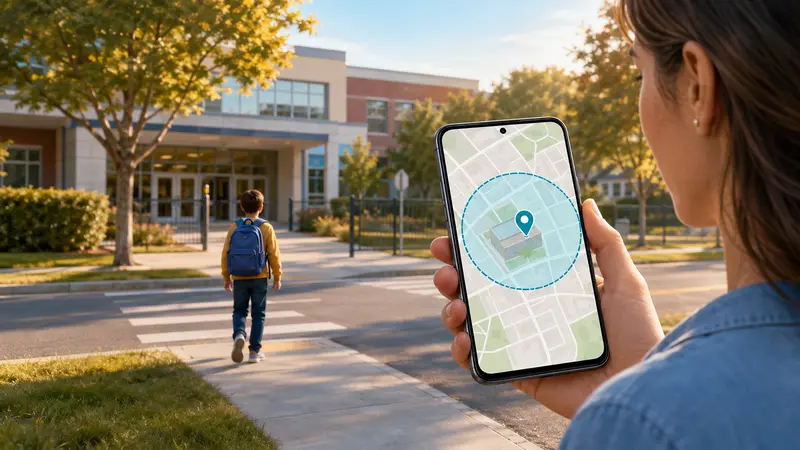
A geofence is a virtual boundary around a real place. The parent selects an address, chooses a radius, and enables entry alerts, exit alerts, or both.
The Android phone estimates its position using GPS, nearby Wi-Fi, cellular networks, and device sensors. Google explains that combining these signals can improve speed and accuracy, especially indoors or near buildings where GPS may be obscured.
When the phone crosses the saved boundary, the app can report an entry or exit. Some services use a dwell period to avoid false alerts when a child merely passes the edge of a zone.
This is event-based location awareness, not continuous map watching. It can confirm routine arrivals while reducing repeated “Are you there yet?” messages.
A 2024 Pew Research Center survey found that 95% of U.S. teens ages 13 to 17 had or had access to a smartphone at home, making the phone many children already carry a practical location tool.
Why location alerts may not be instant
Android balances accuracy, speed, and battery life. Android’s developer documentation says background limits changed typical geofencing responsiveness from tens of seconds to approximately two minutes, while improving battery performance by up to 10 times on some devices.
Delays become more likely when:
- The phone is inside a large building or near tall structures.
- Precise location or Location Accuracy is disabled.
- Battery Saver restricts the app.
- Background data is off.
- The phone has no mobile data or Wi-Fi connection.
- The child geofence is too small.
- The phone is off, out of battery, or in airplane mode.
No app can report a new location from a powered-off phone.
How to create safe zones that work
Start with home, school, and one regular activity or trusted adult’s home. Test those three before adding more.
- Cover the real place. A school zone should include the campus, entrance, and normal pickup or bus area.
- Avoid an overly tight radius. Normal location drift can make a small zone produce false exits.
- Keep nearby zones separate. Overlapping boundaries can create confusing alerts.
- Enable precise and background location. “Allow only while using the app” may not support background detection.
- Review battery and data controls. Confirm that Android may run the app and use data in the background.
- Test entry and exit separately. Leave the zone fully, confirm the exit alert, then return and confirm entry.
Troubleshooting missed or repeated alerts
| Problem | Likely cause | What to try |
|---|---|---|
| No alerts | Location or permission is disabled | Enable Android Location, precise location, and required background access |
| Alerts arrive late | Weak connection or background limits | Enable background data and review battery optimization |
| Repeated exit and entry | Zone is too small | Widen the boundary or enable dwell time |
| School alert fires while passing | Zone overlaps a road | Recenter or resize it |
| Location is wrong indoors | GPS is obscured | Enable Location Accuracy and Wi-Fi scanning where appropriate |
| App suddenly stops | Manufacturer put it to sleep | Allow background battery use and check sleep-app settings |
Change one setting at a time and repeat the same route so you can identify the real cause.
Use child geofencing transparently
Explain which places are saved, which crossings trigger alerts, who can view the data, whether history is retained, and what happens when an alert is missing.
For teenagers, geofencing can be an exchange: fewer check-in messages and more independence in return for agreed safe zones. Do not treat a late alert as proof that a rule was broken until you check the connection, battery, permissions, and latest reported location.
Only monitor a device you own or are legally authorized to manage. Consent and notice requirements vary by jurisdiction.
Frequently asked questions
What is the best geofencing app for parents on Android?
FlexiSPY is our choice for comprehensive monitoring because Location alerts sit alongside a latest-location view and broader device context. Life360 is better for mutual family sharing, while Family Link is the strongest free starting point.
Can I get an alert when my child arrives at school?
Yes. All seven apps offer a way to save a school location and receive an arrival or departure alert, although availability may depend on the plan, device, and Android settings.
Is Google Family Link geofencing free?
Yes. Family Link lets parents create Family Places and enable Arrives and Leaves notifications for a supervised compatible Android device without another paid subscription.
Does geofencing track a child continuously?
The app needs background location access to detect crossings, but the alert is event-based. Live tracking and location history are separate features.
Will a child geofence work if the phone is off?
No. A powered-off phone cannot determine or report a new location. Airplane mode, a dead battery, disabled location, or missing internet can also prevent alerts.
Does Android geofencing drain the battery?
It uses some power, but Android geofencing is designed to balance responsiveness with battery life. Repeated high-accuracy live updates generally use more power than waiting for a boundary event.
How large should a safe zone be?
There is no perfect universal radius. Cover the whole real location, include the normal entry route, and test it. A slightly wider reliable zone is better than a tight boundary that generates false alerts.
Final verdict
For parents who want a child geofence plus deeper Android monitoring context, FlexiSPY is the most comprehensive choice in this comparison. Its Location alerts and latest-location dashboard support both automatic awareness and follow-up checks.
Choose Life360 for a shared family map or Family Link for a free Android starting point. Qustodio, Kidslox, Bark, and FamiSafe suit families prioritizing screen time, route history, online-risk detection, or general ease of use.
Whichever app you choose, setup determines whether it works. Enable the right permissions, create realistic safe zones, review battery restrictions, and test both arrival and departure. The best geofencing app for parents is the one the family understands and has verified in the real world.
Sources
- Android Developers: Background location and battery life
- Google Android Help: Location settings and Location Accuracy
- Google Family Link: Find and manage a child’s location
- Life360: Places
- Qustodio: Location monitoring
- Kidslox: Parental GPS tracker
- Bark: Location alerts and tracking
- FamiSafe: Location tracking
- Pew Research Center: Teens, Social Media and Technology 2024