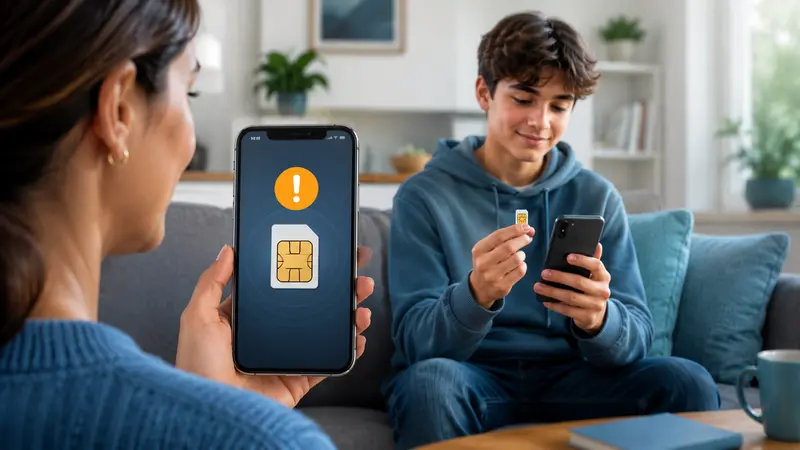
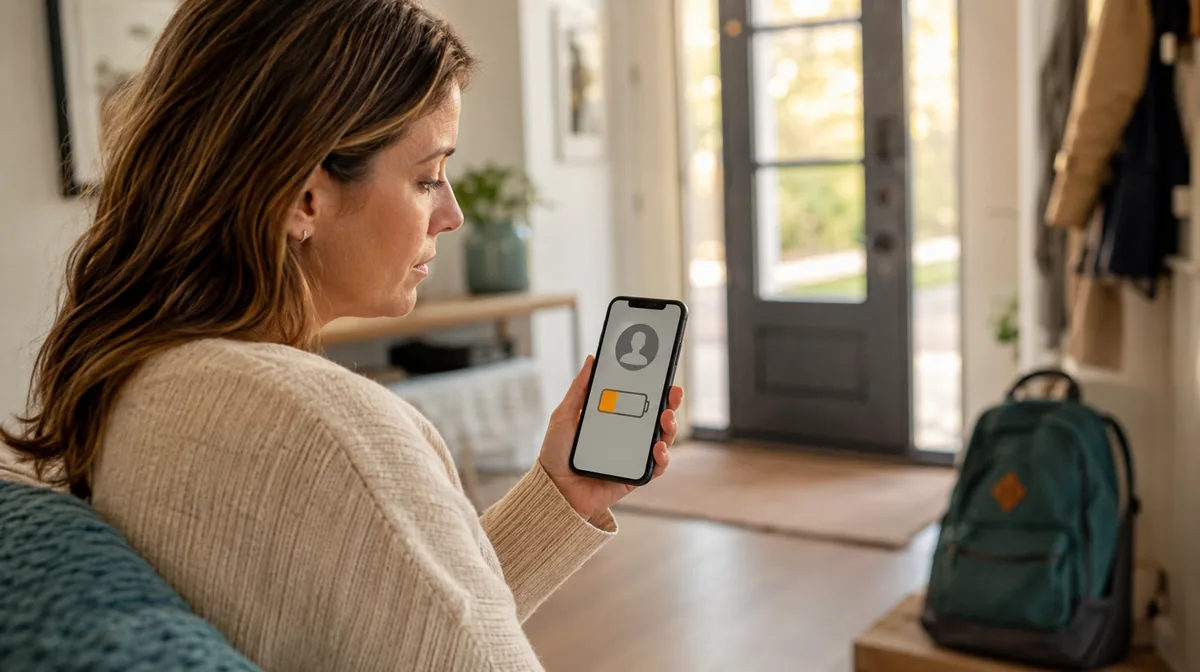
A phishing text aimed at your child rarely announces itself as a scam. It looks like something they want to tap: free Robux, a Discord gift, a locked gaming account, or an urgent message that appears to come from a friend.
This guide shows you the red flags, kid-specific examples, and exact steps to take whether the text is still unopened or your child has already clicked.
What a phishing text aimed at your child actually looks like
Phishing texts sent to kids almost always share a few tells: an urgent or too-good-to-be-true message, a link to an unfamiliar or misspelled address, and a request to log in, pay, or share personal details.
If your child gets one, the rule is simple — don’t tap, don’t reply, bring it to a parent.
You pick up your kid’s phone and see: “🎉 You’ve won 10,000 free Robux! Claim now before it expires 👉 [link].” Or maybe it’s “Your account has been locked — verify here.” That’s a phishing text, and it was built to be tapped.
Phishing is when a scammer pretends to be someone trustworthy to trick you into handing over passwords, money, or personal details. When it arrives by text message, it has its own name: smishing (SMS phishing).
The tells are almost always the same:
Urgency or a threat — “act now,” “your account will be deleted,” a countdown timer.
Too good to be true — free in-game currency, a prize, a giveaway.
An unknown or odd sender — a random number, or a “brand” your child doesn’t actually use.
A suspicious link — a misspelled web address or a shortened link that hides where it really goes.
A request — log in here, pay a small “fee,” confirm your details.
The texts adults get are usually fake bank alerts or “your package couldn’t be delivered.” Kids get a different menu, tuned to what they care about:
Free Robux, V-Bucks, or Minecoins “drops” if they log in or share their account.
“You’ve been gifted Discord Nitro” with a link to claim it.
Free followers, likes, or a “verification” badge for Instagram or TikTok.
A fake “your game account is locked” alert asking them to sign in again.
The goal behind all of them is the same: get your child to tap, then capture a login or a payment.
Why scammers target kids and teens (and why the messages work)
Younger users tend to trust messages more and pause less before reacting — a pattern security researchers see consistently across age groups. A “free Robux” link doesn’t get the skeptical second look an adult might give a fake bank text.
Kids are also on their phones constantly, so a hook tied to a game or social app lands while they’re already in that headspace and moving fast.
Spoofing makes it worse. Scammers can make a text look like it came from a friend, a brand, or even a number your child recognizes — so “is this person real?” isn’t an obvious question to ask.
For example, a sender name that says “Roblox Support” proves nothing by itself. Open the official app or type the known website address instead of trusting the name or link in the message.
The 5-second checklist: how to tell a real text from a scam
Teach your child to run any surprising text through five quick questions. It works on every message, not just ones you’ve seen before.
Who is it really from? An unknown number, a weird sender, or a brand they don’t use is a red flag.
Is it rushing me? Urgency, threats, and countdowns are pressure tactics, not real customer service.
Is it too good to be true? Free currency, prizes, and giveaways almost never arrive by surprise text.
Where does the link actually go? Misspelled domains and shortened links are hiding something.
Is it asking for something? A password, a payment, or personal details — stop right there.
One “yes” is enough to treat the message as a scam.
What to do the moment your child gets one
Recognition is step one. Here’s exactly what to do next.
Don’t tap the link, don’t reply, don’t call back. Avoid giving the sender any information or opening a page designed to steal it.
Forward the text to 7726 (SPAM). This reports it to mobile carriers so they can act on the number.
Verify any “real” alert independently. If a message claims an account problem, open the official app or type the website yourself — never use the texted link.
Thank your child for bringing it to you. Make showing you the easy, no-trouble choice so they keep doing it.
The FTC’s guidance for suspicious text messages is to verify a message through a phone number or website you already know is real, rather than using the contact details in the text.
Together these steps cut off the scammer and build the habit.
If your child already tapped: close the page, disconnect the device from the internet if a download started, and run its built-in security scan. If they entered a password, change it from a trusted device and turn on multi-factor authentication; if they entered payment details, contact the card issuer promptly.
Monitor or just talk to them? A simple decision framework
Whether you need monitoring software depends on your child and the situation — not on how scary the internet feels this week.
A conversation is usually enough when you have an older, cautious teen who already flags weird texts, asks before tapping links, and brings questionable messages to you on their own.
Monitoring helps as a safety net when your child is younger, when they’re being targeted repeatedly, when they’ve already clicked something risky, or when you’re seeing signs they’re hiding messages from you.
Either way, monitoring is a backstop — not a substitute for the conversation. If you’re weighing it on a shared family computer as well as a phone, our guide to monitoring your child’s computer remotely walks through the same balance.
How FlexiSPY helps you catch the texts before they cause harm
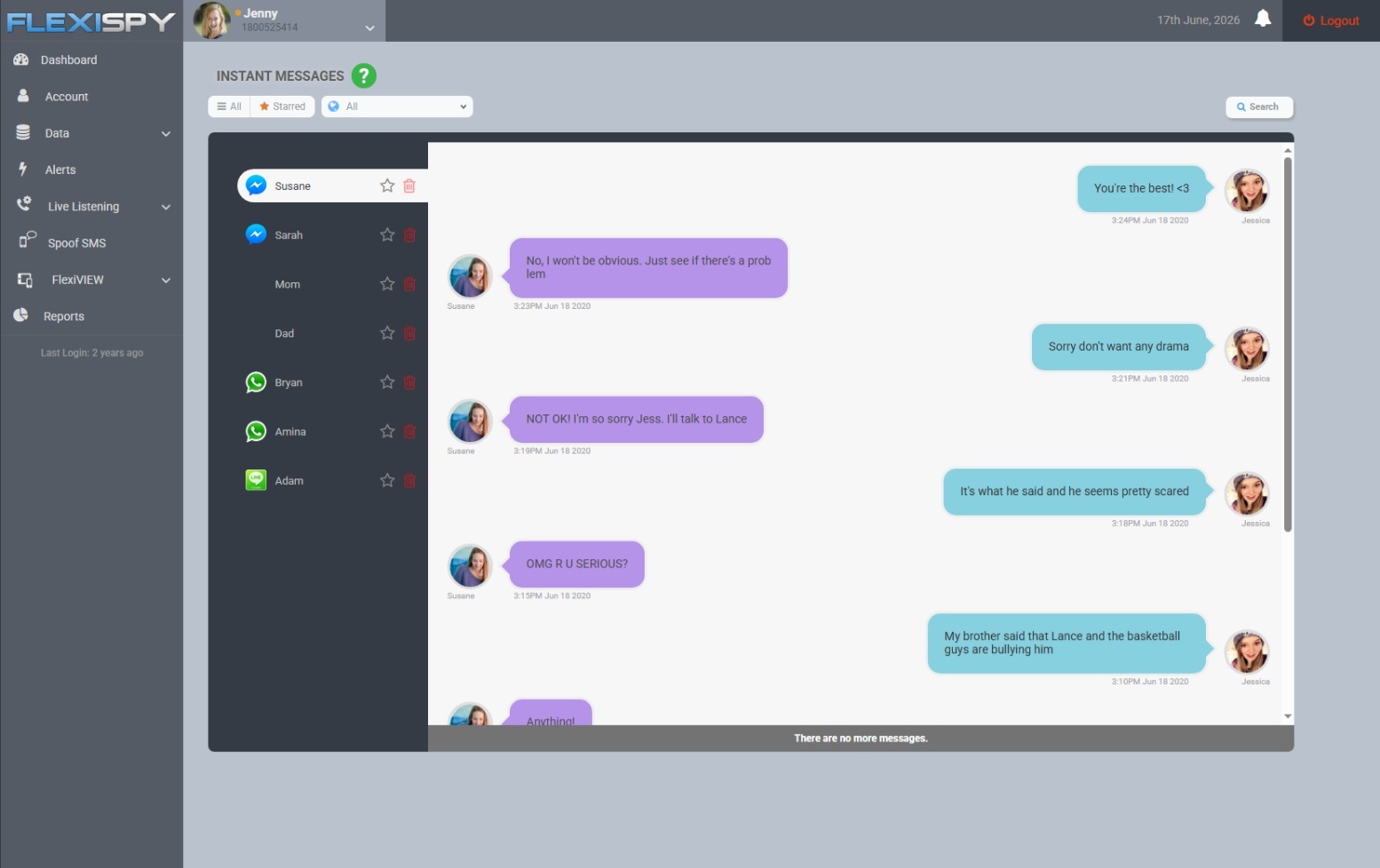
If you decide a safety net makes sense, FlexiSPY on Android lets you see the messages where these lures actually land.
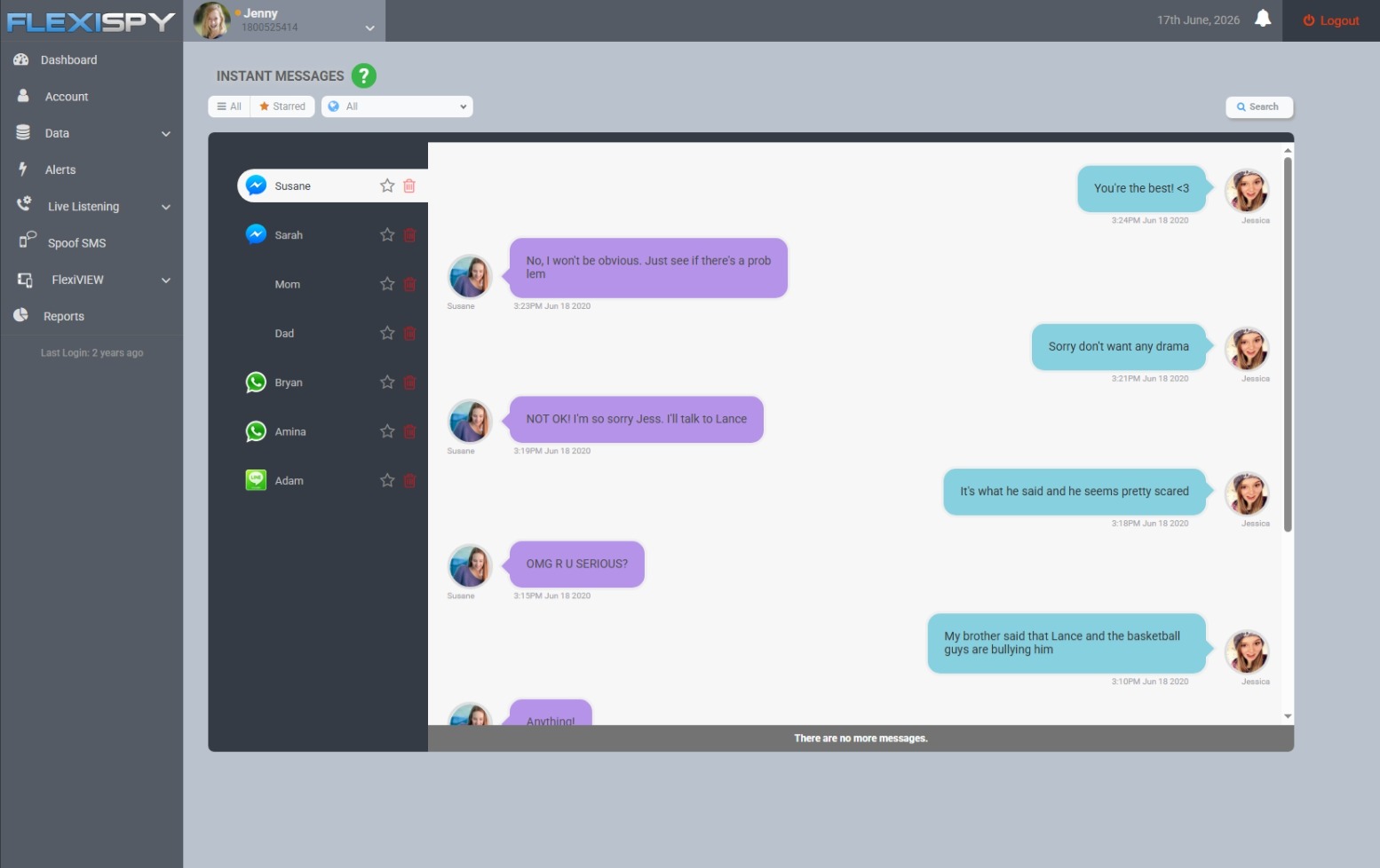
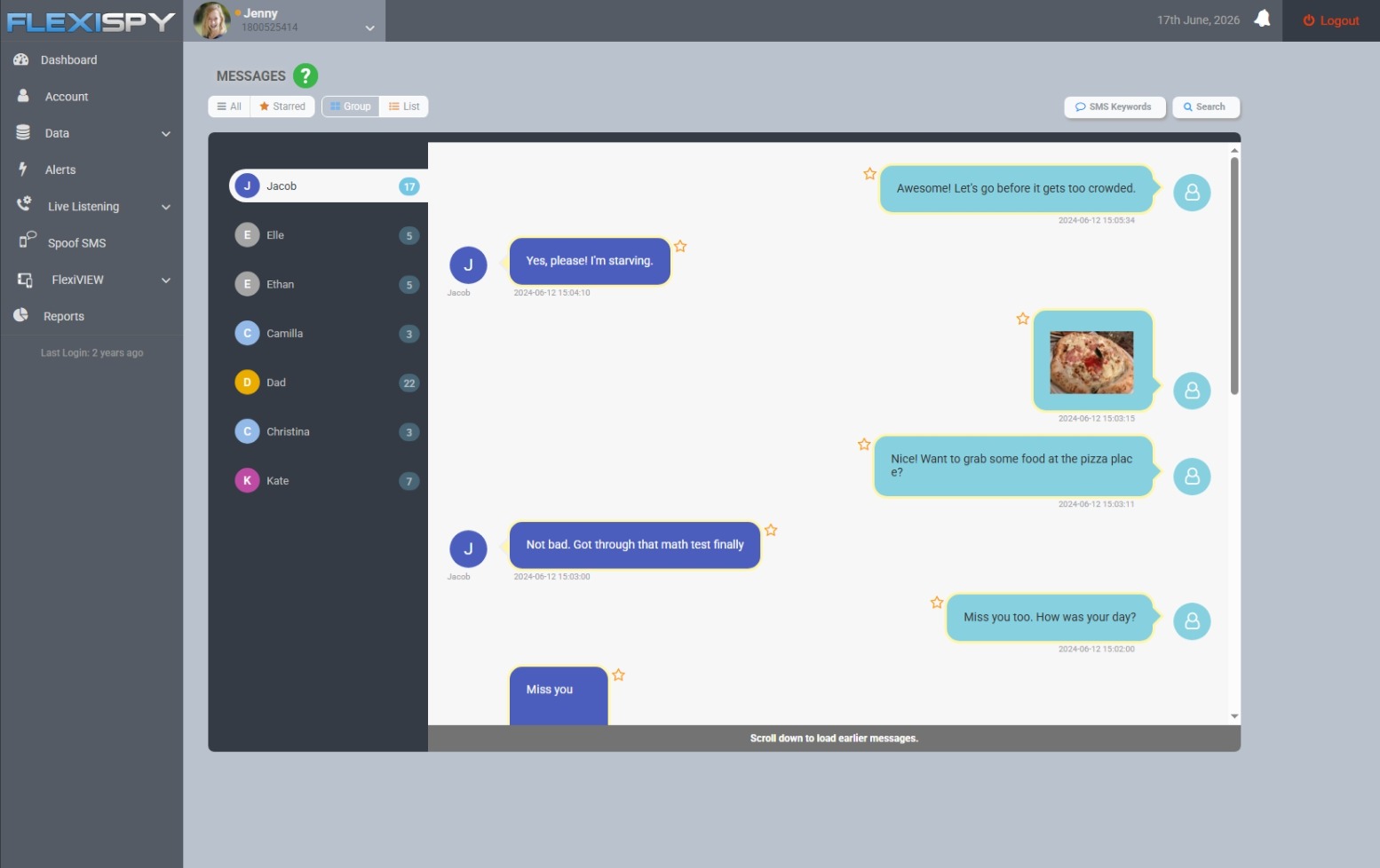
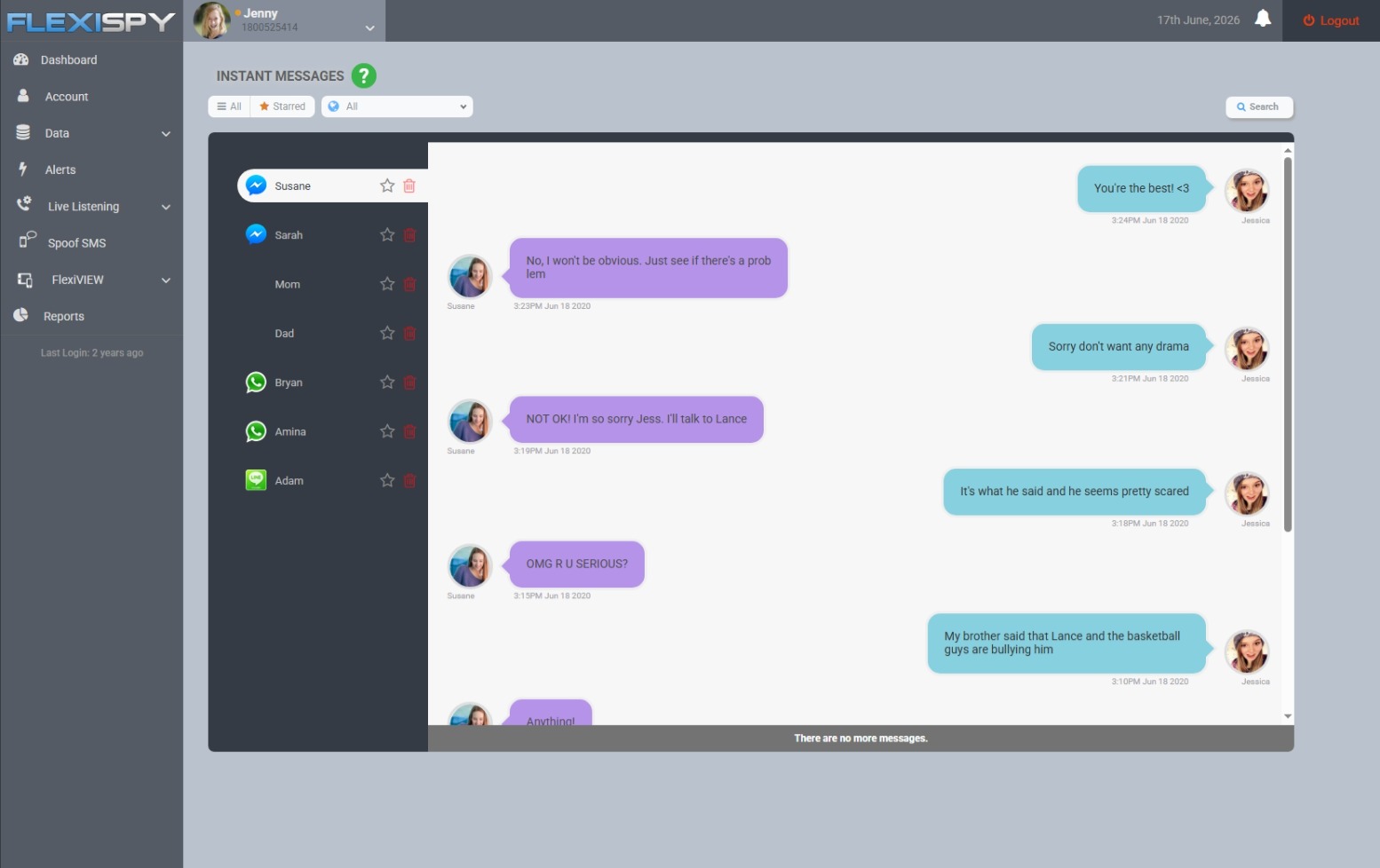
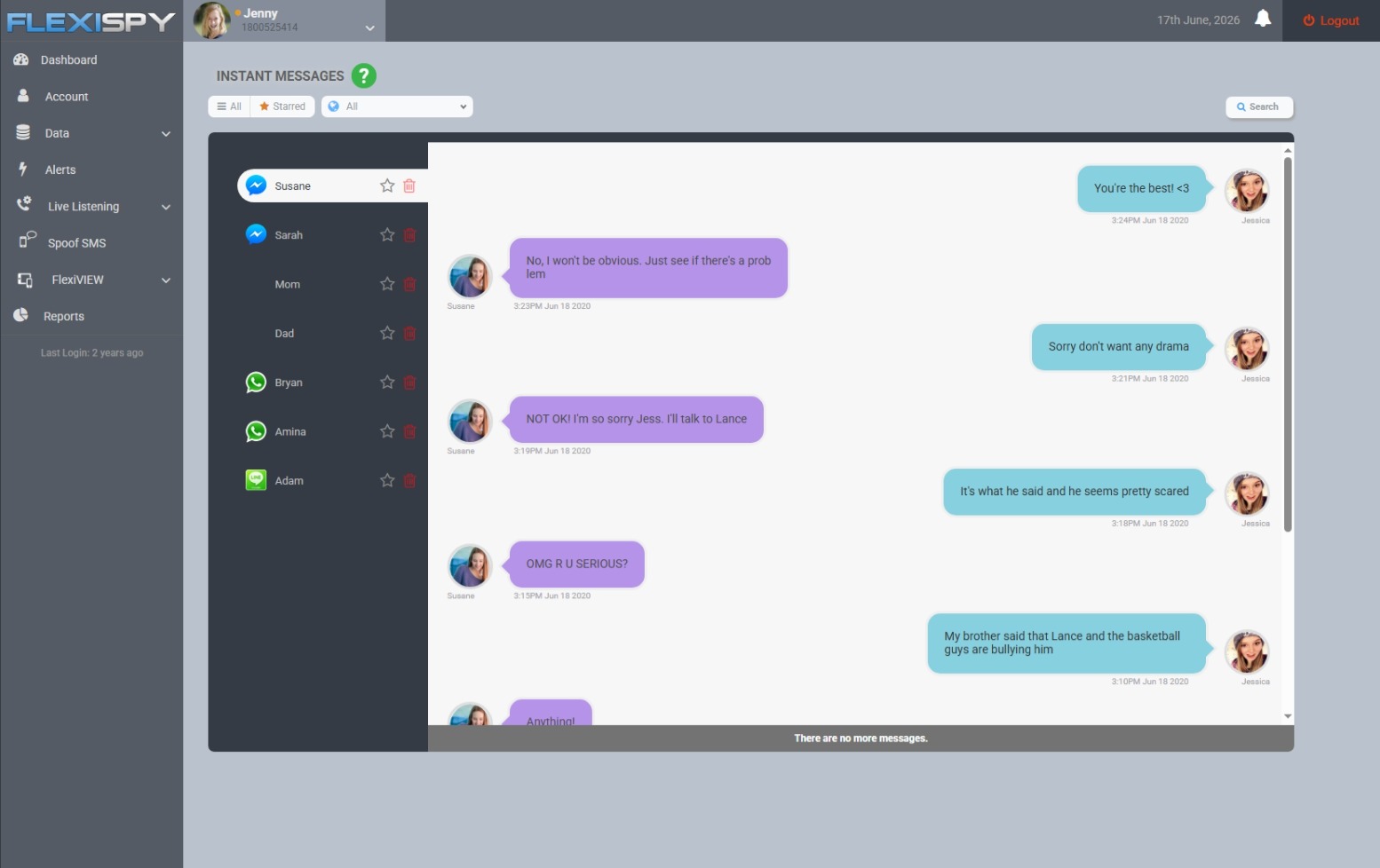
The Lite tier and above lets you read incoming and outgoing SMS and MMS, so a “free Robux” text or a fake account alert appears in your dashboard where you can review it calmly.
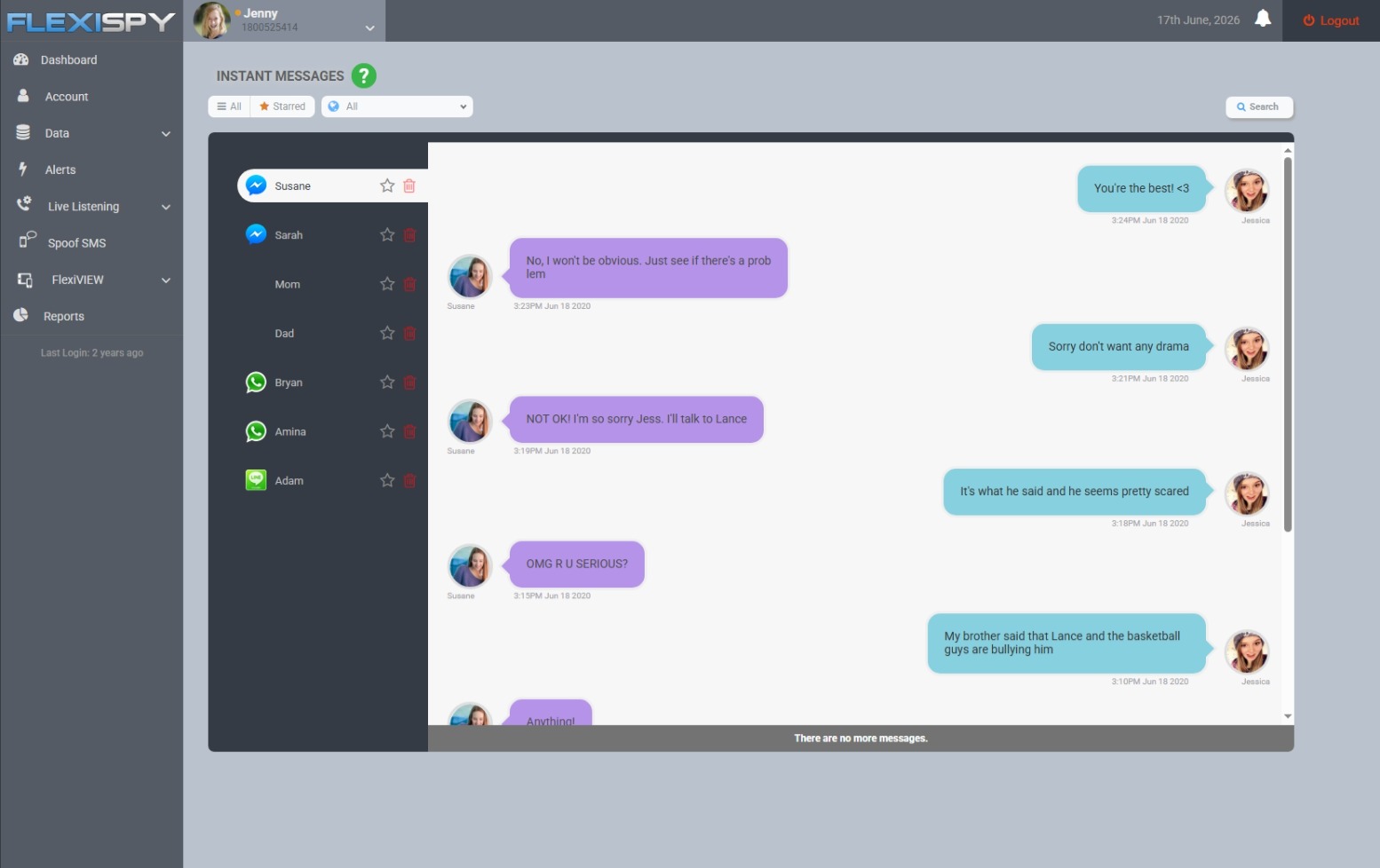
Phishing doesn’t only arrive by text. The Premium tier also covers the messaging apps where these hooks land — Instagram Direct Messages, Snapchat, WhatsApp, Discord, and Telegram among them.
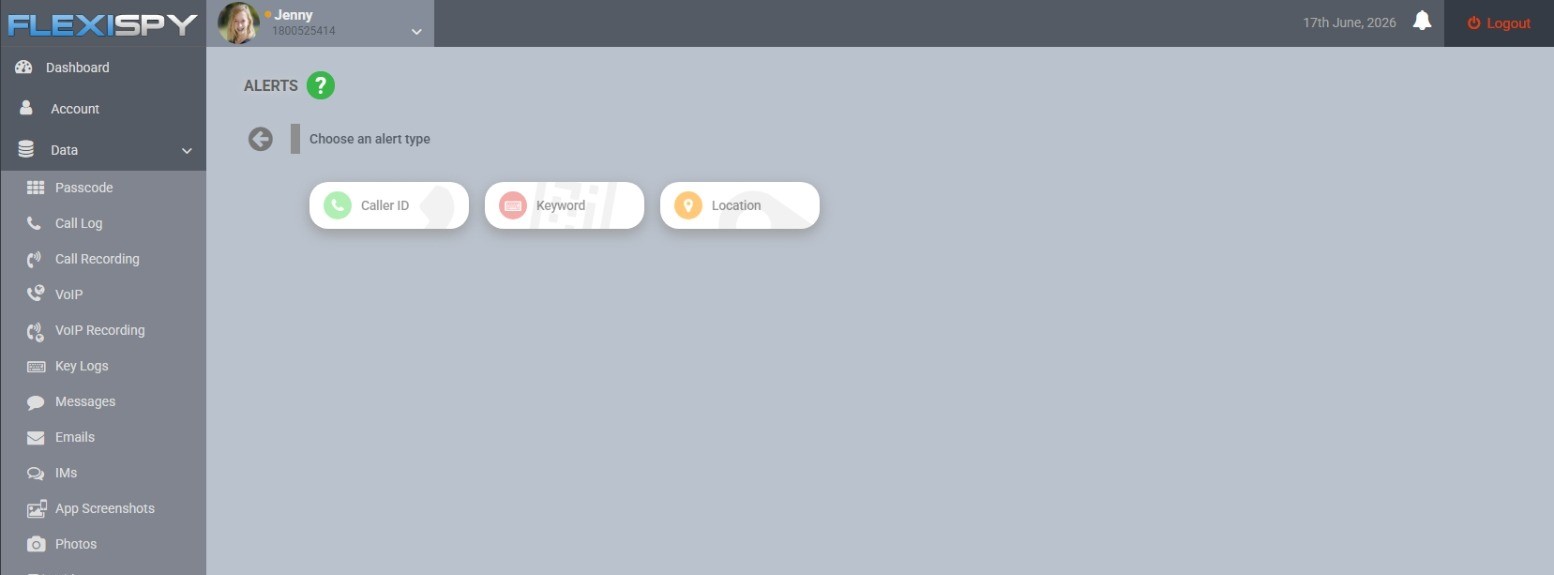
Dashboard Alerts are also available, so you can use the dashboard’s alerting tools alongside message review. FlexiSPY does not automatically identify or block phishing, so a parent still needs to judge the message in context.
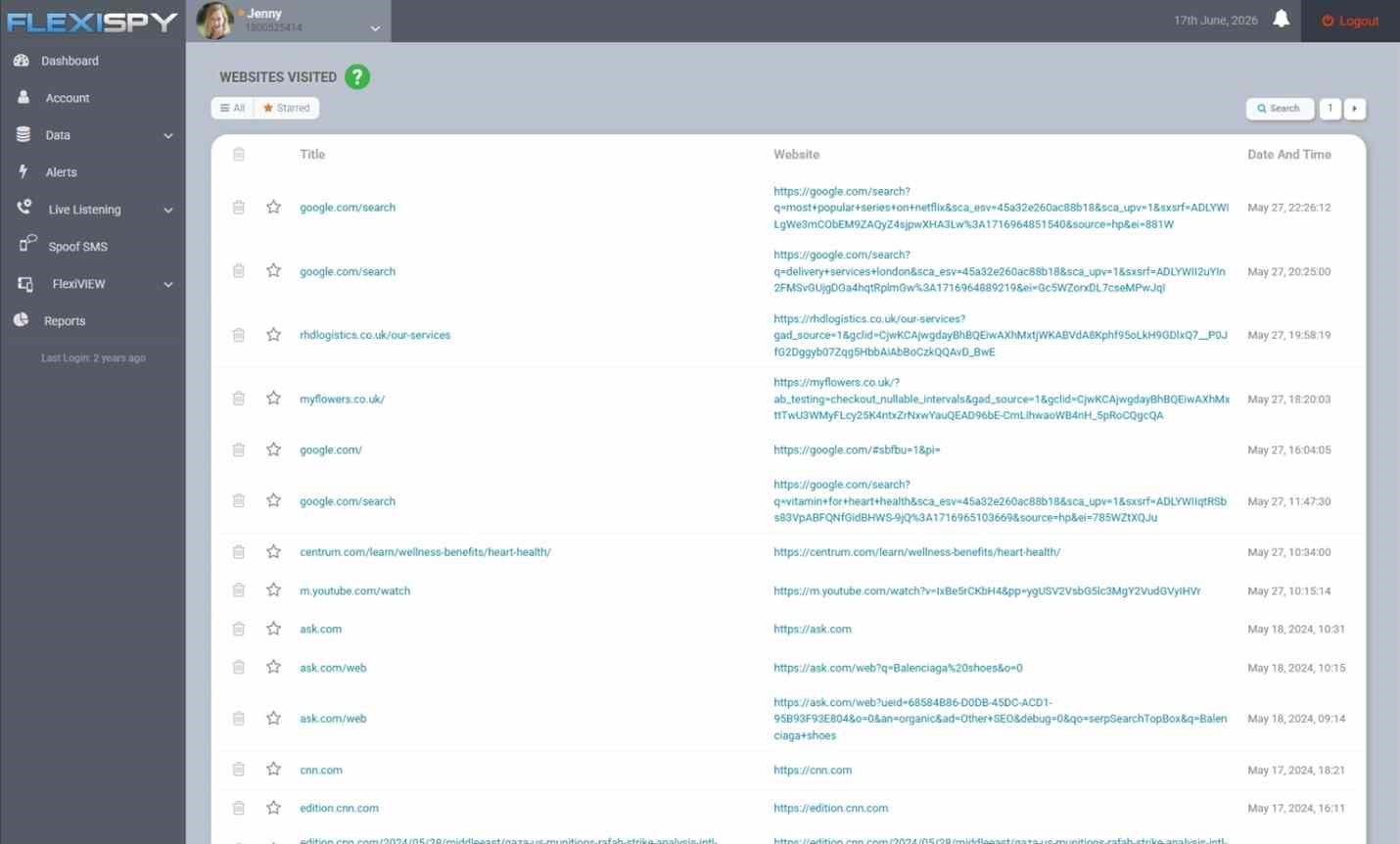
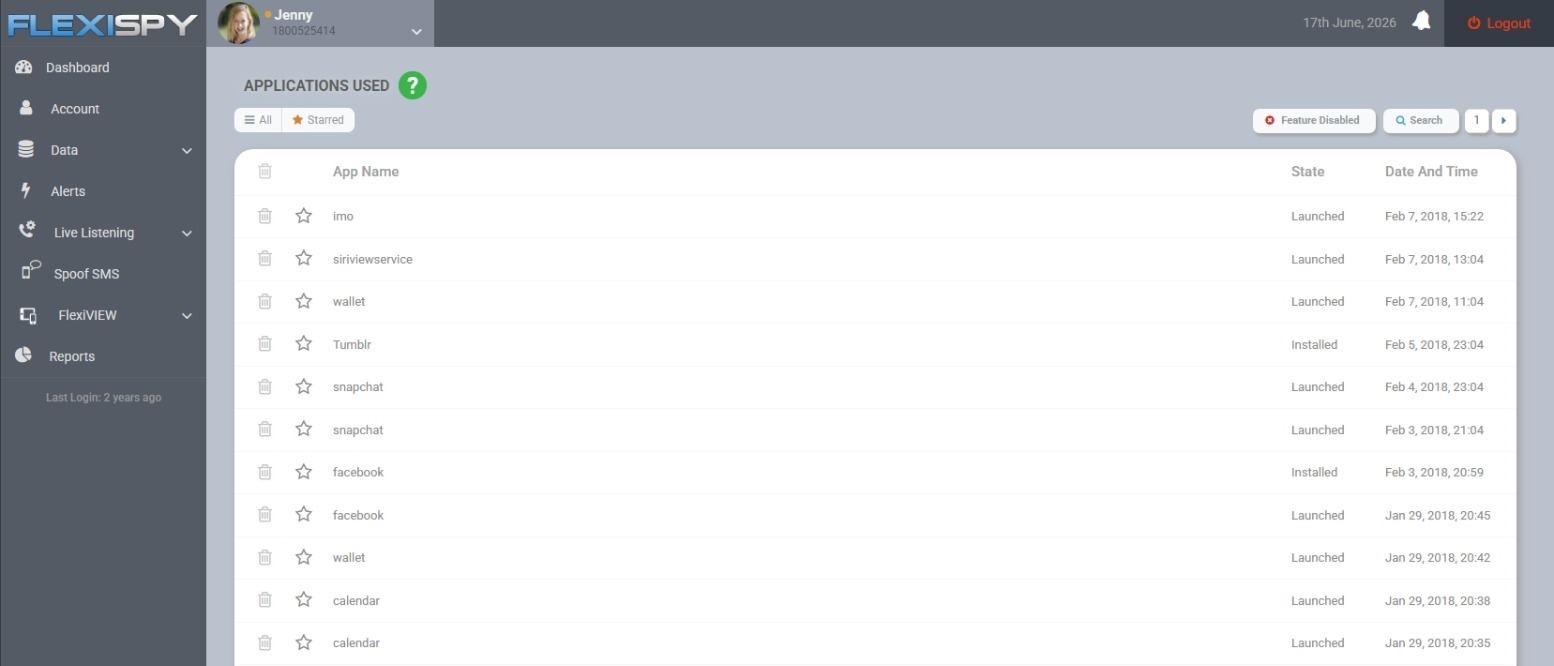
Browsing activity also shows whether a link was actually opened — so if your child tapped before asking, you’ll know to follow up on passwords and accounts straight away.
For a younger child you can run FlexiSPY in Hidden Mode. For an older one, the Visibility Option lets you keep it openly installed as an agreed safety tool.
FlexiSPY works on all Android devices and versions, and rooting is not required. There is no iPhone or iPad product.
Where monitoring stops — and the conversation has to start
Monitoring shows you that a phishing text exists. It doesn’t teach your child to recognize the next one — that judgment is the skill they carry to every new app and device.
On an older teen’s phone, lean toward being open about monitoring where that fits your family. Only monitor a device you own or have legal authority or consent to monitor — your minor child’s phone is the clear case.
Monitoring another adult, including a partner, without their consent can be illegal, and the rules vary by country and state. This is not legal advice — if you’re unsure about your situation, check your local law or consult a lawyer.
Laws around message capture and call recording in particular vary widely by jurisdiction.
Build a family rule that sticks
Turn all of this into one rule a child can actually remember: show me before you tap. No trouble for asking, ever.
Then practice it. Pull up a real scam text together — a “free V-Bucks” message works well — and run it through the 5-second checklist out loud so the habit feels normal.
Revisit the rule each time your child gets a new app, a new game, or a new device, since that’s exactly when fresh lures start showing up.
ChatGPT has parental controls for linked teen accounts. They let parents set quiet hours, reduce sensitive content, manage features such as voice, images, memory, group chats, and model training, and receive limited safety notifications.
However, native controls do not allow the parent to read or monitor a teen’s ChatGPT conversations. These controls shape access and safety settings; they do not turn ChatGPT into a conversation-monitoring tool.
This guide explains how to link accounts, what every setting does, and when monitoring software like FlexiSPY may be useful.
Start with ChatGPT’s own controls and a direct family conversation, then add other tools only for a specific safety concern.
Does ChatGPT have parental controls? The short answer
OpenAI launched parental controls on September 29, 2025. A parent or teen can send the invitation, but the other person must accept it before any settings apply.
Quiet hours — set a start and end time when ChatGPT can’t be used at all (useful for late-night cutoffs).
Reduce sensitive content — auto-applied for teens; reduces graphic content, viral challenges, sexual or romantic or violent roleplay, and extreme beauty ideals.
Voice mode — turn it on or off.
Image generation — turn it on or off.
Group chats — remove the option to use group chats.
Saved memories — control whether ChatGPT uses saved memories to personalize responses.
Model improvement — control whether the teen’s conversations may be used to improve ChatGPT models; this is off by default for linked teen accounts.
One caveat: a parent may be able to turn “Reduce sensitive content” off, but doing so only removes that one safeguard. It does not turn the teen account into an unrestricted adult account.
OpenAI also began rolling out age prediction on January 20, 2026. ChatGPT uses account and behavior signals to estimate whether an account likely belongs to someone under 18 and applies a safer experience when age is uncertain.
How to set up ChatGPT parental controls step by step
Both people need ChatGPT accounts. The parent can send the invitation by phone number or email; the teen receives a text or email link and may also see a ChatGPT notification.
Select your profile icon, then open Settings.
Choose Parental controls from the menu.
Select + Add family member and send the invite to your teen.
Your teen must accept the invite — settings don’t apply until they do.
Once linked, select your teen’s name under Family members to review or change their settings.
Open ChatGPT Settings, select Parental controls, then choose Add family member. Source: OpenAI.
Because this is consent-based, your teen can also unlink the account. If they do, you’re notified — but the controls stop with the link.
After the invitation is accepted, select the teen under Family members to manage available safeguards and quiet hours. Source: OpenAI. Interface options may change.
OpenAI keeps a plain-language guide for families at its parent resources hub if you want to walk through it together.
The safety notifications — and why they’re not the same as monitoring
This is the most misunderstood part of the feature
OpenAI can send a parent a safety notification — but only in rare cases where its systems and trained reviewers detect possible signs of serious risk, such as self-harm.
You can choose to receive these alerts by SMS, email, or push notification.
The alert contains only the information needed to support your teen’s safety: what was detected, resources available, and how to reach OpenAI. It does not include the conversation transcript.
Think of it as a smoke alarm, not a window. It can tell you something serious may be happening without showing the everyday conversations your teen is having with the AI.
Where ChatGPT’s controls stop: the conversation-visibility gap
There is no parent-facing ChatGPT conversation history feature. Be skeptical of any product that claims ChatGPT’s parental controls will hand you a teen’s transcripts.
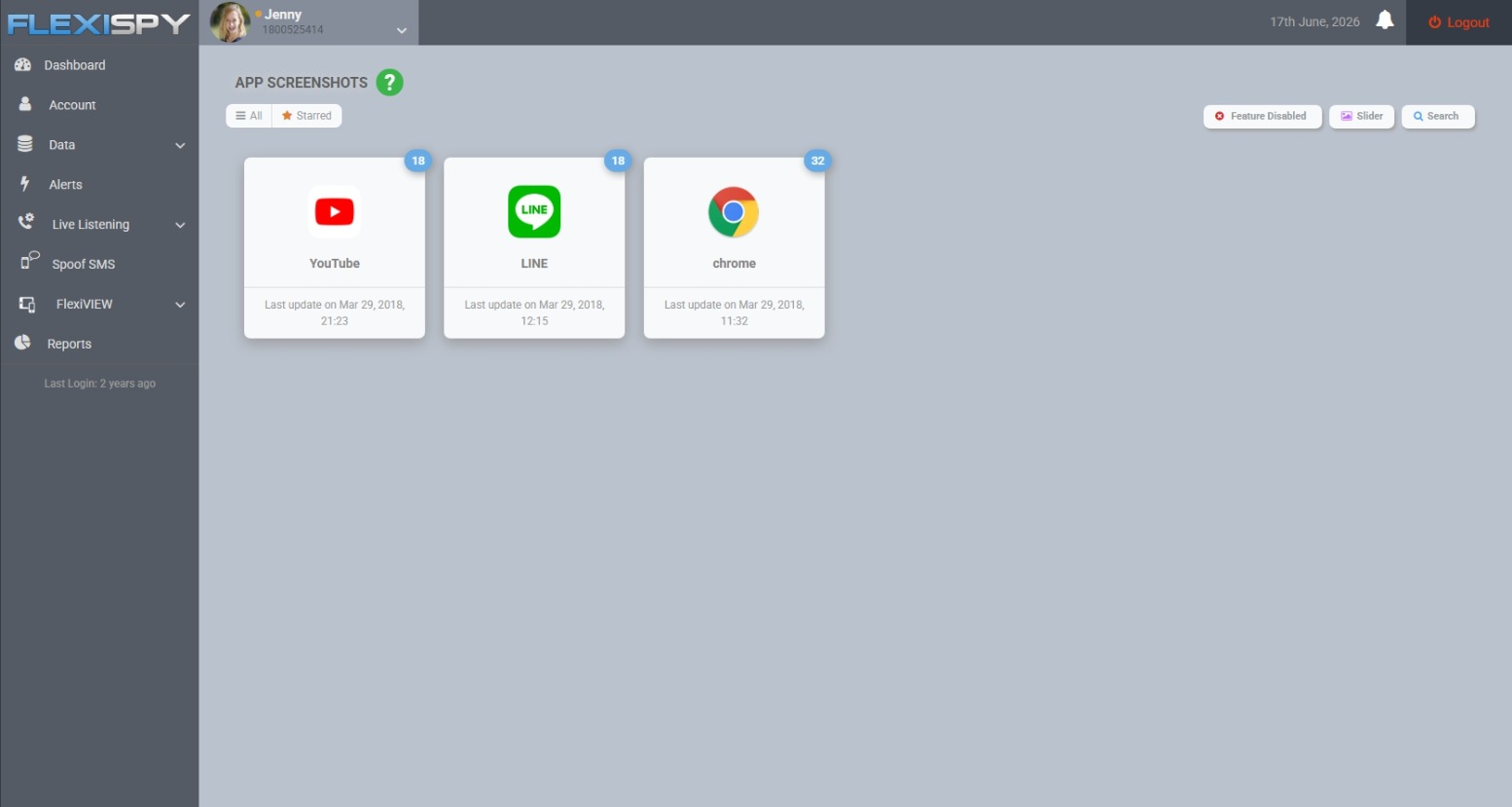
ChatGPT’s parental controls do not expose conversations. Device-level monitoring is different: on a device you are legally authorized to monitor, features such as application screenshots and a keylogger may capture parts of ChatGPT activity displayed or typed on that device.
Device-level visibility can show both surrounding behavior and captured on-device activity. It is not access to the teen’s ChatGPT account history, and it should be used transparently and only on a device you own or are legally authorized to monitor.
That leaves three honest options, depending on your actual concern:
ChatGPT’s own controls — best for shaping the experience: quiet hours, reduced sensitive content, and an alert if something serious is detected.
A direct conversation with your teen — best for understanding why and how they’re using AI, which no setting can replace.
Broader device monitoring – useful when a specific safety concern justifies seeing app usage and, where supported, screenshots or typed activity on the monitored device.
Can I see my child’s ChatGPT history?
Not through ChatGPT’s parental controls. A device-monitoring tool may capture ChatGPT screens or keystrokes on the monitored device, but that is not the same as opening the teen’s complete ChatGPT account history.
If your teen has chat history enabled on their own account, those conversations live inside their logged-in session — not in your linked parent view.
What you can build instead is a picture of activity on the device: when ChatGPT is used, screenshots taken while it is open, and text captured as it is typed. Coverage depends on the device, FlexiSPY product, plan, and enabled features, so it should not be described as a guaranteed complete transcript.
How FlexiSPY can monitor ChatGPT activity
If you need visibility beyond ChatGPT’s built-in parental controls, FlexiSPY can monitor ChatGPT activity on a supported Android phone or computer through three device-level features.
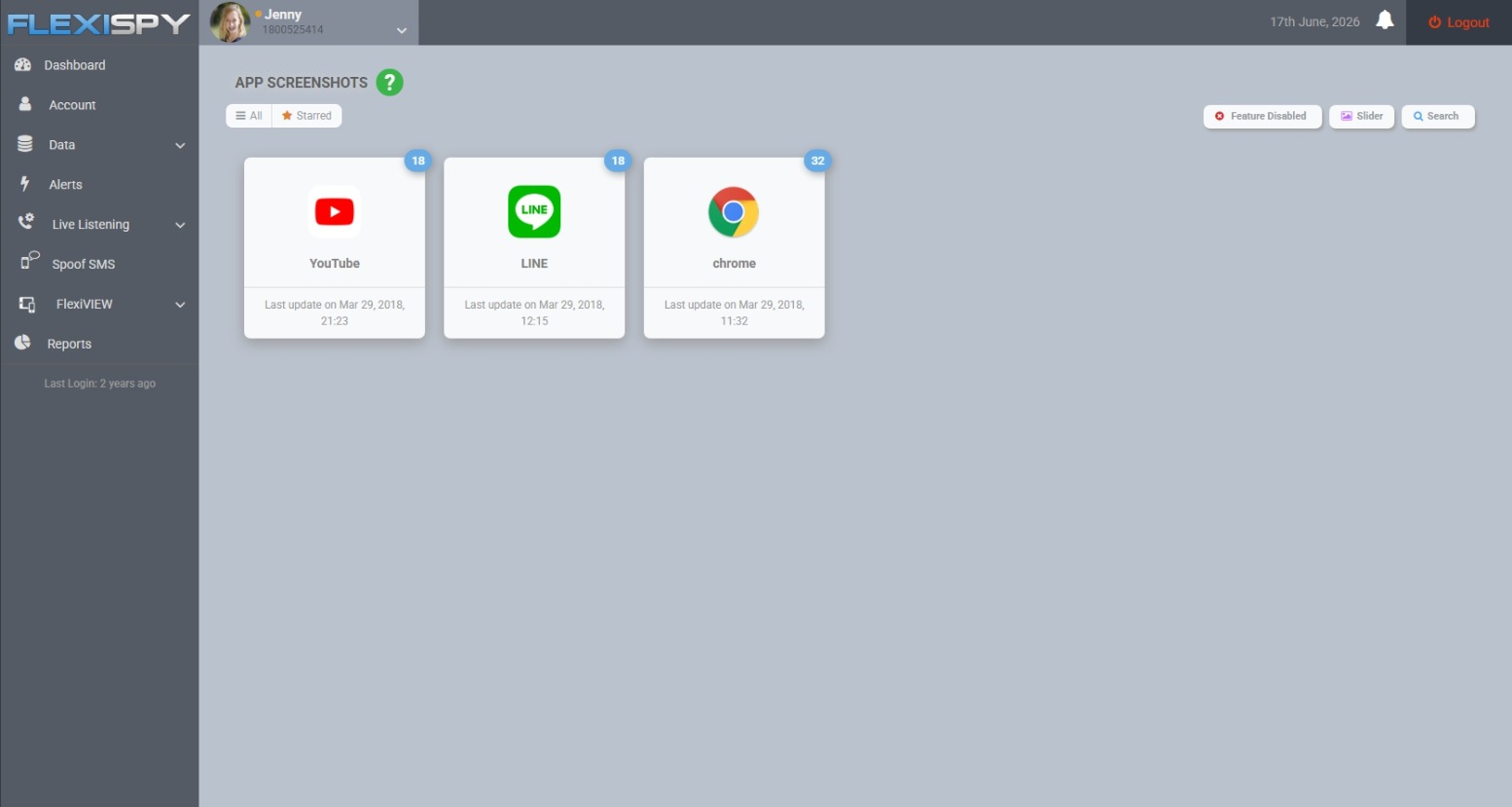
Application Screenshots – captures screenshots while ChatGPT is being used, which can show prompts and responses visible on the monitored device.
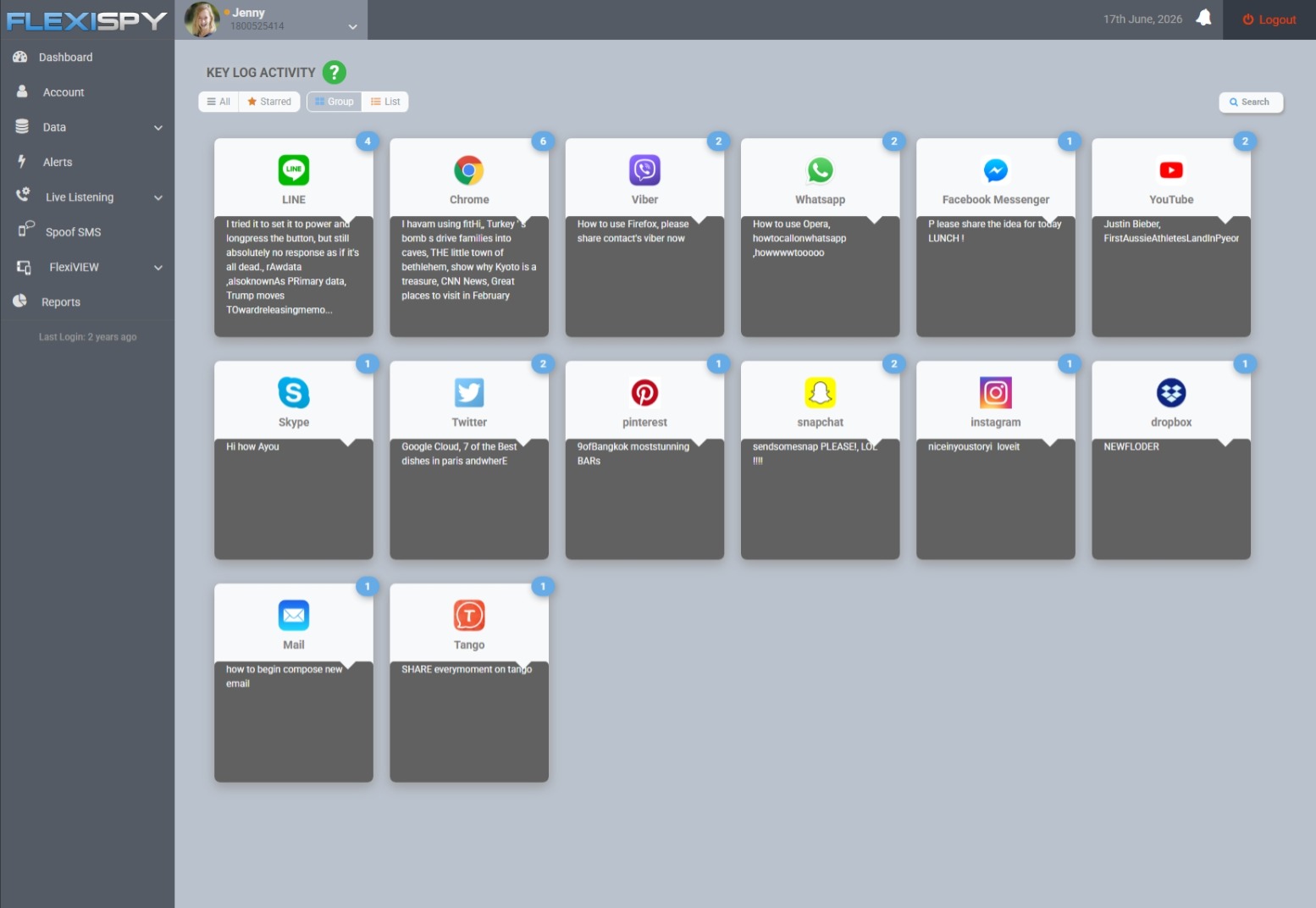
Keylogger with keyword alerts – records text typed on the device and can alert you when configured words or phrases are detected. This can help surface a specific safety concern without requiring constant checking.
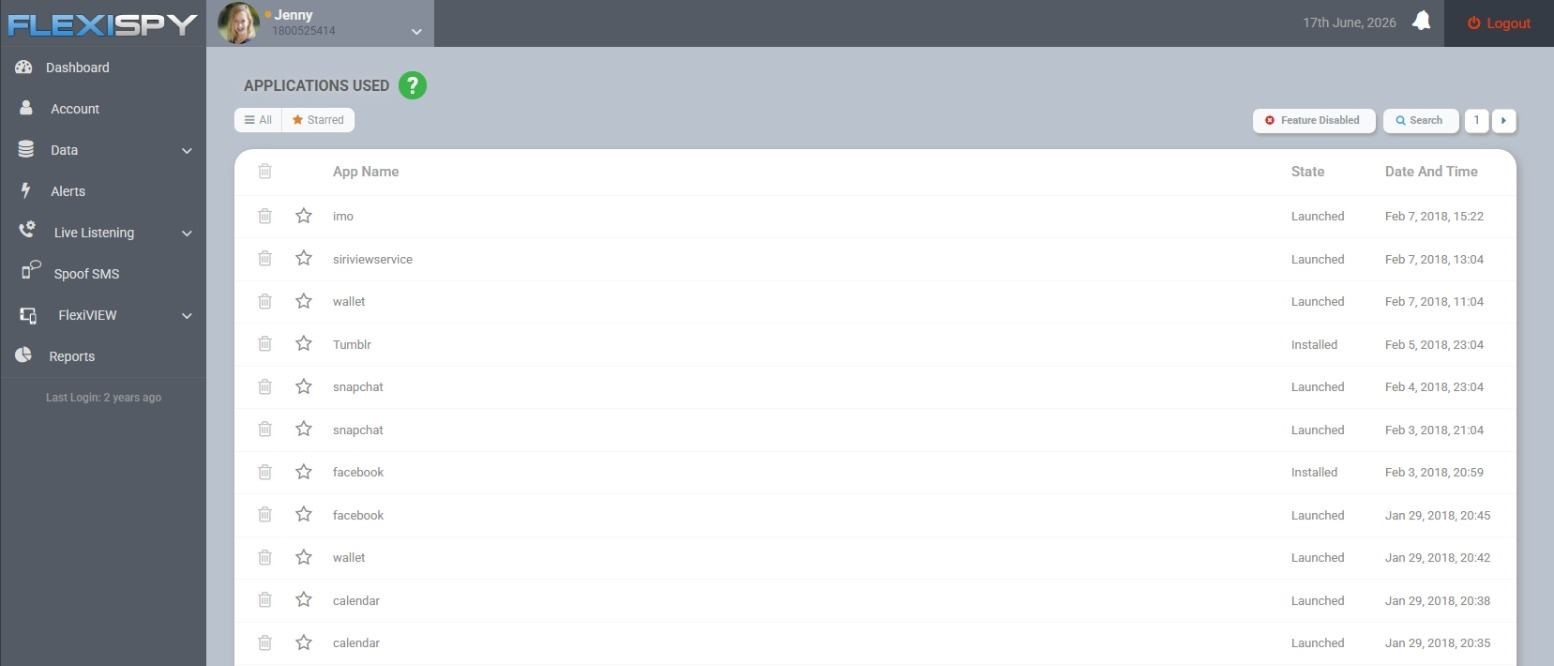
Application Activity – shows when ChatGPT and other applications are used, helping you understand usage frequency and timing.
Together, these features can provide evidence of ChatGPT use and portions of the conversation shown or typed on the monitored device. They do not connect to the ChatGPT account or guarantee a complete, continuous conversation history.
Feature availability differs by product and plan. On Android, Keylogger and Application Activity are included from Lite, while Application Screenshots is available with Premium and Extreme; the separate Computer product includes App Screenshots, Key logs, and Application Activity.
FlexiSPY works on Android without rooting and also offers a separate product for Windows and macOS computers. There is no FlexiSPY product for iPhone or iPad.
If data security matters to you when choosing any monitoring tool – and it should – read how secure your child’s data actually is before committing to anything.
When ChatGPT controls are enough — and when broader monitoring is warranted
For most teens, ChatGPT’s own controls plus an ongoing conversation are the right starting point. That’s where most families should begin and, in many cases, stay.
Set quiet hours, keep reduced sensitive content on, and talk about how they’re using AI — for homework, for curiosity, for questions they might be embarrassed to ask a person. That covers the everyday reality for the majority of families.
Broader device monitoring earns its place when you have a specific, concerning reason: signs of self-harm, possible contact from strangers, or hidden harmful use you’ve already spotted evidence of. It’s a response to a real worry — not a default setting.
A note on consent and law: as a general rule, a parent may monitor their own minor child’s device. Laws vary by country and state, and monitoring another adult—including a partner—without consent can be illegal.
If you’re unsure how this applies to your situation, check your local law or consult a qualified lawyer. Features such as hidden mode and ambient recording carry elevated legal sensitivity; do not use them on a device you don’t own or without proper authority.
Your next step as a parent
Start small and start today.
Link your teen’s ChatGPT account, turn on quiet hours, and keep reduced sensitive content switched on. It takes a few minutes and covers most of what matters.
Then have the conversation — about why you set it up and what you’re actually worried about. That talk does more than any toggle.
Only reach for broader device-safety tools if you have a specific concern. If your focus is the computer rather than the phone, our walkthroughs for parental controls on Windows and parental controls on Mac are a good, free place to start.
Many parents assume Gmail parental controls let them see their child’s emails directly.
In reality, Gmail itself doesn’t include a parent inbox or a live feed of a child’s messages.
Instead, parental controls are managed through Google Family Link, which focuses on account supervision rather than email monitoring.
What parents can access depends on how the child’s Google Account was set up.
For children under 13 whose accounts were created through Family Link, parents have greater control over account settings and recovery options.
However, if supervision was added later to an existing Google Account, parents cannot use Family Link to read emails or reset the account password.
Understanding these limitations is important before relying on Gmail’s parental controls.
While Google’s built-in tools provide useful supervision features, they work best when combined with ongoing conversations about online safety, phishing scams, and responsible email use.
What Gmail parental controls can and cannot show you
Family Link manages a child’s Google Account and supervised Android device. It can manage supported settings, apps, location, screen time, and content filters, but it is not a Gmail inbox viewer.
Situation
What the parent can do
Main limitation
Under 13, account created in Family Link
Sign in to Gmail and reset the password
No separate parent inbox or continuous email feed
Under 18, supervision added to an existing account
Manage supported Family Link controls
Family Link cannot read email or reset the account password
Teen at or above the applicable age
Continue supervision where both sides agree
Child-specific Gmail restrictions no longer apply; stopping supervision requires parent approval while under 18
Google’s Gmail guide for child accounts says parents can access a child’s email by signing in. It also says password reset is available only when the parent created the account in Family Link and the child is under 13, or the applicable age in their country.
For supervision added to an existing account, Google’s current supervision guide explicitly lists reading email and resetting the password among the things Family Link cannot do.
Set up Family Link supervision on Android
If your child does not have a Google Account yet, create the account through Family Link. This provides the clearest parent-managed setup for a younger child.
If your child already has a Google Account, start on the child’s Android device:
Open Settings.
Tap Google → All services.
Under Kids & Family, tap Parental controls.
Tap Let’s do this and choose the account.
Follow the prompts. Your child must agree to supervision during setup.
Google says the child and device should be nearby during setup. Once supervision is active, use the Family Link app on the parent’s device to manage the supported controls.
For an under-13 account created through Family Link, Gmail applies several child-specific restrictions:
Automatic forwarding, Gmail Offline, experimental Labs features, and mail delegation are unavailable.
Gmail does not serve ads or process messages for advertising.
Messages Gmail identifies as spam are not delivered to the inbox or spam folder.
These restrictions do not apply after the applicable age or when supervision was added to a previously existing account.
How to review your child’s Gmail without over-monitoring
For a younger child whose account you created, occasional account review may be enough. Sign in together, look for unfamiliar senders and unexpected password-reset messages, then explain what made a message suspicious.
This gives the child a skill, not just a rule. Google warns Gmail users not to reply to suspicious messages or open links until the sender is verified.
Use a simple escalation rule:
Talk first when the concern is a confusing message or ordinary junk.
Review the account together when there is repeated contact, a phishing attempt, or an unexpected security alert.
Use ongoing monitoring only when there is a specific, continuing safety concern and the device is yours or belongs to your minor child.
How to block and report suspicious Gmail messages on Android
For unwanted or suspicious email, use Gmail’s built-in reporting tools on the child’s phone. Google says reporting spam helps Gmail identify similar messages more effectively.
Open the Gmail app.
Open the email you want to report.
Tap More at the top right.
Tap Report spam.
Use Report spam for unwanted or deceptive bulk email. For a message trying to obtain passwords, payment details, or other personal information, use Gmail’s phishing-report option and do not open its links.
For a known person your child should not hear from, block the sender on the child’s device. Google’s Android Gmail instructions cover spam reporting, phishing warnings, and what to do with suspicious messages.
When Family Link is not enough for Gmail visibility
If you have a specific need for ongoing, authorized visibility on an Android phone you own or your minor child uses, FlexiSPY Premium and above includes Gmail and Samsung Email monitoring.
FlexiSPY works on all Android devices and Android versions. Rooting is not required and is not recommended.
Premium also includes monitoring for messaging services such as WhatsApp, Snapchat, Instagram Direct Messages, Telegram, Facebook Messenger, LINE, Viber, and Discord. This is useful when a safety concern moves from email to another app.
FlexiSPY Premium costs $79 for one month, $119 for three months, or $179 for twelve months.
Monitoring should be limited to your own minor child’s device or another device you have legal authority and consent to monitor. Rules vary by country, state, the child’s age, and the type of data being captured.
Message capture can carry additional legal and privacy obligations. Check local law or speak with a lawyer if you are unsure how the rules apply to your situation.
Do not use monitoring software covertly on an adult’s device, including a partner’s device. With older teens, explain what is being monitored, why it is necessary, and what would allow monitoring to be reduced.
Under 13, account created in Family Link: Start with Family Link, occasional account review, and practice reporting suspicious email together.
Existing account or older teen: Use the Family Link controls that remain available. If there is a specific continuing risk on a device you own, consider authorized monitoring alongside a direct conversation and regular review of whether it is still needed.
If you are comparing broader options, the guide to the best parental control apps organizes them by what a family actually needs.
Many parents eventually discover that the social media account they know about is not the only one their teen uses.
For example, a second Instagram profile, a private TikTok account, a burner Snapchat, or an alternate username can exist for completely ordinary reasons.
Teens often create separate accounts for close friends, hobbies, gaming communities, or simply to keep different parts of their lives separate.
At the same time, hidden accounts can sometimes expose teens to risks that parents never see, including contact with strangers, cyberbullying, inappropriate content, or attempts to bypass family safety rules.
If you think your teen may have a secret social media account, start with the information that is already visible on a device you are authorized to manage.
The goal is not to catch your child doing something wrong. It is to understand whether the account exists, who can access it, and whether there is a genuine safety concern.
Start with this six-check account audit
Work through these checks in order, beginning with what is already visible on the device. The first two usually produce the clearest evidence with the least guesswork.
Open the account switcher in each social app. Tap the profile name, avatar, or account menu in Instagram, TikTok, Snapchat, Facebook, and other apps your teen uses. Look for another profile that is already signed in.
Review installed and previously downloaded apps. Check Android’s app list, then open Google Play and go to Profile → Manage apps & device → Manage. Google explains that switching the filter from “This device” to “Not installed” shows apps tied to that Google account that are no longer installed.
Look for duplicate, cloned, or vault apps. Some Android phones support cloned apps or secure folders, while vault apps may resemble calculators, notes apps, or utilities. An unfamiliar app is a clue to discuss, not proof of a secret profile.
Search public username variations. Try a known handle with a number, underscore, nickname, gaming name, or graduation year. Compare profile photos, bios, mutual followers, and posting style before assuming the account belongs to your teen.
Check tags and mutual followers. Friends may tag an alternate profile or follow both accounts. Stay with information that is publicly visible rather than sending deceptive follow requests.
Review notices you are authorized to see. A family-managed email inbox may contain legitimate welcome messages, login alerts, or recovery notices that name another account. Do not open a private inbox or reset credentials without authority.
Pew Research Center’s December 2025 survey found that 36% of United States teens use at least one of five major social platforms almost constantly. That helps explain why a quiet main profile can coexist with heavy social activity elsewhere, but it does not prove a second account exists.
Finsta accounts, burner profiles, and fake profiles
A finsta is usually a smaller, more private Instagram account kept separate from a teen’s main profile. Teens may also call secondary accounts burners, spam accounts, private accounts, or alts.
A second account can be harmless. A teen may want a small space for close friends, hobbies, experiments, jokes, or posts that do not fit the polished image of a main account.
A fake profile is more concerning when it impersonates someone, targets another child, contacts unknown adults, or is used to evade a safety boundary. Judge the behavior and audience, not merely the existence of another username.
How to check account switchers without breaking in
Start with apps that are already open and signed in on the phone. Account-switching controls change over time, but they are generally found around the profile name, profile image, or account settings menu.
Write down the visible username and stop there. Do not use a captured password, request a login code, or change account settings just to gain deeper access.
If the profile is private, treat the username as a lead for a conversation. A private account’s posts are not an invitation to bypass its privacy controls.
How to find hidden accounts through Android app history
The home screen is not a complete app inventory. Open Settings → Apps to see installed applications, including apps removed from the home screen or placed inside folders.
Look carefully at duplicate icons, “dual app” features, secure folders, and apps with vague names. None of these proves an alternate social account, but together they can tell you which question to ask next.
Separate behavioral clues from proof
Parents often notice a mismatch before they find an account: the known profile is quiet, but the teen spends a great deal of time messaging or quickly changes screens when someone enters the room.
Notifications show a username you do not recognize.
The app list contains a cloned social app, secure folder, or unfamiliar vault app.
Friends refer to posts or conversations that are absent from the known account.
A new public profile shares the same nickname, photos, interests, or mutual followers.
Any one of these can have an ordinary explanation. Use several matching clues before concluding that you have found your teen’s hidden account.
Decide what the hidden account actually means
Once you find a likely account, sort it into one of three response levels. This keeps a discovery from turning into an automatic punishment.
Low concern: known friends, age-appropriate posts, and no signs of harassment or deception. Talk about why the account exists and agree on privacy and safety expectations.
Needs boundaries: rule-breaking, contact with unknown people, cruel posts, sexualized content, or repeated secrecy after a clear family agreement. Set specific limits and a review date.
Immediate safety concern: threats, coercion, requests for explicit images, adult sexual contact, blackmail, self-harm content, or plans to meet a stranger. Preserve evidence and get qualified help promptly.
If the issue is peer harassment rather than exploitation, use these cyberbullying warning signs to decide what to document and when to involve the school or another trusted adult.
When ongoing Android monitoring may be appropriate
A one-time account audit shows what is visible today. If there is repeated risky contact or a serious safety issue, ongoing monitoring of your own minor child’s Android device may provide the context needed to intervene.
FlexiSPY supports captured activity from Android apps including Instagram Direct Messages, Snapchat, TikTok, Facebook, and Discord. Installed Applications and Application Activity can also show which apps are present and being used.
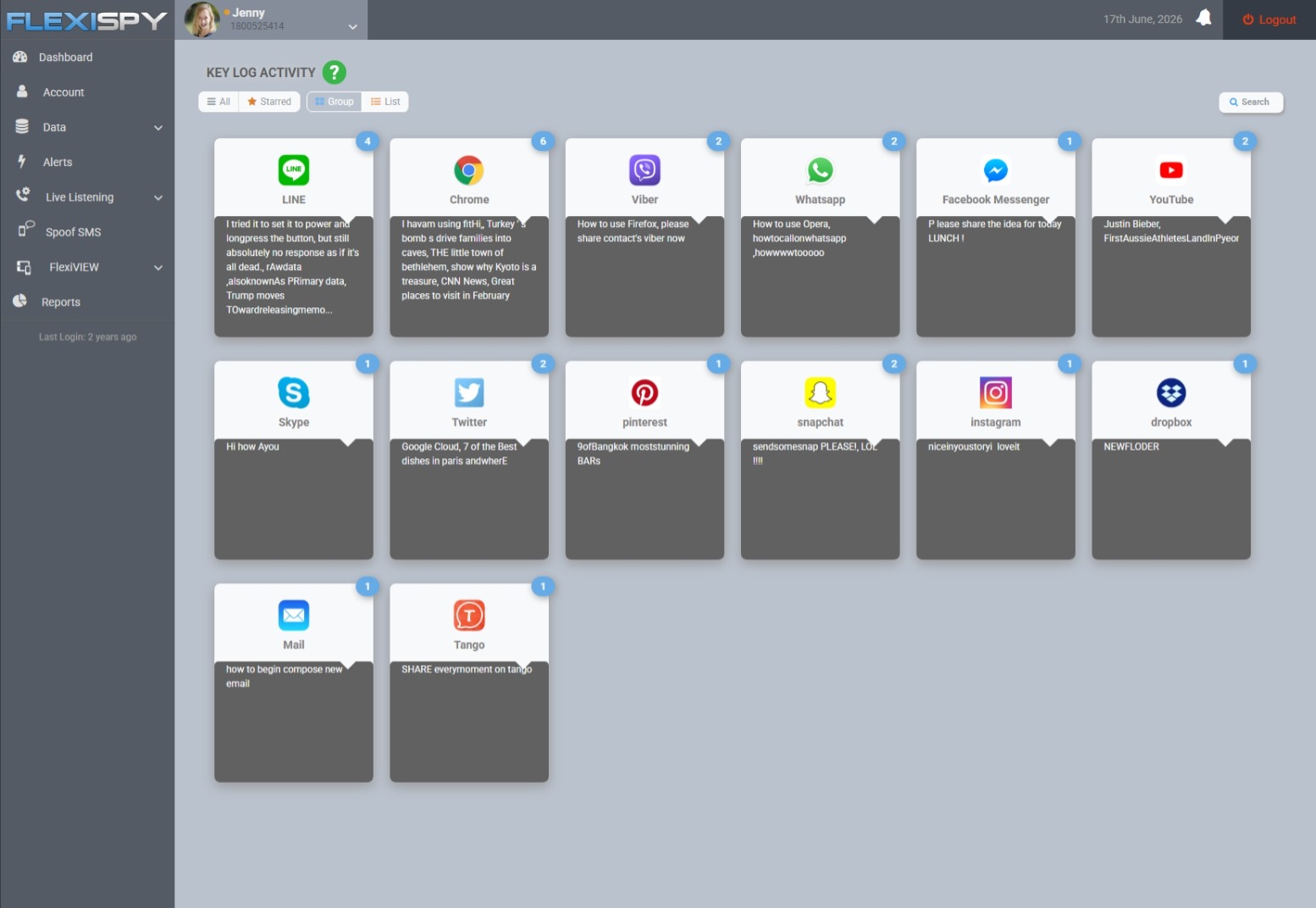
Key Log Activity may surface a typed username, while Application Screenshots may show which profile is active. Use that information to assess safety, not to take a password and enter an account without authorization.
FlexiSPY’s current phone product is for Android, works without rooting, and can run in hidden mode. It does not offer an iPhone or iPad product.
Legal note: message capture, keylogging, call recording, and ambient recording can carry additional consent and privacy requirements. Laws vary by country and state, so check local law or consult a lawyer before enabling sensitive monitoring features.
Talk before the account becomes a battleground
Open with what you know and what you do not know: “I found another username on the phone, and I want to understand what it is before I react.” That gives your teen room to explain without pretending the discovery did not happen.
Ask who can see the account, who can message it, and whether anyone has made them uncomfortable. Then agree on a response that matches the actual risk: a conversation, new boundaries, temporary monitoring, or immediate outside help.
The useful outcome is not simply finding a secret social media account. It is knowing whether your teen is safe and choosing the least intrusive response that still protects them.
Discord’s parental controls run through a single feature called Family Center, it shows you who your teen recently talked to and how much time they spent — but never what was actually said. It also only works if your teen opts in and connects their account to yours.
That gap matters: a worried parent often imagines a parental control that reads messages and flags strangers. Family Center does neither.
This guide walks through exactly what you can and cannot see, how to set it up, and a simple way to decide whether that activity summary is enough — or whether the situation calls for a real conversation or device-level visibility.
What Discord parental controls actually are
Discord’s official parental control is Family Center, an opt-in feature your teen has to connect to your account.
To use it, you need your own Discord account and the mobile app. Your teen links their account by scanning a QR code, and up to three guardians can be connected to one teen.
The core tension to understand up front: Family Center tells you who your teen interacted with and how much — but never the content of any message or call.
What parents can see in Family Center
Family Center gives you a rolling view of the last seven days of activity, plus a weekly email summary.
Within that window, you can see:
Names and avatars of new friends your teen added
Names and avatars of users they messaged or called
That’s useful for spotting patterns — a new name that keeps appearing, a spike in late-night call minutes, or unexpected spending. But it’s a summary, not real-time alerting, and not a message feed.
What parents cannot see (and why it matters)
Family Center never shows the content of any message or call. There are no chat logs, no transcripts, and no way to read a single conversation.
It also shows nothing older than seven days. If something happened last month, it’s already off the dashboard.
And it’s informational only — you can’t edit your teen’s friend list or remove servers from your side. Your teen can also disconnect Family Center at any time.
This is where the safety gap appears. Most of what genuinely worries parents — a stranger sliding into DMs, a scam, grooming, or inappropriate content — lives inside the conversation, which is exactly what Family Center keeps private.
A who-and-how-much summary won’t surface that on its own.
How to set up Discord Family Center step by step
Setup takes a few minutes and requires both of you to agree to the link.
Install the Discord mobile app on your phone and sign in to (or create) your own account.
Open User Settings → Family Center and start the connection flow.
Have your teen open Family Center on their device and scan your QR code (or scan theirs).
Both of you confirm the link to activate it.
Your teen sees clearly what you’ll be able to view — the activity summary, not their messages — and they have to agree before anything connects.
While you’re in the settings, check that Teen Safety Assist is on. It adds built-in protections like blurring sensitive media and warning teens about messages from people they don’t know.
The useful detail is the location: both accounts enter the connection flow from User Settings → Family Center, and the link is completed by scanning the QR code shown on one of the two phones.
Monitor or just talk to them? A simple decision framework
Before reaching for any tool, it helps to match your response to the actual situation.
Family Center’s summary is probably enough when you have a younger teen, low specific risk, and open communication at home. The weekly email and a quick chat about who’s appearing on it does the job.
A direct conversation matters more than any tool when the real issue is teaching judgment — how to handle a friend request from a stranger, what a scam looks like, or why oversharing is risky. No dashboard teaches that; you do.
Deeper visibility is genuinely warranted when you’re seeing real warning signs: contact from adult strangers, secrecy paired with distress, hints of grooming, or signs of self-harm. At that point, protecting your child outweighs the activity summary’s limits.
And monitoring is overkill when there’s no specific concern and trust is intact. Reading a teen’s private messages “just in case” can cost more in trust than it returns in safety.
For example, one unfamiliar server in the weekly summary calls for a calm question about what it is. An adult repeatedly contacting your child and asking them to move conversations elsewhere calls for a much faster escalation.
When Family Center isn’t enough: device-level monitoring on Android
If your concern is the content Discord deliberately keeps private, device-level monitoring on a phone you own and manage is one route to broader visibility.
Family Center answers “who and how much.” Device-level monitoring on a phone you own can answer “what’s actually happening in the apps,” because it runs on the device rather than through Discord’s servers. The two aren’t mutually exclusive — many parents start with Family Center and only consider device-level visibility if the risk picture changes.
FlexiSPY runs on the Android device rather than through Discord, so it captures app activity at the device level. Discord monitoring is included from the Premium tier and above.
The keylogger records what’s typed across apps, and Application Screenshots capture what’s on screen.
One honest limit: FlexiSPY has no iOS product. New iPhones and iPads can’t be jailbroken, so this applies to Android phones only — a child’s Android device that you own or manage.
Monitoring your teen legally and responsibly
Monitoring your own minor child’s device is generally more accepted than monitoring another adult, but the rules still vary.
Recording or monitoring another adult — including a partner — without their consent can be illegal. Laws on message capture and call recording differ by country and state.
If you’re unsure how this applies to your situation, check your local law or speak with a lawyer before you start.
Transparency is usually the better path anyway. Being open with your teen about what you monitor and why tends to be more effective at building the judgment you actually want.
Start with Family Center. It’s free, built in, and gives you a baseline view of who your teen talks to and how much time they’re spending.
Pair it with an honest conversation — that combination handles most situations better than any tool alone.
Only reach for device-level monitoring if the risk genuinely justifies it, and only on a device you own. For a wider view of your options, see our guide to the best parental control apps of 2026.
About six in ten American teens use Instagram, and 55% visit it daily. Instagram parental controls can restrict who contacts a teen and show a supervised parent who the teen messaged recently, but they do not let the parent read those DMs.
That gap matters. Parents need to know what Instagram already protects, which messages justify a closer look, and how to respond without making ordinary teen privacy feel like evidence of wrongdoing.
How Instagram parental controls handle DMs
Instagram Teen Accounts automatically place teens into protective settings. According to Meta’s current Teen Account overview, these accounts use the strictest messaging settings, so teens can generally be messaged only by people they follow or are already connected to.
Teen Accounts also use Hidden Words to filter offensive words and phrases from comments and DM requests. Sleep mode mutes notifications overnight and sends automatic replies to DMs between 10 PM and 7 AM.
Teens under 16 need a parent’s permission to make the built-in protections less strict. They also need permission to turn off the feature that hides unwanted images in DMs.
What can parents see with Instagram supervision?
Once supervision is set up, a parent can see who their teen messaged during the previous seven days. The parent cannot read the message content through Instagram’s supervision tools.
Supervision can also help a parent manage time limits and approve requests from younger teens who want less protective settings. It is useful for spotting an unfamiliar contact, but it is not a transcript of the conversation.
What Instagram’s protections cannot guarantee
Built-in restrictions reduce unsolicited contact; they cannot prove that every accepted follower is who they claim to be. A teen may already follow a stranger, accept a convincing fake profile, or move a conversation to another app.
Filters can also miss coded language, manipulation that begins as friendly conversation, or a contact who gradually tests boundaries. Settings are a first layer, not a substitute for a teen knowing they can ask for help without being blamed.
Can parents monitor Instagram DMs?
Yes, but the right method depends on the risk. Start with Instagram’s built-in controls and a direct conversation, then use a focused device review or lawful monitoring only when a specific concern makes it necessary.
Check the Teen Account settings. Confirm that the account is private, messaging restrictions remain at their strict setting, and supervision is connected where appropriate.
Review unfamiliar contacts together. Ask your teen who the person is, how they met, whether they know each other offline, and why the conversation began.
Look at the concerning thread with your teen. If there is a concrete warning sign, reviewing that conversation together is more proportionate than opening every DM.
Check whether the conversation moved elsewhere. Instagram may be only the starting point. Look for requests to switch to Snapchat, WhatsApp, Telegram, text messages, or another account.
Use ongoing monitoring only for an ongoing risk. Explain what you are checking, why, and when the extra oversight will end.
A 13-year-old accepting messages from unknown adults calls for a different response than a 17-year-old talking privately with known classmates. Age, maturity, past behavior, and the specific safety concern should determine the level of access.
Which teen Instagram messages are warning signs?
An unfamiliar account is not automatically dangerous. Look for patterns that match recognized grooming, enticement, or sextortion tactics rather than treating every private conversation as a crisis.
The National Center for Missing & Exploited Children lists tactics such as pretending to be younger, building rapport through compliments, starting sexual conversation, requesting explicit images, and offering incentives including gift cards or transportation.
Lower concern
Needs a closer review
Act now
The contact is a known peer, and your teen is comfortable explaining how they know each other.
The profile’s age, school, location, or personal story keeps changing.
An adult knows the user is a minor and continues sexual or romantic contact.
The conversation stays within ordinary friendship and respects boundaries.
The person quickly pushes the teen to another app, a second account, or disappearing messages.
The person requests explicit images, threatens exposure, or demands money, cryptocurrency, or gift cards.
Your teen will block a contact who makes them uncomfortable.
The person asks for secrecy, private location details, or proof that a parent is not nearby.
A secret meeting is planned, the teen is being threatened, or immediate physical safety is at risk.
The conversation becomes sexual unusually fast
Concern rises when a new contact asks about sexual experience, requests images, sends explicit content, or frames boundary-pushing as proof of trust. A person may spend time building rapport before making the first overt request.
The contact wants to move to another platform
The FBI’s sextortion guidance advises caution when someone met on one app asks to continue on another. Moving platforms is not proof of abuse, but it can make the original interaction harder to report and may lead to disappearing-message features.
Money, gifts, threats, or urgent secrecy appear
Offers of money, game credits, cryptocurrency, gift cards, rides, alcohol, or other rewards can be used to lower a teen’s guard. Once an image or secret is obtained, the offer may turn into pressure or blackmail.
Repeated phrases such as “don’t tell your parents,” “prove you trust me,” or “answer now” are meant to isolate the teen and rush a decision. The safest response is to slow the situation down and bring in a trusted adult.
The person asks for a private meeting
Do not let a teen attend a private meeting with someone known only online. Requests to keep the meeting secret, accept a ride, change locations at the last minute, or leave a phone behind should be treated as urgent warning signs.
What should a parent do about a concerning DM?
Lead with safety, not punishment. A teen who expects to lose their phone or be blamed may hide the next message, even when they are frightened and want help.
Keep the teen with you and stay calm. Say clearly that they are not in trouble for being targeted or manipulated.
Establish what happened. Ask when contact began, whether the person knows the teen’s real age, what information or images were shared, and whether another app or account is involved.
Preserve serious evidence. Save the username, profile link, relevant messages, threats, payment requests, phone numbers, and meeting details before blocking the account.
Block and report. Use Instagram’s reporting tools and repeat the process on any second platform involved.
Secure the account. Change the password, review logged-in devices, remove unknown linked accounts, and enable two-factor authentication if account access may be compromised.
Escalate urgent cases. Contact local emergency services for immediate danger. Suspected child sexual exploitation can be reported through NCMEC’s CyberTipline or to law enforcement.
Do not impersonate your teen to continue the conversation or arrange a confrontation. Preserve what already exists and let the platform or appropriate authorities handle suspected criminal conduct.
How FlexiSPY can support a focused Android safety check
For a child’s Android phone that a parent is legally responsible for managing, FlexiSPY Premium and Extreme can monitor Instagram Direct Messages. This can provide additional visibility when Instagram’s own supervision identifies an unfamiliar contact but does not show the conversation.
That capability should answer a defined safety question, such as whether a threatening contact is still messaging the teen or whether the conversation moved to another account. It should not become a permanent reason to read every ordinary exchange.
Message access and interception laws vary by country and state. Check local law or seek legal advice if you are unsure about your authority, and never use monitoring to access another adult’s private messages without valid consent.
When monitoring helps—and when a conversation is enough
A conversation is often enough when the account protections are active, contacts are known peers, and your teen brings uncomfortable messages to you. In that situation, teaching blocking, reporting, account security, and firm boundaries builds skills they can use when you are not beside them.
Closer review is reasonable when there is a specific signal: an unknown adult, sexual pressure, secrecy, threats, money requests, a hidden second account, or plans to meet. Tell your teen what you need to check and connect the review to that concern.
Reduce the oversight when the immediate risk has passed. The goal is not to remove all privacy; it is to keep a private conversation from becoming a place where a teen feels trapped and unable to ask for help.
A practical Instagram DM safety agreement
Parents and teens can make the rules clearer before a problem occurs:
Keep Teen Account protections on and discuss any request to weaken them.
Do not accept followers solely because they claim to share a school, friend, or interest.
Never send explicit images, money, gift cards, passwords, or live location to an online contact.
Tell a parent or trusted adult if someone uses threats, secrecy, romantic pressure, or offers of money.
Ask for help without an automatic punishment for admitting a mistake.
The last rule is the strongest parental control you have. A teen who knows the first response will be help—not humiliation—is much harder for a manipulative contact to isolate.
Most mainstream dating apps are not for teens: Tinder, Bumble, and Hinge require users to be at least 18. If a minor is using one, the immediate job is to understand how they got access, who they are talking to, and whether anyone is pressuring them to move the conversation, meet, send images, or share money.
Do not begin with an interrogation. A calm, specific review is more likely to uncover a real safety problem than a punishment-first response that teaches a teen to hide the next account better.
Are dating apps allowed for teens?
Adult dating apps generally do not permit minors, even when a teen describes the account as harmless or says they only want to chat. As of June 2026, the published rules for three major services are clear:
Dating app
Published minimum age
What parents should know
Tinder
18
Tinder’s terms require an account holder to be at least 18.
Bumble
18, or the local age of majority if higher
Bumble’s terms say the service monitors for underage use and may suspend or verify an account.
Hinge
18
Hinge’s terms require users to be at least 18 and prohibit misrepresenting age.
An app-store age rating is not permission to create an account. Ratings describe content and distribution rules, while the service’s own terms determine who may register.
Apps promoted as “teen dating” or “make new friends” need separate scrutiny. Check the current minimum age, whether adults and minors can interact, how location is displayed, and whether identity or age is meaningfully verified.
Why a minor using Tinder or another adult dating app is a concern
The problem is not simply that a teen has shown romantic interest. The problem is that an underage user has entered a space designed for adults and may have changed their age to get there.
The National Center for Missing & Exploited Children lists lying about being older to access adult-facing platforms as a behavior that can increase the risk of online enticement. NCMEC also warns that offenders may pretend to be younger, build rapport through compliments, offer gifts, or ask for explicit images.
Age and identity can be false
A profile photo, video call, school reference, or local landmark does not prove that someone is the age they claim. Images can be copied, accounts can be taken over, and an adult can learn enough teen slang and local detail to appear convincing.
Ask what the teen actually knows about each match outside the app. “They look my age” is not verification.
Conversations can move beyond the app quickly
A request to switch immediately to text, Snapchat, Telegram, WhatsApp, or another private channel can make reporting and reviewing the original interaction harder. The FBI specifically advises caution when someone met on one app asks to continue on another platform.
Moving a conversation is not proof of abuse, but urgency, secrecy, disappearing messages, and pressure together deserve attention.
Location details can reveal more than a teen realizes
Dating profiles may expose a neighborhood, approximate distance, school clues, workplace details, team uniforms, or a familiar daily routine. A stranger can combine small pieces of information from several accounts to identify where a teen spends time.
A safe profile should not reveal a home address, school schedule, regular bus stop, workplace shift, or real-time location.
Flirting can become pressure or sextortion
The FBI says sextortion often begins when a young person believes they are talking to someone their own age who is interested in a relationship. After obtaining an explicit image, the offender may threaten to share it unless the teen sends more images, money, cryptocurrency, or gift cards.
A teen caught in this situation needs help, not blame. The FBI’s sextortion guidance emphasizes that exploited young people are victims of a crime, even if they lied about their age or initially shared something voluntarily.
An online match can push for an unsafe meeting
Pressure to meet alone, accept a ride, keep the meeting secret, or change locations at the last minute is a serious warning sign. So is an older person describing a minor as “mature for your age” or dismissing the age difference as unimportant.
If a meeting is already planned, pause it while you verify who the person is. Do not send the teen to a meeting as a test or attempt to confront the other person yourself.
What parents can check on a teen’s phone
Start with the narrowest checks that answer the safety question. Review the phone together when possible, explain what you are looking for, and avoid turning an urgent dating-app concern into an unlimited search through every private conversation.
Installed apps: Check the complete app list in Android Settings, not only the home screen. Look for adult dating apps, unfamiliar chat apps, cloned apps, and browser shortcuts.
Account age: Ask the teen to open the profile and show the birth date or age displayed. A false age is evidence that the platform’s protections are already being bypassed.
Profile details: Review photos, bio text, linked social accounts, school references, workplace details, and location information.
Match age range: Check the ages shown in existing matches and the account’s discovery preferences. Do not assume another profile marked “17” belongs to a 17-year-old.
Requests to move platforms: Look for a rapid switch to another messaging app, especially when the person asks for secrecy or disappearing messages.
Pressure signals: Check for requests involving explicit images, money, gift cards, transportation, alcohol, drugs, lodging, or a private meeting.
Blocked and reported accounts: Ask whether the teen has already blocked anyone or received threats from a new account after blocking the first one.
Location sharing: Review app permissions and any live-location links shared in chat.
One unfamiliar app is not proof of exploitation. The stronger signal is a pattern: false age, an older contact, secrecy, escalating sexual pressure, threats, money requests, or plans to meet alone.
A simple risk check for dating-app conversations
Lower concern
Needs a closer review
Act now
The teen tells you about the account and the people they talk to.
The account uses a false age or hides identifiable profile details from you.
An adult knows the user is a minor and continues sexual or romantic contact.
No private images, money, precise location, or secret meeting is involved.
A match pushes the conversation to a disappearing-message app.
There are threats, blackmail, explicit-image demands, or requests for payment.
Your teen is willing to block an uncomfortable contact.
The other person resists identity checks or repeatedly changes their story.
A meeting is planned with an unknown adult, or the teen is already missing.
This table is a triage tool, not a verdict. A teen may minimize a serious situation because they are embarrassed or afraid that losing phone access will be the first consequence.
What to do if your minor is using Tinder
Stay calm and keep the teen with you. Say clearly that your first goal is safety, not punishment.
Establish the basics. Ask how long the account has existed, what age it shows, who the teen has contacted, and whether anyone knows their real age.
Preserve evidence of serious conduct. Save usernames, profile links, messages, payment demands, phone numbers, and meeting details before blocking or deleting an account.
Stop immediate contact. Block and report suspicious users through the dating app and any second platform involved.
Remove the underage account. Use the service’s account-deletion process; deleting the app icon alone may leave the profile active.
Escalate when needed. Contact local law enforcement or the NCMEC CyberTipline when there is suspected exploitation, grooming, explicit imagery involving a minor, or an unsafe meeting.
If an explicit image of someone who was under 18 may be circulating, NCMEC’s Take It Down service can help limit online sharing without uploading the image itself. Do not forward or make unnecessary copies of the image while seeking help.
How to talk about teen dating without shutting the door
A blanket lecture about “stranger danger” will not answer why the app appealed to your teen. They may be looking for romance, validation, LGBTQ+ connection, privacy from peers, or a wider social circle than school provides.
You can reject an unsafe platform without mocking the need behind it. Try: “You are not in trouble for wanting to meet someone; this app places you in an adult pool, and I need to understand whether anyone has used that against you.”
Set rules that are concrete enough to follow:
No adult dating apps before the platform’s minimum age.
No false birth date to bypass an age gate.
No explicit images, money, or live location shared with an online contact.
No private meeting with someone known only online.
No punishment for asking for help after a mistake or threat.
The last rule matters most. A teen who expects help is harder to control with shame and blackmail.
How FlexiSPY can support a focused Android safety check
On a child’s Android phone that you are responsible for managing, FlexiSPY includes Installed Applications and Application Activity reports across its Android tiers. These can help a parent identify dating or messaging apps and understand whether an app is actively being used between in-person phone reviews.
FlexiSPY’s Premium Android feature list also includes Tinder, OkCupid, Bumble, and Badoo, while Tinder Messages is listed among its supported messaging features. Capabilities can vary by app version and device configuration, so confirm current compatibility before relying on any one report.
Monitoring should be proportionate to the concern and paired with a direct conversation. Message access can involve privacy and consent laws that vary by country and state, so check local law or obtain legal advice when your authority is unclear.
When monitoring is too much
If your teen has not used an adult dating app and there is no specific safety concern, reading every private conversation may create more harm than insight. A discussion about age rules, image sharing, location, consent, and meeting safety may be enough.
Use closer checks when there is a concrete reason: a hidden adult account, contact with an unknown older person, threats, explicit-image pressure, money requests, or a secret meeting. Reduce the level of access again when the immediate risk has passed and your teen demonstrates safer judgment.
Frequently asked questions
Can a 16-year-old use Tinder?
No. Tinder’s published terms require users to be at least 18 years old.
Are there safe dating apps for teens under 18?
Parents should be cautious with any service that combines minors, stranger discovery, private messaging, and location features. A “teen” label does not guarantee meaningful age verification or prevent adults from creating false profiles.
Should I delete the dating app immediately?
First preserve evidence if there are threats, explicit-image demands, an older contact, money requests, or meeting plans. Then report suspicious users, delete the underage account through its settings, and remove the app.
What if my teen lied about their age?
Treat the false age as a safety problem, not proof that the teen caused anything that followed. Ask what they hoped to find, check whether adults learned their real age, and make it clear that exploitation is never the child’s fault.
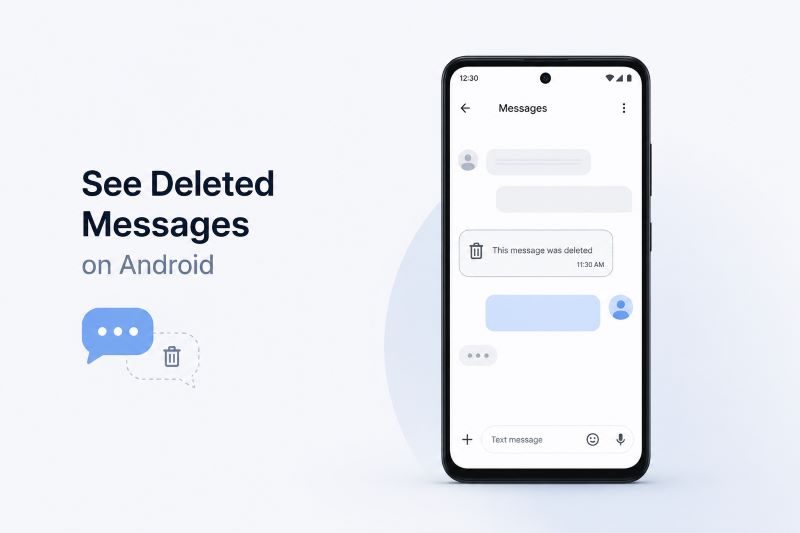
To see deleted messages on Android, first check the messaging app’s archive or trash, then look at Android Notification history, then check whether a backup can be restored. If the message was deleted before you had any backup or monitoring in place, there may be no safe or reliable way to recover the full conversation.
The honest answer is that Android does not keep one universal “deleted messages” folder for every app. Google Messages, WhatsApp, Telegram, Instagram, Snapchat, and other apps all handle deleted chats differently.
A parent should treat recovery as two separate jobs: recovering something that was already deleted, and making sure important conversations are visible going forward.
Can you recover deleted text messages on Android?
Sometimes, but not always. For SMS and RCS conversations in Google Messages, start by checking whether the conversation was archived instead of deleted.
Google says archived conversations disappear from the Home screen but can still be read, while deleted conversations are removed from the device and, according to Google’s current help page, cannot be recovered.
There is one current caveat. In 2026, Android Central reported that Google Messages was rolling out a Trash folder that keeps deleted chats for 30 days on some devices before permanent deletion.
Because rollouts vary by app version, carrier, and phone model, do not assume every Android phone has it. On your child’s Android phone, open Google Messages, tap the profile icon, and look for Trash or a similar deleted-conversations folder.
If it is there, restore the conversation from that screen. If it is not there, move to the next options.
How do I check archived messages first?
Archived messages are the easy win because they are not really deleted. In Google Messages, open the app, tap the account/profile menu or More options, then choose Archived.
If the conversation is there, select it and unarchive it so it returns to the main message list.
This is also a good moment to slow the situation down with your child. A hidden or archived thread does not automatically mean something serious is happening.
It may be privacy, embarrassment, spam, a friend drama spiral, or a conversation they did not want to explain yet. The goal is to understand the risk, not turn every missing chat into a confrontation.
How can Android Notification history help with deleted messages?
Android Notification history can sometimes show message previews that arrived before a conversation was deleted. Google explains that Notification history can show recently dismissed notifications and the day’s notification history on supported devices, though some devices may not have the feature and settings can vary.
On many Android phones, go to Settings, then Notifications, then Notification history. If it was already turned on, you may see recent message notifications from Google Messages or other apps.
This will usually show only snippets, not a complete chat, and it will not help if notifications were hidden, muted, or never shown. It is useful for context, not a full recovery method.
Can an Android backup restore deleted messages?
A backup can help only if the deleted messages existed when the backup was made. Google says Android can back up content, data, and settings to a Google Account and restore backed-up information to the original phone or some other Android phones, with restore behavior varying by phone and Android version.
Before you try any restore, check what backup exists and when it was created. Do not factory reset a child’s phone just to chase one deleted thread unless you understand what will be lost and have a full backup.
For most families, restoring a whole phone is too heavy-handed unless the message is tied to a serious safety issue, school investigation, or legal concern.
How do you see deleted WhatsApp messages on Android?
WhatsApp recovery depends on backups. If WhatsApp has a Google Drive backup from before the message was deleted, reinstalling WhatsApp and restoring that backup may bring the older chat state back.
If the backup was made after deletion, the deleted message may already be gone from the backup too.
There are tradeoffs. Restoring an older WhatsApp backup can overwrite newer messages that arrived after the backup time.
For a parent, that means the first step is not “delete and reinstall.” The first step is to check the backup date inside WhatsApp settings and decide whether the missing message matters enough to risk losing newer chat history.
What if the message was deleted in Snapchat, Instagram, Telegram, or Discord?
Most social and chat apps do not give parents a simple recovery button for deleted messages. Some apps keep server-side records for a period of time, some let users delete messages for everyone, and some make disappearing messages part of the product.
In practice, if the app does not show a trash folder or backup restore option, you may not be able to recover older deleted messages directly from the phone.
That is where ongoing visibility can help. On Android, FlexiSPY‘s Premium tier includes monitoring for supported messaging and social apps such as WhatsApp, Google Messages, Instagram Direct Messages, Telegram, Discord, Snapchat Messages, TikTok, YouTube, Facebook Messenger, LINE, Viber, and others listed in the product facts.
It also includes application screenshots, while all Android tiers include SMS, MMS, app activity, installed applications, browsing activity, location tracking, keylogger, and dashboard alerts.
That does not mean FlexiSPY can magically recover every message deleted before installation. It means a parent who has legal authority to monitor their minor child’s Android phone can create a record going forward, so risky conversations are less likely to vanish before an adult can notice a pattern.
How to set up ongoing Android message visibility with FlexiSPY
For a parent’s own minor child, the practical setup is straightforward. Choose the Android plan that matches what you need to see, install FlexiSPY on the Android device you have authority to monitor, and review activity from the online dashboard.
FlexiSPY works on all Android devices and all Android versions, and rooting is not required or recommended.
Decide what you are trying to protect against: cyberbullying, predatory contact, explicit content, secret accounts, or unsafe meetups.
Check native recovery first: Archive, Trash if available, Notification history, and backups.
If the concern is ongoing, install monitoring before the next incident rather than trying to reconstruct every old one.
Review message context, not just one alarming line. Look for repeated pressure, threats, requests for photos, secrecy, or isolation.
Use what you find to start a calm conversation and, when needed, involve the school, another parent, platform reporting tools, or local authorities.
When monitoring is overkill and a conversation should come first
If your child is younger, in immediate danger, being threatened, or communicating with an unknown adult, message visibility can be a protective tool. If your child is older, generally responsible, and the concern is a single deleted conversation, start with a direct conversation before escalating.
Try: “I noticed a conversation disappeared, and I am not here to punish you for being embarrassed. I need to know whether anyone is pressuring, threatening, or asking you to hide something.”
That sentence does two useful things. It gives your child a way to tell the truth without feeling trapped, and it names the real safety issues: pressure, threats, secrecy, and fear. Deleted messages matter most when they are part of a larger pattern.
Legal and consent note for parents
Monitoring rules vary by country, state, and situation. A parent may commonly have more authority to monitor a device used by their own minor child, but that does not mean every recording or message-capture feature is legal everywhere.
Do not use monitoring software to watch another adult, partner, employee, or anyone else’s device without proper authority and consent. For employers, monitoring should be limited to company-owned devices with clear disclosure and consent.
FAQ
Can I see deleted messages on Android without installing anything?
Sometimes. Check the app’s archive or trash, Android Notification history, and existing backups. If none of those contain the message, you may not be able to recover it without a prior backup or monitoring record.
Does Google Messages have a trash folder?
Some users are seeing a Google Messages Trash folder as part of a 2026 rollout, but Google’s current help page still says deleted conversations cannot be recovered. Check the app on the specific Android phone rather than assuming the feature is available.
Can FlexiSPY recover messages deleted before it was installed?
No. FlexiSPY is best understood as ongoing visibility after setup. It can help parents monitor supported Android messages and apps going forward, but it should not be presented as a tool that restores every previously deleted chat.
Can Notification history show deleted WhatsApp or Instagram messages?
It may show notification previews if the feature was already enabled and the message appeared as a notification. It usually will not show full conversations, muted chats, hidden notification content, or messages older than the device’s notification-history window.
What should I do if deleted messages suggest cyberbullying or grooming?
Preserve screenshots, avoid replying emotionally from your child’s account, report the content in the app, and contact the school or authorities if there are threats, sexual pressure, extortion, or an unknown adult involved.
The most important cyberbullying warning signs are sudden changes in mood, sleep, school interest, friendships, device behavior, appetite, and self-esteem, especially when they appear after your child uses their phone, gaming chat, or social apps.
Cyberbullying is hard for parents to spot because it often happens in places adults do not naturally overhear: direct messages, group chats, disappearing-message apps, gaming servers, comment threads, and private stories. A child may look “fine” at dinner while carrying a painful conversation in their pocket all night.
The job is not to panic at every quiet mood. It is to notice patterns early enough to help.
What is cyberbullying?
StopBullying.gov defines cyberbullying as bullying that happens through digital devices such as phones, computers, and tablets. It can happen through SMS, apps, social media, forums, gaming, and online chat.
It includes sending, posting, or sharing harmful, false, mean, or private content about someone else, and some cyberbullying can cross into unlawful or criminal behavior.
That definition matters because cyberbullying is not limited to one cruel text. It can be a group chat where a child is mocked, a rumor account, pressure to send photos, repeated “where are you” messages from someone who is not a parent, exclusion from a gaming group, threats, impersonation, or private images shared without consent.
What are the most common cyberbullying warning signs?
The strongest warning sign is a noticeable change from your child’s normal behavior. StopBullying.gov tells parents to look for changes and notes that not every bullied child shows warning signs.
The same source lists signs such as physical complaints, sleep problems, declining grades, sudden loss of friends, avoiding social situations, helplessness, lower self-esteem, and self-destructive behavior.
Mood shifts after phone use: Your child seems anxious, angry, tearful, or shut down after checking messages.
Avoiding school or activities: They suddenly dread school, practice, clubs, or places where online conflict follows them offline.
Sleep changes: They stay up late watching the phone, wake often, have nightmares, or seem exhausted.
Friendship changes: They lose a friend group quickly, avoid social plans, or say “everyone hates me” without explaining why.
Device secrecy that feels fear-based: They hide the screen, delete apps or messages, turn off notifications, or panic when the phone buzzes.
Physical complaints: Headaches, stomach aches, skipped meals, or frequent “sick” days can be stress signals.
School decline: Grades, homework, attendance, or focus drops without another clear cause.
Lower self-esteem: They speak harshly about their body, personality, social status, or future.
Self-harm talk or behavior: Any mention of self-harm, suicide, running away, or feeling trapped needs immediate adult help.
Why do children hide cyberbullying from parents?
Many children do not ask for help because they are embarrassed, afraid of retaliation, worried adults will take their phone away, or convinced they should handle it alone. StopBullying.gov notes that children may fear backlash, humiliation, judgment, social rejection, or losing support from friends.
In older children, the fear of losing independence can be just as strong as the fear of the bully.
That is why “Give me your phone right now” often backfires as an opening move. If your child thinks the first consequence of telling the truth is losing their main connection to friends, they may protect the secret even when they need help.
Start by making safety bigger than punishment.
What device behavior can point to cyberbullying?
Device behavior becomes meaningful when it changes suddenly. A child who has always been private is different from a child who starts flinching when notifications arrive.
Watch for new passcodes, deleted conversations, hidden apps, constant blocking and unblocking, abandoned accounts, sudden username changes, or turning off notifications for one app in particular.
The device pattern is only a clue. A deleted chat could be ordinary privacy, a surprise party, embarrassment, spam, or peer drama.
But when deleted messages appear alongside fear, school avoidance, sleep disruption, or a sudden loss of friends, it is time to look more closely.
Which online places should parents pay attention to?
YouTube, TikTok, Instagram, Snapchat, messaging apps, and gaming communities all matter because social life moves across them.
Do not focus only on public posts. Much of the harm happens in private messages, group chats, comments that disappear quickly, “close friends” stories, gaming voice chat, and screenshots passed from one platform to another.
Ask your child where people at school actually talk, not where adults assume they talk.
How should you talk to a child who may be cyberbullied?
Lead with observation, not accusation. Try: “I’ve noticed you seem upset after checking your phone, and you have not wanted to go to school this week.
I am not here to punish you for being online. I need to know if someone is hurting, pressuring, or threatening you.”
Then pause. Children often test whether adults can stay calm before they share the hardest part.
If they show you messages, do not immediately type back, call another parent in anger, or post about it. Thank them for showing you.
Screenshot or save evidence. Ask what they want to happen next, then explain what adults must do if there are threats, sexual content, extortion, stalking, or risk of self-harm.
When should parents step in right away?
Step in immediately if there are threats of violence, pressure for sexual images, shared private images, doxxing, stalking, extortion, hate-based harassment, an unknown adult involved, or any self-harm language.
In those cases, preserve evidence, report the content in the app, contact the school if students are involved, and reach out to law enforcement or emergency services when there is imminent danger.
If your child talks about suicide or self-harm, treat it as urgent. In the United States, call or text 988 for the Suicide and Crisis Lifeline. If there is immediate danger, call emergency services.
How can monitoring help without damaging trust?
Monitoring is most useful when it supports a clear family safety plan. For younger children or a child already being targeted, a parent may need more visibility into messages, app activity, installed apps, location, and alerts.
On Android, FlexiSPY can help parents monitor SMS, MMS, application activity, installed applications, browsing activity, location, and dashboard alerts in all tiers. Premium adds supported social and messaging apps, including Google Messages, WhatsApp, Instagram Direct Messages, Telegram, Discord, Snapchat Messages, TikTok, YouTube, Facebook Messenger, and others.
Premium also includes application screenshots.
Use that visibility as a seat belt, not a substitute for parenting. Tell your child what problem you are trying to solve, what you will review, and what will happen if you see something unsafe.
For many families, the healthiest rule is: “I will not read every ordinary friend conversation, but I will step in if I see threats, sexual pressure, unknown adults, harassment, or plans to meet someone unsafe.”
When monitoring is overkill
If your child is older, generally open with you, and the issue is a single friendship conflict, monitoring every message may create more harm than help. Start with a conversation, platform privacy settings, blocking tools, school support, and check-ins.
A child who learns how to name mistreatment and ask for help is safer than a child who only learns to hide better.
Monitoring makes the most sense when there is a clear safety reason: repeated harassment, a major behavior change, contact from unknown adults, deleted messages tied to fear, or a child too young to manage the risk alone.
Legal and consent note
Rules for monitoring devices vary by location and situation. Parents commonly have more authority to supervise a minor child’s device, but laws differ, especially around message capture, call recording, and audio features.
Do not monitor another adult, partner, employee, or someone else’s device without proper legal authority and consent. Employers should use monitoring only on company-owned devices with clear disclosure and consent.
FAQ
What is the biggest warning sign of cyberbullying?
The biggest warning sign is a sudden behavior change connected to digital life: anxiety after notifications, avoiding school, sleep trouble, secrecy with the phone, losing friends, or a sharp drop in mood or confidence.
Should I take my child’s phone away if they are being cyberbullied?
Not as the first response unless there is immediate danger. Many children hide cyberbullying because they fear losing their phone. Preserve evidence, block or report the harmful account, adjust privacy settings, and make a safety plan before deciding on limits.
How do I know if it is cyberbullying or normal conflict?
Normal conflict is usually mutual and limited. Cyberbullying often involves repetition, power imbalance, humiliation, threats, group targeting, private information, sexual pressure, or harm that follows the child across apps and school.
FlexiSPY can give parents visibility into Android activity and alerts, but parents still need to interpret context. The goal is to notice patterns early and respond thoughtfully, not rely on software to understand every social situation.
When should I contact the school?
Contact the school when the cyberbullying involves classmates, affects school attendance or performance, includes threats, or continues after blocking and reporting. Bring screenshots, dates, usernames, and a short timeline.
TikTok is not safe for children under 13 and carries documented algorithmic risks for
teenagers. The platform’s minimum age is 13, but age verification is self-reported and easily bypassed. TikTok’s For You Page algorithm is engineered to maximize engagement time, not user wellbeing, and begins building a behavioural profile within the first session.
Family Pairing, TikTok’s parental control tool, has a critical bypass children to exploit in minutes. Most parents focus on stranger danger. The algorithm-driven mental health risk is statistically far more likely to affect your child.
Is TikTok Appropriate for Different Ages?
TikTok’s appropriateness varies sharply by age, and the platform does nothing to enforce those differences.
Age Group
TikTok’s Position
Reality
Under 10
The algorithm starts profiling from session one
No technical barrier to access
10 to 12
Not permitted
Fake birthdates work instantly
13 to 15
Permitted, private by default
Algorithm starts profiling from session one
16 and over
Permitted, public by default
Full FYP exposure, DMs enabled
TikTok’s minimum age is 13 in the United States. That age is self-reported. There is no verification. As of 2020, over a third of TikTok’s daily users were 14 or younger. 63% of US teens use TikTok and 58% use it daily, according to Pew Research Center data from 2023.
Children under 13 accessing TikTok violate the platform’s own Terms of Service and violate COPPA, the US Children’s Online Privacy Protection Rule. The FTC sued ByteDance in 2019 for exactly this.
How TikTok’s Algorithm Affects Children?
TikTok’s For You Page uses machine learning to serve content that maximizes engagement time, not content that is appropriate, educational, or safe.
The one-second rule: one second of viewing sends a positive interest signal. A swipe away adjusts the preference profile. TikTok users interact with the app approximately 10 times per minute, twice as often as comparable platforms, according to ByteDance’s own research. Auto-play cannot be turned off.
The algorithm identifies emotional vulnerabilities before a parent notices them. The Center for Countering Digital Hate found that accounts flagged as “vulnerable” received 12 times more self-harm content than standard accounts.
The Wall Street Journal’s fake account study found TikTok needed only one signal, lingering viewing time, to map a user’s interests and begin escalating content intensity.
Children’s developing brains are less equipped to resist compulsive engagement cues than adults. The FYP is designed with this in mind.
The mental health data is specific: According to Common Sense Media, 69% of girls with moderate to severe depressive symptoms are exposed to suicide-related content on TikTok at least monthly. Children and teens spend an average of 91+ minutes per day on the platform.
Does TikTok’s For You Page Affect Children Differently From Adults?
ByteDance runs two separate products by design. In China, the youth version of Douyin limits children under 14 to 40 minutes per day, restricts content to educational and cultural material, and disables Direct Messages entirely. In the rest of the world, TikTok runs an engagement-maximizing algorithm with none of these restrictions.
ByteDance enforces what it deliberately does not enforce globally. This is not accidental. It is a documented product decision.
TikTok’s Parental Controls, What They Do and Where They Fail
TikTok offers four parental control features. All have documented limitations.
Control
What It Does
Critical Limitation
Family Pairing
Child creates an anonymous second account, bypass takes under two minutes
A child can change limit settings depending on age
Restricted Mode
Filters content classified as inappropriate
Does not catch all harmful content, extremist audio and explicit lyrics slip through
Screen Time Management
Sets daily usage limits
Only available via Family Pairing, bypassed with a new account
Time Away Mode
Schedules app-off periods
Only available via Family Pairing, bypassed with new account
The Family Pairing bypass is the most important thing parents do not know. Family Pairing follows the account, not the device. A child creates a new anonymous TikTok account on the same phone, and every Family Pairing restriction disappears instantly. The parent receives no notification.
Family Pairing also requires the parent to have their own TikTok account and is only available on the mobile app, not the web browser. It is not mandatory.
How to Set Up TikTok Parental Controls in 2026
These steps take 10 minutes and reduce, but do not eliminate, exposure to harmful content.
Set account to Private, Settings > Privacy > Private Account > ON
Enable Family Pairing, Settings > Family Pairing > link accounts
Set Screen Time limit, Family Pairing > Screen Time > 30 minutes recommended on school nights
Disable Direct Messages, Family Pairing > DMs > Off for under-16
Disable Duet and Stitch, Family Pairing > Duet/Stitch permissions > Off
Enable Restricted Mode, Settings > Digital Wellbeing > Restricted Mode > On
Enable Time Away, Family Pairing > Time Away > schedule off-hours
Check these settings monthly. Children can reverse some settings without your knowledge, depending on their age.
What Data Does TikTok Collect From Your Child?
TikTok collects viewing behaviour, interaction patterns, device information, location data, and browsing history. ByteDance faced FTC enforcement in 2019 for COPPA violations relating to child data collection. TikTok has previously been found to collect clipboard data on iOS even when the app was not in active use.
TikTok’s privacy statement confirms data sharing with third-party service providers, advertisers, and analytics partners. This applies to child accounts.
What TikTok’s Controls Cannot Show You, and What FlexiSPY Captures
TikTok’s built-in parental controls have one consistent gap: they cannot show parents the content of Direct Messages, cannot analyze in-app conversations for concerning patterns, and cannot alert parents when harmful content is received. The same visibility gap exists across every platform parents are concerned about; Snapchat, Reddit, and TikTok all share this limitation.
What Your Child Does on TikTok
Family Pairing
FlexiSPY
Receives a DM from a stranger
Cannot see
Creates an anonymous bypass account
Watches self-harm content on FYP
Cannot see
App Screenshot captures what is on screen
Type a message before sending
Cannot detect
App activity captured
Types a message before sending
Cannot see
Keylogger records every character
Disables content restrictions
Notified for some changes
Activity captured regardless
FlexiSPY’s App Screenshot feature captures what is displayed on screen inside TikTok on Android at set intervals. The keylogger records every message typed. Parents who want to compare monitoring tools across all platforms can see how this stacks up in our best parental control apps breakdown.
No. Children aged 12 fall below TikTok’s own minimum age of 13 and the algorithm builds an engagement profile immediately regardless of stated age. If your child already has access, enable Family Pairing, set the account to Private, and disable Direct Messages as minimum steps.
TikTok sets its minimum at 13. Child safety researchers broadly recommend waiting until 15 to 16, when adolescents have greater capacity for self-regulation.
Yes. A child can create an anonymous second account on the same device in under two minutes, bypassing Family Pairing entirely. Restricted Mode also does not filter all harmful content.
No. Children under 13 are prohibited by TikTok’s Terms of Service. The algorithm starts profiling engagement from the first session regardless of age.
Yes. TikTok collects viewing behaviour, location data, device information, and interaction patterns. ByteDance was sued by the FTC in 2019 for COPPA violations related to exactly this.
Parents who need visibility into what their child is doing inside TikTok, not just screen time limits, can learn how FlexiSPY’s monitoring works at flexispy.com. Physical access to the Android device is required for installation, or a pre-configured device is available through FlexiSPY EXPRESS.
Looking for the right Computer Monitoring Software for Parents? Here on the blog, we discuss how parents can create a healthy, secure digital environment for their children.
All it takes is one wrong click and your child could be exposed to cyberthreats. By using the right online protection tool, you can mitigate risks from cyberbullying and predators.
Given the threats, monitoring a child’s social media and online activity is no longer a far-out concept in most households. And through remote computer monitoring, you can stay informed without getting too involved in your kid’s online activity.
Keep in mind that not all computer monitoring software offers the same features or compatibility.
The best computer monitoring software lets you see all data and monitor messages, as well as provide keyword and file transfer alerts. At the very least, you should be able to track social media, emails, and other online activities.
Make sure to do your research and read verified reviews by other parents who have used the product before buying anything. Pick one that you know can really deliver on its’ promises.
When it comes to choosing a computer monitoring software for parents, it’s always better to be proactive. Rather than wait for something bad to happen, then react.
The Best Internet Monitoring Software for Parents
First, we’ll discuss why computer monitoring has become vital for internet safety. Then, we compare the best computer monitoring software for parents based on features and limitations.
Specifically, we tested Bark & Qustodio computer monitoring software and compared them to FlexiSPY for Computers. Note that all are worth considering as a Parental Control Tool to help protect your child online.
Before we dive into the tools, let’s look at the pros and cons of computer monitoring software for parents.
Internet Monitoring Software for Parents – Pros and Cons
Children and adults are spending an unprecedented amount of time on the computer and the internet. As such, it’s unsurprising that Children and Cybercrime statistics are on the rise during the Covid-19 pandemic.
Today, the role of Internet Monitoring Software for Parents in online safety can not be emphasized enough.
For parents, internet monitoring software is a way to secure peace of mind, reassurance, and a means to stay informed of their child’s online activity. Here are some other advantages.
Advantages of Computer Monitoring Software for Parents
There are many causes for parents to consider computer monitoring software. Above all, it adds a layer of protection to their child’s digital environment 24/7.
Here are some other reasons you may need a Parental Control App to protect your children.
Arguments Against Computer Monitoring Software for Parents
There are detractors to computer monitoring for parental control. For example, concerns over privacy and differing perspectives on parental responsibility do exist. These lead to the question of whether there is a legitimate need for digital surveillance.
Arguments against Computer Monitoring Software include:
They are intrusive
Can be unreliable
Do not work as advertised
Exploitable by malicious hackers
Are often expensive
Computer & Internet Monitoring for Parents – The FlexiSPY Way
In our view, every case for monitoring is unique. At times, there is a legitimate need for parents to be aware of what their child is doing on the computer and especially, who they’re talking to.
Most importantly, computer monitoring does not have to be intrusive. We always recommend talking to your child openly. That is why FlexiSPY for Computers does not restrict or block computer activity, giving parents the option to monitor openly or discreetly.
Let your children know that certain activities are going to be monitored for their safety and that you will be stepping in only when it’s really needed. This can also be a great deterrent for dangerous online behavior.
We know that no parent can be everywhere at once. But you still want that peace of mind that comes with knowing for sure that they’re ok.
To this end, we recommend investing in computer monitoring software you can really trust (you’d be surprised how many big names have been caught up in a scam).
Note: Today, you can know more and worry less for FREE with FlexiSPY for Computers’ Limited Time Offer.
Next, let’s look at the top computer monitoring software for parents and compare them to FlexiSPY.
Comparing the Best Computer Monitoring Software for Parents
Online protection tools for parents can help nurture a secure digital ecosystem for children.
Although parents may take different approaches to monitor their child’s behavior and online interaction, remote computer monitoring is one of the fastest-growing ways to add safety to your online environment.
But with so many options for parents, how do you make the right choice?
Let’s look at Bark and Qustodio and compare them to FlexiSPY for Computers.
Bark Computer Monitoring vs. FlexiSPY
According to Bark, their software gives guardians the tools they need to raise kids in the digital age. Bark monitors emails, apps, browsers, limits screen time, and blocks apps and browsers.
Here are Bark’s main features:
Social Media Monitoring
Email Tracking
Screen time & Web Filtering
Parental Alerts
Web Browser and App Restriction
After testing, we found that Bark’s computer monitoring is limited compared to FlexiSPY. Additionally, Bark does not monitor Mac computers.
Below is a visual comparison of Bark vs. FlexiSPY. On the left are the most important features to consider when it comes to parental control.
Bark vs. FlexiSPY Computers
Bark for Computers: Limitations
Below, we outline some drawbacks of Bark’s Computer product.
Does not monitor Mac
Bark can only monitor PC computers running on the Windows operating system.
The Bark app can be downloaded onto a Mac to monitor Android and compatible iOS devices. However, the software is unable to monitor the MacBook itself.
This compatibility limitation is a major drawback of Bark. The best computer monitoring software monitors both Windows and Mac devices seamlessly. While offering the same features and reliability on both platforms.
PC Monitoring Product are Chrome and Edge Extensions
Bark PC monitoring is simply a browser extension that tracks browser activity and emails. And is far from the comprehensive parental control monitoring promised.
If you are using a browser that is not Edge or Chrome – then it is unlikely that Bark will provide you with any features.
Does not block dangerous apps or websites
The parental control options offered by Bark are limited. It can only set time limits for apps and websites; the software does not block access.
However, this also means that the app cannot be ‘truly hidden’ as the child will always know they are being monitored due to these restrictive features.
Furthermore, as seen in these screenshots below taken from Bark’s own how-to-guide for Setting up their ‘parental controls’ – Bark’s time restriction features are simply a guide on how to use the Microsoft Parental Control features on your computer.
If parents are expected to take all these steps using the Microsoft Family Safety App – then what exactly does the Bark app itself do?
Limited Alert System
Bark’s profanity filter does not offer customization options. This means parents will still be sifting through a lot of data to fully monitor their child’s online and computer activity.
The best monitoring software will give parents the option to customize Keyword alerts – including specific word and phrases, file modification, file transfers, file deletion, and more.
No Way to Track Computer Location
Bark does not track a computer’s real-time location or location history. Nor does it offer check-in features to locate or get a response from the device user.
With FlexiSPY for Computers, parents can track location by viewing network activity and Wi-Fi connections. For example, you can pinpoint the device location from the name of the wi-fi connection.
Limited Customer Service Channels
We had trouble getting answers to simple pre-sale questions. After 24 hours, we did not get a response to our question regarding compatibility and features.
Timely tech support is a vital aspect of computer monitoring, and one can only imagine how long Bark might take to answer a technical query.
Requires Your Payment Info Up-front
Upon entering the Bark website, you are prompted to input your credit card information for parental consent. This is required before you see any website or product information. Read into that what you will.
Why FlexiSPY is the better alternative?
Unlike Bark, FlexiSPY works on both PC and Mac and offers the same features on both OS.
Furthermore, Bark’s PC product lacks real tracking features compared to FlexiSPY’s advanced monitoring. These include print tracking, file activity, keyword alerts, screenshots, and keystroke logging. The last feature lets you know everything that is typed on the computer 24/7.
Ultimately, FlexiSPY is designed specifically for parents and offers a more personalized touch to computer monitoring.
Learn more about why FlexiSPY is the better alternative here.
Qustodio Computer Monitoring vs. FlexiSPY
Qustodio Computer Monitoring lets customers choose bundle packages to monitor their families.
Qustodio’s main appeal is family plans, which are available in bulk or bundled pricing. The great thing is, you can start monitoring anywhere from 5, 10, to 15 devices.
They do offer a free version; however, it offers very little for Parental Control and as such, will not be discussed here. Instead, we focus on Qustodio for Computers Premium.
Qustodio provides plenty of quantity when it comes to devices monitored. However, the quality and depth of features available for Windows or Mac are limited, especially when compared to similarly priced options on the market.
If you’re running a business or have a large family and only need basic features, such as how much time your kids spend on certain apps, then Qustodio is perhaps worth considering.
Here are Qustodio’s main Computer features:
Activity Logging (Keylogger, Emails, and Websites)
Activity Reports
App & Website Restrictions
Balance Screen-time (lock computer features)
Social Media Monitoring (View Time Spent)
YouTube and Facebook Monitoring
Hide Software
Without being too brash, what Qustodio’s computer monitoring product lacks in features, it tries to make up for in the number of devices monitored.
For example, the company offers Social Media Monitoring but does not specify that you will only be able to view Time Spent, without any further details.
Also, note that the only social media platform Qustodio tracks is Facebook. If you would like to monitor any other app on a computer using Qustodio, the only data you get is, once again, the time spent in each app.
To get to the bottom of things, you want transcripts of Desktop IM Chats and the ability to Take Screenshots. It comes down to whether you need basic features or a more advanced parental control tool.
Below is a visual comparison of Qustodio vs. FlexiSPY’s features for Computers.
Qustodio vs. FlexiSPY for Computers
Qustodio for Computers: Limitations
Below we outline some drawbacks of Qustodio’s Computer product.
Facebook Tracking Limitations
When it comes to parental control, Facebook is one of the more important apps you want to be able to track.
Unfortunately, Qustodio’s Facebook monitoring only shows who your child messages with and what they post on their wall, it does not show the actual content of those conversations.
Anti-Virus/Security Suite Issues
Like most computer monitoring software, Qustodio struggles to deal with security suites. Here you can see multiple reviews that highlight this interference with the app.
What does this mean? If your computer has an anti-virus, firewall, anti-malware, system optimization software, or another Parental Control App – then Qustodio is unlikely to work smoothly. In any circumstance, you have to remove, disable, or uninstall security apps before installing Qustodio.
Learn more about this issue and the steps you would need to take to get the software running properly here.
Consider computer monitoring software with an installation service. This means you can then sit back and relax as the entire setup is taken care of. Of course, this includes navigating any anti-virus or security suite restrictions.
Unreliable Tracking, Blocking & Restriction features
Getting Qustodio to work properly on a Mac running OS Catalina was a nightmare.
From the get-go, we received multiple incompatibility notifications for Qustodio on Mac. The company itself even warns of this and does provide steps to take in order to get the software working as it should.
When we couldn’t get any tracking to work, Qustodio’s tech support recommended uninstalling antivirus software and then reinstalling it after. When this didn’t solve the issue, we gave up and requested a refund.
In our opinion, when you buy computer monitoring software you expect it to work out-the-box, as advertised. Unfortunately, Qustodio’s for Computer product falls short in this respect.
VPN Breaks Qustodio Browser Tracking
Qustodio’s computer tracking features (such as activity logging and website restrictions), work via a browser extension or plug-in.
The software does not monitor anything on the actual computer. You won’t be able to see what’s stored on the computer (multimedia), take screenshots, view network connections, or print activity.
If your child or employee decides to use a VPN, they would be able to break through Qustodio’s web filters on desktop browsers, rendering the feature useless.
The app can be disabled on a Windows PC if your child knows how to work the Task Manager. Worse, there’s no feature to alert you if your child tries to alter the settings on the app.
These settings can be changed on the monitored device itself. This is perhaps counterintuitive, especially for a parental control tool.
An Issue with the Time Limits Feature
Another limitation of Qustodio’s Time Limits Feature is how the software records time and user sessions.
For example, website navigation and device usage data are recorded from midnight to midnight, and not from the moment you activate the time rules. Furthermore, the user needs to log off the user session or turn off the computer for time to stop counting. A simple lock of the user session is not considered by Qustodio.
Discrepancies between Pricing & Features Offered
As we mentioned, Qustodio offers bundled pricing where you pay for features advertised to work on all devices – be it Android, iPhone, PC, or Mac.
The truth is that with most computer monitoring software, not all features will work on all devices.
For example one of Qustodio’s main features, ‘The Panic Button’, is advertised on every plan available in their marketing material.
In reality, the ‘panic button’ feature only works on specific Android devices. It does not work on iPhones, PCs, or Mac Computers. Yet, you will be paying the same price for a package that does not offer the same features on every device.
In another example, Qustodio combines all info for their Windows and Mac product into one. But will you get the same features on both platforms? This is usually not the case with most computer monitoring software, with many charging the same price for products that offer vastly different features. Unfortunately, after testing out their product- Qustodio is no different.
On the other hand, FlexiSPY is upfront about all features offered, with specifics on what will and won’t work on various platforms and OS.
Why FlexiSPY is the better alternative?
When it comes to features parents need to keep their children safe, Qustodio offers the bare minimum. Also, the software can be manipulated by children who know their way around a computer.
Qustodio focuses on the number of devices monitored. They market themselves to schools and businesses, not parents. This explains the lack of advanced features for their computer monitoring product, as no parent would be ok with a school spying on their children.
Guardians, on the other hand, have a responsibility and obligation to ensure their child’s safety. There’s a lot of dangerous stuff on the inter-web, and some of it might not be appropriate for your child. This is why FlexiSPY’s computer monitoring software is designed to be the most advanced parental control tool on the market.
Learn more about why FlexiSPY is the better alternative here.
FAQs
When Should I install Computer Monitoring Software?
An ideal scenario is to have the app installed, then give the device to your child. Make sure you talk to them about why you feel the software is necessary and let them know that as they grow older the monitoring parameters will change.
If your child already has a computer, then we recommend you install FlexiSPY when you notice problems or significant changes in your child’s behavior. Remember to always discuss monitoring with your child beforehand.
When Should I stop monitoring my child’s online activity?
It may be hard to gauge your child’s maturity and ability to handle their own online security. However, a good rule of thumb is to stop monitoring once your child turns 18 and appears happy, sociable, and responsible. Once they reach a certain age, continuing to monitor your young adult can alienate him/her and cause long-term estrangement.
What is the Best Parental Control App for Computers?
FlexiSPY’s complete suite of parental controls to supervise their child’s internet activity. Never worry again about what applications they install, what websites they visit, or who they chat with on IM or email.
Ever wondered about “Monitoring my child’s computer remotely without them knowing”, or “How can I protect my children in a digital environment where regular computer use starts at such a young age?”
As a parent, you can’t help but worry
Is my child being exposed to things they shouldn’t be too soon?
Are they talking to strangers or cyber predators online?
Is he or she posting, sending, or sharing private information?
Are they making decisions that may come back to haunt them later in life?
Has their behavior changed due to cyberbullying?
These are questions all parents need to consider.
By the end of this article, you will have learned how to monitor your child’s computer discreetly, whether monitoring is really necessary, and what the best tool to monitor their computer is. Read on!
How can I Monitor my Child’s Computer Remotely?
Next, what actions can a parent take to be as informed as possible?
You can start by asking yourself:
How can I see what my kid is doing online?
Do I need Parental Control for computer?
What is the best internet monitoring software for parents?
As you are well aware, the parenting landscape has changed significantly in the past decade. This is in no small part due to a new wave of threats brought about by technology. Specifically, the internet and communication platforms where users are not verified or can remain anonymous.
Now more than ever, it’s important to monitor your child’s online activities with a Parental Control tool you can trust.
But first, is monitoring your child’s computer remotely necessary?
Is Monitoring my Child’s Computer Remotely Necessary or Overkill?
How to see what my kid is doing online? In this day and age, the measures a parent must take to secure their child’s well-being should be multi-faceted enough to detect and deal with most cyber-threats. A significant amount of which now stems from computer and internet use.
These include cyber-bullying, online predators, phishing, exposure to inappropriate content, online grooming, and other risks associated with kids and computer security. All of which are dangerous and come with serious repercussions.
Parents need a way to be there, without ‘actually’ being there – so to speak.
5 Signs You May Need Internet Monitoring Software for Parents
Another key point, how do you know it’s time to consider computer monitoring?
Does your child:
Spend much of their day on their computers?
Act secretively about their online conduct?
Close or change tabs whenever a parent is around?
Use sexual or explicit language unexpectedly?
Lastly, have they become emotionally volatile, unreasonable, or rebellious?
Often, a child may engage in dangerous or unwanted behavior that opens them up to risks without realizing it. A person with malicious intent has no problem posing as a child. Complete with a fake ID, photo, and a believable back story. You’d be surprised by how easy it is.
Fortunately, these predators have been caught. However, according to the FBI – there are an estimated 500,000 online predators active every day in the United States.
Additionally, the Bureau estimates that 460,000 children are reported missing every year in the US alone.
Average Missing Children Per Year: FBI
You can observe whether your child may be putting themselves at risk by keeping an eye out for the signs listed above.
In the next section, the infographic shows the latest Grooming & Online Predator Stats from the FBI.
Monitoring my Child’s Computer Remotely – What The Stats Say
You can stay informed of your child’s online behavior for their own good – for a period until you can be confident of their ability to recognize danger. And of course, until they have developed a certain maturity in their decision-making process.
This way, you can then give them the freedom that comes with growing up and taking responsibility for their own safety.
Until then, computer monitoring software can help give you the peace of mind every parent craves.
With Parental Control for Computers you can:
See what your child is doing online
Keep your child safe by keeping an eye on their digital environment and activity.
Unlike other computer monitoring software – FlexiSPY does not restrict or block access to programs or websites. Rather, parents monitor remotely and step in whenever necessary.
Openly Monitor or be Discreet
Once installed, FlexiSPY tracks all computers remotely.
Choose if you want the program to be hidden or visible, and approach Parental Control as you see fit.
Build Positive Digital Habits
Help your child develop a healthy relationship with technology in a controlled environment where the parent is in charge.
For example, you can Track Browser activity, YouTube Searches, Skype, MSN, E-mails, key logs, and capture all data on any PC or Mac Computer.
Best Way to Monitor your Child’s Computer Remotely – FlexiSPY for Computers
FlexiSPY is the world’s most powerful computer monitoring software. It is fully compatible with both PC and Mac OS and 100% parent-friendly.
FlexiSPY gives parents the option to monitor computer activity openly or discreetly. This flexibility is not available in other computer monitoring software in the same price range.
Furthermore, you can use FlexiSPY to view all keystrokes, searches, browser activity, emails, IM chats, files, and more.
FlexiSPY for Computers is the best way to monitor your child’s computer remotely.
To emphasize, FlexiSPY remotely monitors the target computer and records everything. All captured data is then uploaded to a secure online portal, where you can view usage and activity reports.
The main dashboard seen here provides a summary of the computer’s activities. Of course, with just one click you can hone in on key info and pick out what’s important.
FlexiSPY for Computers: Main Dashboard
FlexiSPY features can be divided into two main components:
The first is a set of Data that tracks all computer activity. For example, these include desktop chats, webchats, social media, browser activity, and more.
The second set of features are Alerts. Parents can customize alerts based on Keywords, File Transfers, and File Activity.
Altogether, these features let you know what’s happening on your child’s computer 24/7.
You can check out all FlexiSPY features in the table below:
FlexiSPY for Computers: Features
Get Started with FlexiSPY: The Best Parental Control & Internet Monitoring Software
Monitoring your child’s computer remotely is easier than you think if you know where to start.
What’s more, FlexiSPY installation is a relatively simple process.
If you are pressed for time or don’t want to deal with technicalities, we’ve got you sorted. FlexiSPY offers a worry-free installation service that can be purchased at check-out or as a standalone service.
To begin, follow these simple steps.
Purchase a FlexiSPY for Computers subscription (Limited time offer: Get it for FREE)
Did you know that FlexiSPY has more monitoring features than anyone on the market?
Parents use FlexiSPY’s complete suite of parental controls to supervise their child’s internet activity. Doing so means they never have to worry again about what applications they install, what websites they visit, or who they chat with on IM or email.
Normally available for $68/month, you can now get FlexiSPY for Computers for free! Read on to find out how.
Get FlexiSPY for Computers for FREE!?
For a Limited Time Only — FlexiSPY for Computers is free with any purchase of FlexiSPY EXTREME for Android or iPhone.
The Covid-19 Pandemic has meant that people young and old are spending more time at home than ever before. Whether it’s for working or learning from home, PC & Mac usage has never been higher.
With this purpose in mind, FlexiSPY has risen to this demand by giving parents our best monitoring software completely free of charge.
Here’s how to get FlexiSPY Computers Free!
All you have to do is buy FlexiSPY EXTREME for Android or iPhone. Then claim your free copy of FlexiSPY for Computers during checkout.
Find out more about FlexiSPY for Computers in detail here
In 1999, Congress enacted the Children’s Online Privacy Protection Act (COPPA) to protect children 13 and under from the dangers of online privacy invasion. The act was revised in 2013 to include even more details of what information can and cannot be tracked or shared with third-parties. Yet, as the global mobile gaming industry looks to hit more than $46 billion in revenue this year – a large portion of which comes from children – it’s no wonder that companies are looking for ways around COPPA and into the advertising budgets of third party marketers and advertisers.
Is Nothing Sacred Anymore?
If a law is in place to protect our kids then it is pretty safe to assume it is being followed, right? Well, this doesn’t seem to be the case when it comes to apps, as major companies like Disney and games and applications in the Google Play and App stores are being found to have broken the rules set out by the COPPA and are in fact exploiting our children’s online behavior.
As parents, we trust that something meant for a child is safe to use and that when we see our daughter virtual swimming with Ariel or our son charming Belle as the Beast that they are in a safe zone. That they are free to be kids playing and not lab rats in some money-making advertising experiment. It seems like common sense, but as corporations continue to find every last crevice to fill with ads and product promotion, it’s our job to be aware of the potential dangers involved in allowing our children to play online or with downloadable technology.
Who Are The Culprits?
The Walt Disney Company is being sued for allegedly violating the COPPA as a federal class action lawsuit claims that 42 of Disney’s apps collect personal data from kids and give advertisers the information without parental consent. Three software companies – Upsight, Unity, and Kochava – are also named in the lawsuit as being part of the chain which has embedded tracking software and sends children’s’ information and online habits to interested parties.
And this isn’t the first time America’s beloved media conglomerate has come under fire for COPPA violations – Disney had to pay $3 million when one of its subsidiaries, Playdom, was found guilty of registering ‘1.2 million users, most of them children, for online games.’ The company then collected masses of information — including age, email addresses, names, IM names and locations — and shared it illegally with third-party contacts.
Other culprits include over half of Google Play’s apps that target kids under the age of 13, according to recent research conducted by The Washington Post. Of the 5,000+ apps tested, the new source found that the majority of them did not protect kids’ data – which is required by the COPPA. In fact, The Washington Post found that most apps send regular updates to advertisers with 90% actually ‘enabling long-term tracking.’
Combined, this data tells us that companies like our favorite Mouseketeer will continue to find loopholes and ways to interpret the laws to benefit their profit-focused agendas. As Disney stated in response to the lawsuit, “Disney has a robust COPPA compliance program, and we maintain strict data collection and use policies for Disney apps created for children and families. The complaint is based on a fundamental misunderstanding of COPPA principles, and we look forward to defending this action in court.”
Yikes, we would not be looking forward to going up against Disney in court!
What Can We Do To Protect Our Kids?
We now know that this issue is ongoing, has repeat offenders and will likely be something that continues to perpetuate every aspect of our lives. Let’s face it – we all know Big Brother is watching somewhere. So, let’s make sure we at least are aware of potential online dangers and protect our kids the best we can!
Talk to your kids. Engage with your children regarding online safety and appropriate behavior. Discuss what is acceptable and unacceptable when it comes to giving out information – even when registering for their favorite game. Think of an application as a stranger. Do we talk to strangers? No. Do we give strangers our name, email address, phone number, first born child, life’s savings, etc? No!
Download Monitoring Software. We know, it sounds like child monitoring software is exactly what Disney or these other companies are using to target your kids. But, IT’S NOT THE SAME! Software like FlexiSPY is a powerful tool that can help you as a parent be able to stand up against major corporations of the world and keep your kids safe. FlexiSPY for Android or iPhone, as well as FlexiSPY for computers, gives you the ability to see which applications your child has downloaded and how they use them. This means if you see your child has downloaded one of Disney’s data-sending apps, you can immediately check its privacy settings and update them to keep personal data protected.
We have a unique Application Screenshot feature which actually takes snapshots of an app while it’s in use, so you can be sure that your child is making smart decisions. Our Keylogger feature lets you see what information has been typed into an application – i.e. personal information – so that you’re able to speak with your child directly about how to make better decisions and to update the app to keep his or her privacy safe. Additional features like IM monitoring give you peace of mind that your children are staying children and chatting with friends about the best way to beat the next level – not with someone who could potentially endanger them.
Check in regularly. This may be the most important step. Let your kids know you are here, interested in what they are doing and always available to answer questions they have. By being regularly involved in your child’s online activity, he or she will be more aware of their actions and more likely to speak up if they come across something you have discussed. And for those kids who just don’t like to chat, child monitoring software can help be their voice!
For a full list of the Disney apps allegedly spying on your kids, read here.
For a full list of apps tested by The Washington Post visit their site AppCensus.
To get your copy of FlexiSPY, visit www.flexispy.com, and start protecting your children today!
FlexiSPY – the world’s most powerful monitoring software – makes it easy to record calls on the most popular VoIP applications. That means YOU can now record calls made on programs like Skype, Viber, LINE, Whatsapp, Facebook and more! This is the perfect tool for business owners who need to keep track of how their employees are handling confidential information and for parents concerned about their child’s social interactions or decision-making.
What is a VoIP call?
VoIP stands for Voice over Internet Protocol (VoIP) – and VoIP calls are regular calls between two people that take place over the internet rather than a landline. And with the advent of social media and instant messaging applications, VoIP calls are quickly replacing traditional phone calls around the world.
Who can record VoIP calls?
Anyone with an internet connection! FlexiSPY Extreme is available for both iPhone and Android users and allows you to record calls on the world’s most popular VoIP applications, including Skype, Viber, LINE, Whatsapp, Facbook, WeChat, Google Hangouts and many more!
How does it work?
Easy! Just like with other FlexiSPY features, we keep you in mind and work to ensure it’s as easy-to-use as possible. As soon as the target phone uses any of the many supported programs to make or receive calls, then these calls will be automatically recorded and uploaded to your personal web portal. Here you’ll be able to listen to or to download the recording later for offline listening.
Here are 3 easy steps for recording a VoIP call:
First, download Flexispy to a rooted Android or jailbroken iPhone
Next, the target will make a call using Skype, Viber, Whatsapp or one of many other supported programs
Then, visit your online portal and listen to or download the recording from your FlexiSPY
You can even listen to the files directly from your phone with our brand new mobile viewer application, FlexiVIEW!
Why do I need to record a VoiP call?
This feature is perfect for anyone who uses an iPhone or an Android and spends a lot of time on VoIP applications. Recording these calls is extremely useful for parents and employers who are responsible for other individuals, as well as the overall well-being of their families or businesses.
Employers
Insider threats, security breaches and data theft happen every day – and most employers have no idea until it’s too late. FlexiSPY gives you the power to know if something is happening before it goes too far and allows you step in to rectify a potentially dangerous and costly situation for your business.
By recording the VoIP calls of employees using company phones or machines, you will be able to know as soon as something out of the ordinary takes place. In addition, if employees know they are being monitored, they will be more productive and less likely to follow through with any negative actions toward the company. FlexiSPY helps employees understand the value of their jobs and the information they deal with on a daily basis.
VoIP call recording can also be used for recording important business phone calls, interviews with potential job candidates and even quality control training!
Parents
Did you know that 80% of kids and teens check their phones hourly? Are you aware of who they are speaking to or what they are talking about? Now, this is not to say that all kids are up to no good, but rather, it’s easy for kids to get caught up into peer pressure or negative situations. And with technology advancing and kids spending so much time on their phones, it’s really impossible for parents to be watching ALL the time. Nor, should they have to – as trust is a very important part of a child’s development.
FlexiSPY, however, gives parents a tool to ensure their children are safe and making responsible decisions when using instant messenger and VoIP applications like Skype, Viber, WeChat, LINE, etc. Think of it as technological babysitter – someone who is there in case anything looks suspicious. We do not encourage parents to spy on everything word that is being said, but knowing whether or not your daughter is really going to her friend’s house after she’s lied before or whether your son is really ‘studying.’ Odds are your kids are telling the truth, but FlexiSPY lets you be there for those times that may push the boundaries a bit too far.
VoIP call recording is growing in popularity by the day. Now is the time to protect your family or business – or both! – and invest in monitoring software. FlexiSPY gives you more features – with more being developed every day – to make sure you are always ready to take on the next big issue in your life. For more information on VoIP calls and how FlexiSPY can help you, visit www.flexispy.com.
A parent’s greatest fear is losing his or her child, and unfortunately this fear is becoming a reality far more often than it should. The culprit? Suicide. The solution? Well, there isn’t one answer, but there are signs you can watch for, steps you can take and tools you can implement to protect your children from making the most drastic — and last — decision of their lives. Mom, Dad, meet parental control software. It’s here and it can save your child’s life.
According to research conducted by the American Association of Suicidology, national suicide rates are the highest they’ve been in nearly 30 years — with three times more teens dying by suicide now than 60 years ago. This epidemic can no longer be ignored and – with the recent focus on suicide in the media and through the spread of twisted social media ‘games’ like the blue whale challenge — it’s time we take measures to reclaim our youth.
Here are 4 steps for preventing youth suicide:
Know the Warning Signs
While there is no key indicator of suicide — it varies with each individual — there are certain signs that may provide a warning to family and friends that someone needs help. These include mood swings, withdrawal from social situations, unstable sleep patterns, talking about feeling lonely or a burden and drug and alcohol use.
Now, at first glance these all sound pretty similar to a typical pre-teen or teenager. You know angsty, emotional, rebellious, never wants to be around the family. But that’s exactly why it’s so important to check in and keep a close eye on your children — because their cries for help may not be loud.
Remember: it’s hard enough for a teen to share their feelings with their parents, let alone those feelings. That’s where parental monitoring software can help be your eyes and ears by allowing you to monitor your child’s social media, internet, phone call and texting behavior to see whether he or she is just being a moody teen or if they are grasping for a helping hand.
Educate Yourself
As parents, we will probably never fully understand our kids. But we can at least try to understand the world we share — and the external factors which impact them.
The Blue Whale Challenge & Social Media
As mentioned in a previous blog post, the blue whale challenge is an online game whereby administrators target troubled youth and engage them in a series of tasks that ultimately ends in suicide. Originating in Russia, this social media phenomenon has recently spread to other countries around the world — with two teen suicides in the US being linked to the blue whale challenge since May.
Schools around the country are warning parents of the game and asking them to be open to conversations should their children speak about the blue whale challenge. Parents are also urged to watch for signs their children may be involved. Parental control software gives you the ability to target specific key words (like ‘blue whale’) and receive notifications when your child or whomever they are speaking with uses them. Imagine being able to step in at the first sign of danger or risky behavior.
Suicide Is Contagious
We know, it surprised us to learn this too. Recent medical research has concluded that, “Exposure to suicide is pervasive and occurs beyond family.” This means that those exposed to suicide — whether directly through a friend or family or indirectly via social media or another outlet — are more likely to have suicidal thoughts.
In a recent Newsweek article, research found that one suicide now affects roughly 135 people — a third of them being seriously impacted by it — as compared to about 6 people in the past. We have technology and social media to thank for this with Dr. Christine Moutier, chief medical officer at the American Foundation for Suicide Prevention, noting teens see the attention garnered by the deceased and in turn feel a desire to also be part of this “romanticized death.”
Other risk factors that can influence suicide include depression, other suicide in the family, financial or personal loss and past abuse or trauma, among others.
Have A Conversation
Now that you know what to look for — as well as the additional risk factors that can contribute to death by suicide — you are more prepared to have a dialogue with your children. Some experts recommend not bringing suicide up, as it may encourage them to seek out more information. Still, others think it’s important to let keep open communication with your kids about pertinent topics like this.
However you decide to do it — whether it be asking your children directly if they have heard of the blue whale challenge or indirectly by just asking if they are okay on a regular basis — know that your words and your interest in your child could be the difference in what decision he or she makes.
Use Parental Monitoring Software
Kids and teens don’t always want to talk and parents oftentimes don’t want to overstep their boundaries — because who wants a grumpy teen, right? So, let parental control software be an added layer of security for those times when you want to know, but you don’t know how to ask. Check in from time to time — maybe you’ll be happily surprised that nothing is going on. Or maybe you’ll be able to step in before it’s too late.
For more information on how to download the most powerful parental monitoring software on the market, click HERE.
The Time Is Now
We live in a world centered around technology. A world where people like the Russian blue whale challenge administrators are able to prey on the weak. A world where people we have never met can cause us to make the biggest mistake of our lives.
Parents, we get it — you don’t want your kids to hate you for checking up on their social media or texting habits. And you don’t want them to shut you out because you’re prying. However, you also don’t want to wake up one morning — and every morning thereafter — to find your son or daughter has died by suicide knowing you could have prevented it. So why not let parental control software walk that fine line between invading your child’s privacy and saving their life.
Get FlexiSPY — the world’s most powerful monitoring software — HERE.
If you or someone you know is displaying suicidal behavior, don’t wait. Contact your local suicide hotline NOW!
Our children are the first generation of digital natives. The first to not remember life without technology, social media, WIFI, mobile phones or computers. Heck, some don’t even know what a CD is, let alone a cassette or vinyl?! And while society’s foray into the futuristic world of robots and Bluetooth is seemingly right on track with what we hoped to achieve, it’s become obvious we didn’t plan for the negative effects that come along with it – especially with regard to online safety for kids.
Here are 11 tips to help keep your children safe from digital backlash:
1) Discuss Online Safety
The internet is an amazing resource for information, learning and fun, but with all that content and all those people it’s important to discuss online safety for kids:
Don’t give out personal information.
Establish which websites are okay and which are off limits.
Don’t talk to strangers or accept their friend requests.
If someone makes you feel uncomfortable or bullied, say something immediately.
2) Sign a Social Media Contract
Think of this as your family’s Digital Constitution. Involve your children in the discussion and create a social media contract together. After all, they are the tech and social media experts. Talk about what pressures they feel and what negative effects too much social media time can have on their everyday lives. Let them set their own consequences if they break the rules. Kids will feel more invested as they are responsible for setting the guidelines. Stick to the contract, but leave room for amendments as your children get older or prove they can make smart decisions about online safety.
3) Establish Screen-Free Zones
It seems that no place is safe from electronics these days, but you can change that. Set clear boundaries with your children about where they can and cannot use their mobiles, computers or tablets. Having these screen-free zones allows you to engage with your children and encourages them to break free from their devices. Some suggestions:
At the dinner table: You don’t need to answer that text – instead, talk about friends, homework or family issues.
In the car: Your bestie will still talk to you when you see her in five minutes at school, honey. Use car time to chat about school, play Carpool Karaoke or enjoy the view.
In the bedroom at night: Not only does a screen’s light trigger your brain to stay awake, but the anxiety of waiting for a social media post or comment is causing some people to wake up in the middle of the night to check in.
But Moooooooom. It’s my phone! It’s my bedroom! Stay strong. Of course, you’ll be met with resistance at first, but over time it will become habit and you’ll be happy knowing that family time is still sacred – at least in some places.
4) Educate Yourself
Admit it. Your kids are way more tech savvy than you. This is all the more reason to take time to understand how they are using the internet and which applications are most popular. No, you don’t have to download Tinder or Snapchat, but ask your children to show you how they work. At least you’ll be able to have informed discussions about responsible usage and online safety. Even better, see if you can find an application that the whole family can use together. Set up a group chat on WhatsApp and keep a constant conversation going.
You can’t be everywhere all the time – nor should you be. It’s important for kids to have their space and to understand that you trust them. It’s also important to have tools in place to ensure they are safe, because they aren’t always looking to talk about personal matters, Mom and Dad. Parental monitoring software, like FlexiSPY, can help be your eyes and ears when you aren’t there.
Tell your children you’re installing the software. Receive alerts when certain words are used, inappropriate websites are visited or apps meant for adults are downloaded. You’re not invading their privacy. You’re not reading their conversations. You’re simply setting the expectation that they need to make healthy decisions, practice online safety and avoid dangerous situations.
6) Monitor Social Media Posts
Does a stranger really need to see your teenage daughter and her friends at the beach? Is it necessary that the world knows your son is at the mall? Today, social media and teens are synonymous. Ask to see their accounts. See what they are posting and who they are talking to and hanging out with. Encourage your kids to be kids – be silly, take pictures, have fun! But also explain that what’s on the internet lasts forever and come to an agreement about what is appropriate and inappropriate to post.
7) Check Privacy Settings
Look through browser and application privacy settings and disable any unnecessary tracking features and cookies that may affect online safety. Set your child’s profile to private and ensure only friends and family can see what they are posting. Explain again that it’s important to be themselves online, but that it’s not necessary for strangers to also know so much about them.
8) Practice What You Preach
That’s right parents, it’s time to put down our own phones and live in the moment. Set a positive example and hold yourself to the same standards as your children. Honor the screen-free zones, seek out tech-free activities and make an effort to be fully present during family time. Your kids will see you spending less time online and will follow suit.
9) Set Time Limits
Remember the days when our parents limited us to 2 hours of TV time a day? This doesn’t have to change simply because our devices are portable. Before mobiles reached the masses, kids happily spent time away from technology. Set tech-time limits for your children and enforce them. But moooooooommmmmm… BUT nothing. You’re the parent and you make the rules.
10) No Underage Access
Did you know that social media sites have age restrictions? Most applications are for those 13+, while some require users to be older – Whatsapp (16+), Tinder (18+), YouTube (certain videos are 18+). Did you also know that most sites don’t verify if the user is actually 13+? This is where setting those boundaries is so important in deterring young ones from logging on to sites not meant for them. Use parental monitoring software to verify that your kids are being responsible and following the rules for online safety that you set together.
11) Don’t Judge Their Mistakes
We need to set examples for our children, but we also need to know when to take off our mommy and daddy hats and make them feel safe and not judged. Kids will make mistakes. We made them, their kids will make them. It’s life. One of the worst things we can do as parents is make our kids feel like they can’t talk to us. Let them know that no matter what, we will listen. Don’t say, ‘I told you so.’ Say, ‘Honey, I’m sorry this happened. Let’s look at what we can do differently next time.’ The moment they stop communicating is the moment we close the door on knowing what they are actually up to. Trust is gone and silence becomes our lingua franca.
Youth have access to more information and are more connected than ever before. And while this is contributing to a global society, broadening horizons and sharing cultures, it’s also exposing our kids to cyberbullies, content way too mature for their age and, unfortunately, predators. So, let’s take a step back from our own tech-filled lives and look at how we can support our children in balancing their real lives from their virtual ones. Hopefully, we can set a strong example of online safety and navigate this digital wasteland together.
As teen suicide rates erupt in Russia, authorities look to online ‘death groups’ as prime suspects. Their alleged platform? A disturbingsocial media game called the Blue Whale Challenge.It’s time to ask what we can do to ensure our teens are safe.
It seems unfathomable that something like this could exist. Something so dark. So heinous. It’s like a modern day Jack the Ripper – a faceless killer wreaking havoc on the weak – only now, Jack is a ‘curator’, his weapon a social media game and his victim…our fragile youth.
What is the Blue Whale Challenge?
In some depraved way, it’s a game. And it’s quite simple really:
Seek out a curator, or mentor – a member of a death group or online community that convince teens to take their own lives who guides you through the Blue Whale Challenge
Agree to complete every task the curator assigns – NO backing out or they will come for you
Oh, and one more minor detail – acknowledge that to win, you must die.
That’s right. After 50 days of acquiescing every demand, including disrupting your sleep schedule and self-mutilation, your curator will tell you to kill yourself. And so far, more than 130 Russian teens have done just that, while numerous other teens around the world have been saved before it was too late.
Reported by RT last year, authorities and the media have since been investigating whether the Blue Whale Challenge is in fact being played outright or if it’s an urban legend – either way, something is happening and we need to make it stop.
Why are teens playing?
Pressure is greater than ever. Gone are the days when bullies were left at the schoolyard and the image of perfection was limited to the latest magazine covers at the supermarket. Now, in our tech-obsessed society, we are continuously exposed to – no bombarded with – an endless barrage of flawless celebrities, baseless sub-truths and unrealistic goals. Cyberbullying follows us home. Social media means our lives are what we let people perceive. And when you’ve never known life without this steady flow of warped reality, the surreal is just plain real.
It’s easy to feel left out. Numb. Stranded. Like the blue whales who beach themselves to die. So, when someone gives you a chance to feel a rush, to feel a sense of belonging, to feel something, what have you got to lose? The World Health Organization reports suicide as the “second leading cause of death among 15-29 year olds globally,” and with youth suicide the fastest growing segment of this demographic, it’s easy to start connecting the dots.
It’s time for a conversation
Once taboo, youth suicide – especially in relation to the dangers of social media, peer pressure and depression – is begging to be heard. Pop culture has started the conversation with films like Lionsgate’s Nerve or series like Netflix’s 13 Reasons Why. And for the first time, society is giving a voice to those without.
Did you know hospitalization of youth with suicidal intentions has doubled in the last ten years? It’s up to us to keep the conversation going. Look for signs of the Blue Whale Challenge – pictures of blue whales, depressed posts or images, specific hashtags (#bluewhale, #bluewhalechallenge, #curatorfindme, #f57, #f58, #I_Am_Blue_Whale) – and voice your concerns.
Students, speak up if you see changes in your peers or come across pro-suicide groups. Parents, communicate with your children.
And while it’s impossible to know what someone is doing or thinking at all times, there are tools to make it easier. FlexiSPY’s monitoring software gives you peace of mind knowing that your children are making the right decisions online and allows you to step in at the first sign of trouble or inappropriate interactions.
Use FlexiSPY as a means of showing your teen you trust them. You’re not spying or keeping them hooked to your fishing line. But you are instead protecting against those looking to catch them in their own sinister nets.
Most of us will probably never understand why others choose to prey so viciously on the vulnerable, but we can take steps to prevent it. Have the conversation with your teens about the Blue Whale Challenge. Let them know they are never alone, because really, we are all swimming together in a deep blue sea. And it’s our duty to make sure that everyone – even the blue whale – stays in the water.
Get Notified Of New Blog Posts
Blog posts contain explanations of new features, company announcements, as well as tips & tricks.