





ChatGPT has parental controls for linked teen accounts. They let parents set quiet hours, reduce sensitive content, manage features such as voice, images, memory, group chats, and model training, and receive limited safety notifications.
However, native controls do not allow the parent to read or monitor a teen’s ChatGPT conversations. These controls shape access and safety settings; they do not turn ChatGPT into a conversation-monitoring tool.
This guide explains how to link accounts, what every setting does, and when monitoring software like FlexiSPY may be useful.
Start with ChatGPT’s own controls and a direct family conversation, then add other tools only for a specific safety concern.
Does ChatGPT have parental controls? The short answer
OpenAI launched parental controls on September 29, 2025. A parent or teen can send the invitation, but the other person must accept it before any settings apply.
According to OpenAI’s current parental controls guide, either person can unlink at any time and the parent is notified if the teen disconnects.
What you can actually control once accounts are linked
Linking gives you a real set of controls. Several teen safeguards also switch on automatically the moment the accounts connect.
According to OpenAI’s announcement, here is what you can manage:
- Quiet hours — set a start and end time when ChatGPT can’t be used at all (useful for late-night cutoffs).
- Reduce sensitive content — auto-applied for teens; reduces graphic content, viral challenges, sexual or romantic or violent roleplay, and extreme beauty ideals.
- Voice mode — turn it on or off.
- Image generation — turn it on or off.
- Group chats — remove the option to use group chats.
- Saved memories — control whether ChatGPT uses saved memories to personalize responses.
- Model improvement — control whether the teen’s conversations may be used to improve ChatGPT models; this is off by default for linked teen accounts.
One caveat: a parent may be able to turn «Reduce sensitive content» off, but doing so only removes that one safeguard. It does not turn the teen account into an unrestricted adult account.
OpenAI also began rolling out age prediction on January 20, 2026. ChatGPT uses account and behavior signals to estimate whether an account likely belongs to someone under 18 and applies a safer experience when age is uncertain.
How to set up ChatGPT parental controls step by step
Both people need ChatGPT accounts. The parent can send the invitation by phone number or email; the teen receives a text or email link and may also see a ChatGPT notification.
- Select your profile icon, then open Settings.
- Choose Parental controls from the menu.
- Select + Add family member and send the invite to your teen.
- Your teen must accept the invite — settings don’t apply until they do.
- Once linked, select your teen’s name under Family members to review or change their settings.

Because this is consent-based, your teen can also unlink the account. If they do, you’re notified — but the controls stop with the link.

OpenAI keeps a plain-language guide for families at its parent resources hub if you want to walk through it together.
The safety notifications — and why they’re not the same as monitoring
This is the most misunderstood part of the feature
OpenAI can send a parent a safety notification — but only in rare cases where its systems and trained reviewers detect possible signs of serious risk, such as self-harm.
You can choose to receive these alerts by SMS, email, or push notification.
The alert contains only the information needed to support your teen’s safety: what was detected, resources available, and how to reach OpenAI. It does not include the conversation transcript.
Think of it as a smoke alarm, not a window. It can tell you something serious may be happening without showing the everyday conversations your teen is having with the AI.

Where ChatGPT’s controls stop: the conversation-visibility gap
There is no parent-facing ChatGPT conversation history feature. Be skeptical of any product that claims ChatGPT’s parental controls will hand you a teen’s transcripts.
ChatGPT’s parental controls do not expose conversations. Device-level monitoring is different: on a device you are legally authorized to monitor, features such as application screenshots and a keylogger may capture parts of ChatGPT activity displayed or typed on that device.
Device-level visibility can show both surrounding behavior and captured on-device activity. It is not access to the teen’s ChatGPT account history, and it should be used transparently and only on a device you own or are legally authorized to monitor.
That leaves three honest options, depending on your actual concern:
- ChatGPT’s own controls — best for shaping the experience: quiet hours, reduced sensitive content, and an alert if something serious is detected.
- A direct conversation with your teen — best for understanding why and how they’re using AI, which no setting can replace.
- Broader device monitoring — useful when a specific safety concern justifies seeing app usage and, where supported, screenshots or typed activity on the monitored device.
Can I see my child’s ChatGPT history?
Not through ChatGPT’s parental controls. A device-monitoring tool may capture ChatGPT screens or keystrokes on the monitored device, but that is not the same as opening the teen’s complete ChatGPT account history.
If your teen has chat history enabled on their own account, those conversations live inside their logged-in session — not in your linked parent view.
What you can build instead is a picture of activity on the device: when ChatGPT is used, screenshots taken while it is open, and text captured as it is typed. Coverage depends on the device, FlexiSPY product, plan, and enabled features, so it should not be described as a guaranteed complete transcript.
How FlexiSPY can monitor ChatGPT activity
If you need visibility beyond ChatGPT’s built-in parental controls, FlexiSPY can monitor ChatGPT activity on a supported Android phone or computer through three device-level features.
- Application Screenshots — captures screenshots while ChatGPT is being used, which can show prompts and responses visible on the monitored device.
- Keylogger with keyword alerts — records text typed on the device and can alert you when configured words or phrases are detected. This can help surface a specific safety concern without requiring constant checking.
- Application Activity — shows when ChatGPT and other applications are used, helping you understand usage frequency and timing.
Together, these features can provide evidence of ChatGPT use and portions of the conversation shown or typed on the monitored device. They do not connect to the ChatGPT account or guarantee a complete, continuous conversation history.
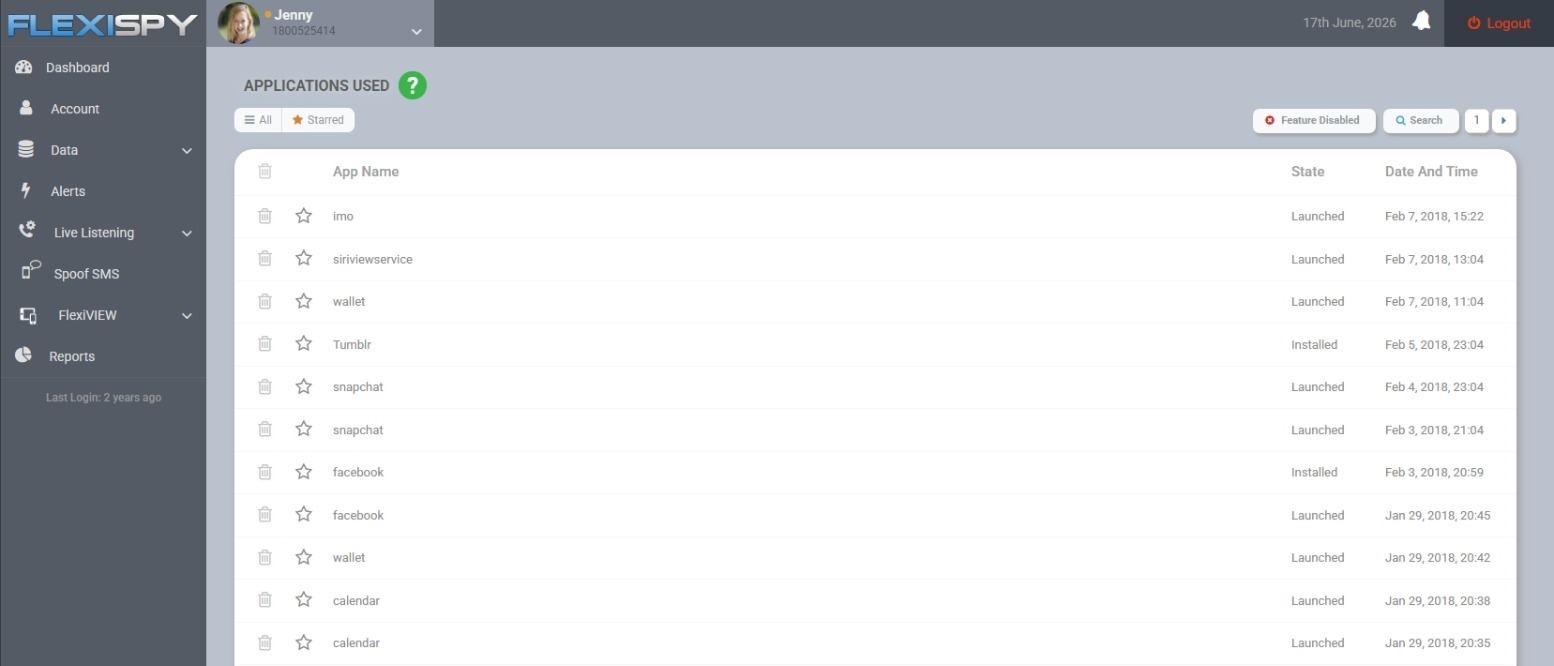
Feature availability differs by product and plan. On Android, Keylogger and Application Activity are included from Lite, while Application Screenshots is available with Premium and Extreme; the separate Computer product includes App Screenshots, Key logs, and Application Activity.
FlexiSPY works on Android without rooting and also offers a separate product for Windows and macOS computers. There is no FlexiSPY product for iPhone or iPad.
If data security matters to you when choosing any monitoring tool — and it should — read how secure your child’s data actually is before committing to anything.
When ChatGPT controls are enough — and when broader monitoring is warranted
For most teens, ChatGPT’s own controls plus an ongoing conversation are the right starting point. That’s where most families should begin and, in many cases, stay.
Set quiet hours, keep reduced sensitive content on, and talk about how they’re using AI — for homework, for curiosity, for questions they might be embarrassed to ask a person. That covers the everyday reality for the majority of families.
Broader device monitoring earns its place when you have a specific, concerning reason: signs of self-harm, possible contact from strangers, or hidden harmful use you’ve already spotted evidence of. It’s a response to a real worry — not a default setting.
If you want to compare tools, our guide to the best parental control apps of 2026 ranks options by what families actually need.
A note on consent and law: as a general rule, a parent may monitor their own minor child’s device. Laws vary by country and state, and monitoring another adult—including a partner—without consent can be illegal.
If you’re unsure how this applies to your situation, check your local law or consult a qualified lawyer. Features such as hidden mode and ambient recording carry elevated legal sensitivity; do not use them on a device you don’t own or without proper authority.
Your next step as a parent
Start small and start today.
Link your teen’s ChatGPT account, turn on quiet hours, and keep reduced sensitive content switched on. It takes a few minutes and covers most of what matters.
Then have the conversation — about why you set it up and what you’re actually worried about. That talk does more than any toggle.
Only reach for broader device-safety tools if you have a specific concern. If your focus is the computer rather than the phone, our walkthroughs for parental controls on Windows and parental controls on Mac are a good, free place to start.