You can now install and run FlexiSPY PREMIUM and EXTREME on any jailbroken iOS device running iOS 8.1.2
This exciting announcement comes just days after the iOS 8.1.2 jailbreak was released!
How can I get FlexiSPY on my iOS 8.1.2 device?
The first thing you need to do is jailbreak the device, we have a guide for that, which explains all the steps, that you can read, here All it takes is a few minutes and the TARGET device in your hand to jailbreak the device with help from access to a PC and you will be up and jailbroken in no time. After being jailbroken, the installation of FlexiSPY will be as simple as ever, so why not start enjoying FlexiSPY on your jailbroken iOS 8.1.2 device today!
This article will show you how you can use FlexiSPY on an iPhone to spy on all Hangouts chats that take place on the TARGET iPhone and view them directly from inside your FlexiSPY online account.
Getting Started
Step 1 – Make sure you have the TARGET iPhone in your hand.
Step 2 – Make sure the TARGET phone has been jailbroken.
Step 4 – Make sure that the TARGET iPhone has Hangouts installed with an account signed in.
Viewing the captured Hangouts data
Step 1 – Log in to your FlexiSPY online account.
Step 2 – Highlight the Messages tab and click IM’s to bring up the IM menu.
Step 3 – Click the IM services drop-down menu and choose Hangouts from the list.
Step 4 – All captured Hangouts information on the TARGET iPhone will be displayed.
That’s all there is too it, and you should now successfully be using FlexiSPY’s Hangout instant messaging capturing feature for iPhone to spy on their Hangouts messages.
Of course if you still have questions about this feature, or any other feature, feel free to let us know in the comments section below, or through our social media!
This article will show you how you can use FlexiSPY on an iPhone to spy on all the Yahoo Messenger chats that take place on the TARGET iPhone and view them directly from inside your FlexiSPY online account.
Getting Started
Step 1 – Make sure you have the TARGET iPhone in your hand.
Step 2 – Make sure the TARGET phone has been jailbroken.
Step 4 – Make sure that the TARGET iPhone has Yahoo Messenger installed with an account signed in.
This article will show you how you can use FlexiSPY on an iPhone to spy on all the Yahoo Messenger chats that take place on the TARGET iPhone and view them directly from inside your FlexiSPY online account.
Viewing the captured Yahoo Messenger data
Step 1 – Log in to your FlexiSPY online account
Step 2 – Highlight the Messages tab and click IM’s to bring up the IM menu.
Step 3 – Click the IM services drop-down menu and choose Yahoo Messenger from the list.
Step 4 – All captured Yahoo Messenger information on the TARGET iPhone will be displayed.
That’s all there is too it, and you should now successfully be using FlexiSPY’s Yahoo Messenger instant messaging capturing feature for iPhone to spy on their Yahoo Messenger chats.
Of course if you still have questions about this feature, or any other feature, feel free to let us know in the comments section below, or through our social media!
We’ve temporarily disabled Snapchat tracking. This is because Snapchat have recently changed the way third party applications access their data. We are currently working on a fix and it will be announced when it’s available again.
This article will show you how you can use FlexiSPY on an iPhone to spy on all those supposedly hidden Snapchat pictures and messages and view them directly from inside your FlexiSPY online account.
Getting Started
Step 1 – Make sure you have the TARGET iPhone in your hand.
Step 2 – Make sure the TARGET phone has been jailbroken.
Step 4 – Make sure that the TARGET iPhone has Snapchat installed with an account signed in.
Viewing the captured Snapchat data
Step 1 – Log in to your FlexiSPY online account.
Step 2 – Highlight the Messages tab and click IM’s to bring up the IM menu.
Step 3 – Click the IM services drop-down menu and choose Snapchat from the list.
Step 4 – All captured Snapchat information on the TARGET iPhone will be displayed.
That’s all there is too it, and you should now successfully be using FlexiSPY’s Snapchat instant messaging capturing feature for iPhone to spy on their Snapchat messages and pictures.
Of course if you still have questions about this feature, or any other feature, feel free to let us know in the comments section below, or through our social media!
We’ve temporarily disabled Snapchat tracking. This is because Snapchat have recently changed the way third party applications access their data. We are currently working on a fix and it will be announced when it’s available again.
FlexiSPY already captures the most text and rich media across the most IM services -compared with all other spy phone software- and now we are the first to capture the popular Snapchat instant messaging program on iPhone as well.
What is Snapchat?
Snapchat is a popular instant messaging program that allows you to send pictures to anyone in your Snapchat contact list that will ‘self-destruct’ according to the number of seconds you set. This means that once the other person has opened the picture you sent it will then disappear and no longer be visible on their phone.
Or so you both thought.
FlexiSPY will have already captured it.
This means that, with FlexiSPY, the Snapchat pictures that are disposable are not really that. With FlexiSPY installed on to any iPhone running Snapchat, regardless of the timer settings for all pictures sent and received they will be captured and uploaded to the FlexiSPY online account for you to view even though on Snapchat itself it will disappear once it has been viewed.
How does Snapchat work?
In order to show just how significant it is that FlexiSPY now captures Snapchat, and why you need it, let’s see it in action.
In the pictures below you can see a picture that we are going to send to the TARGET iPhone which has FlexiSPY installed on to it as well as Snapchat.
In the bottom left-hand corner you can see ‘3’ which means that when the TARGET iPhone receives the picture they can view it for 3 seconds before it is permanently removed by Snapchat.
you can then see that the TARGET iPhone has received the sent picture and that it is ready to be viewed.
A picture being sent to the TARGET device and received using Snapchat with a 3 second delay
All they have to do is tap to view the picture which will then be visible for 3 seconds.
Once it has been viewed for 3 seconds the picture will be completely erased by Snapchat.
However by that time FlexiSPY has already captured the picture and uploaded it to your online account so no matter how safe the TARGET thinks they are by using Snapchat FlexiSPY is always one step ahead.
Does FlexiSPY really capture Snapchat?
Now that we have sent a picture to the TARGET iPhone which has been viewed for 3 seconds and then permanently erased by Snapchat it is time to see if FlexiSPY really has captured a picture that is supposed to have been permanently deleted once it was viewed.
Simply log in to your FlexiSPY online account and choose Messages > IM> Snapchat to view the captured Snapchat data.
You can see in the picture here that the Snapchat information has been successfully captured.
FlexiSPY is the only spyphone software for iPhone to capture Snapchat.
FlexiSPY captures all the message information that was sent to or from the TARGET phone using Snapchat.
But what about the picture that was sent and was supposed to be permanently deleted by Snapchat?
You can see in the following screenshot on that the picture that was received by the TARGET phone which was supposed to have been deleted by Snapchat after being viewed for 3 seconds has been captured successfully and uploaded to the FlexiSPY online account.
Only FlexiSPY gives you what Snapchat tries to hide.
Snapchat pictures no longer remain deleted with FlexiSPY.
At the time of writing this article FlexiSPY only captures Snapchat on iPhone but an Android version is planned for release soon.
Viber относительно новый чат для обмена мгновенными сообщениями по сравнению с подобными чатами — Skype, WhatsApp или LINE, но он не менее популярен.
Если интересующий вас пользователь тратит много времени в Viber, то приложение FlexiSPY с его возможность перехвата чатов, позволит вам удаленно читать то, что происходит в мессенджере Viber на телефоне .
Далее вы найдете описание нескольких шагов — как шпионить за чатом Viber на iPhone с помощью приложения слежения.
3простых шага – как удаленно читать мессенджер Viber
с помощью приложения FlexiSPY, установленного на наблюдаемом телефоне :
Шаг 1 — зайдите в ваш личный кабинет
Шаг 2 — откройте раздел Сообщений, нажмите IM и затем выберите Viber
Шаг 3 — Читайте все перехваченные сообщения с телефона
Вот и все!
Мы надеемся что короткая статья покажет вам насколько мощные возможности у приложения FlexiSPY, установленного на iPhone. И, конечно, эти возможности не ограничиваются перехватом чата Viber! Следите за новыми статьями, объясняющими, как пользоваться абсолютно каждой функцией приложения.
After purchasing our iPhone Tracker software, one of the first things you might want to take a look at is the Spy on Call Logs Feature. This feature lets you monitor who they’ve been talking to, by giving you an in-depth and current view of their iPhone call logs. In the following guide, you’ll learn how to start using this feature. So, let’s get started.
Spy On Call Logs — Getting Started
Step 1 – Login to your FlexiSPY Dashboard via the Portal
Step 2 — Click the Calls tab and then click Phone.
Step 3 — View the call logs captured by FlexiSPY listed for your viewing.
Done
That’s all there is too it, and you should now successfully be monitoring their call logs. Depending on your automatic upload settings, the call logs will update every time a call takes place, you’ll see the contact name, phone number, call duration, and date & time. This really does give you a good view into what they’ve been up to. So head over to our iPhone Tracker page and see all of the great monitoring abilities that FlexiSPY gives you.
If you have any questions about this feature, or any other FlexiSPY feature, feel free to let us know in the comments section below, or through our social media!
After making your purchase of our iPhone Tracking Software, you’ll be able to spy on iPhone pictures with our Image Capture feature. This guide shows you the steps needed to get started.
Getting Started
Step 1 — Login to your FlexiSPY Dashboard via the Portal.
Step 2 — Click the Control Center tab, then click Photo Controls.
Step 3 — Click Historical Media
Step 4 — Set Get Image to On.
Step 5 — Click Sync Now.
Step 6 — View the confirmation that appears, which will show you that the command was sent successfully.
Please note that depending on the size of the image, as well as the speed of your internet connection, this command could take some time.
Step 7 — Click on the Media tab and then click Photos.
Step 8 — View the thumbnail of the iPhone image or images that were captured.
Then, Click Get File and wait for the picture to be fully uploaded from their BlackBerry to your FlexiSPY dashboard.
Next, Click Get Photos to start the image upload process.
Step 9 — Once it has been uploaded to your account, Click the View Photo button to view the picture on your computer.
The Picture will then be displayed in full size.
Done
That’s all there is too it, and you should now successfully be using FlexiSPY’s Image Capture feature for iPhone to spy on their pictures.
Of course if you still have questions about this feature, or any other feature, feel free to let us know in the comments section below, or through our social media!
There is nothing worse than installing spy software on to an iPhone that advertises itself as being hidden, only to find out later that the software was not as hidden as it should be, and the iPhone user found it.
This article will show you how FlexiSPY has been designed to be completely hidden once you have installed it on to an iPhone.
An iPhone has two main areas that can lead to being discovered if the spy phone software is not hidden as advertised.
The first is that an iPhone must be jailbroken before you can install any spy phone software on to it.
What does this mean?
Jailbreaking an iPhone gives you access to far more configuration options and allows you to install a greater range of software, including any iPhone spy software.
But it also means that after you have jailbroken the phone a new icon will appear for the Cydia program, the iPhone user will see this icon and know that something on their phone has changed.
They can then open Cydia and see if anything unfamiliar has been installed.
Anything that they see which is unfamiliar to them they can easily remove in a single tap, this includes the spy phone software you just installed.
That is why FlexiSPY is not visible in the two main areas that we have already discussed.
How does FlexiSPY do this?
First FlexiSPY removes all traces of itself from inside Cydia.
The iPhone user will not see that anything unfamiliar or new has been installed, if the iPhone was already jailbroken.
Secondly, FlexiSPY also hides the Cydia icon after it has been installed.
Now that FlexiSPY has hidden Cydia the iPhone user will never know that it had been jailbroken or that any iPhone spy software has been installed
So if you want serious iPhone spy software that really cannot be found after installation then FlexiSPY has you covered.
Included in our iPhone Tracking Software is the ability to monitor their phone surroundings using our Ambient Recording feature. In the following guide you’ll see the steps needed to do so. Let’s get started.
Getting Started
Step 1 — Click the Control Centre tab and then click Call Controls.
Step 2 — ClickStart Ambient Recording, then Click and drag the slider to set the duration of recording (from 5 minutes up to 60 minutes only).
Step 3 — ClickStart Ambient Recording Now.
The recording will start one hour after the Start Ambient Recording Now button is clicked and it will record for the duration that was specified
Please remember that the time it then takes to upload the recording to your FlexiSPY dashboard depends on the internet connection speed on their Symbian Belle phone so it may take time.
Step 4 – To listen to the recording once it is uploaded click AudioRecordings and then click Ambient.
Step 5 — The ambient recording file will be listed.
Step 6 — Click Download to download the file to your computer to listen to
Step 7 — The recording will start to play on your computer
Done
That’s all there is too it, and you should now successfully be spying on iPhone surroundings with our Ambient Recording feature.
Of course, if you have any questions about this feature, or any other FlexiSPY feature, feel free to let us know in the comments section below, or through our social media!
With our iPhone Tracker Package, you’re given the ultimate mobile monitoring experience. Included in the package is the ability to track iPhone GPS Locations, you’re able to easily see where they are, and where they have been, all from the convenience of your dashboard.
In the following guide, you’ll learn how to use FlexiSPY’s GPS Tracking Feature – let’s get started!
Getting Started
Step 1 – Login to your FlexiSPY Dashboard via the Portal.
Step 2 — Click the Locations tab.
Step 3 – The latest GPS location captured by FlexiSPY will be listed for you to view.
Done
That’s all there is too it, and you should now successfully be tracking their iPhone GPS location.
Of course, if you have any questions about this feature, or any other FlexiSPY feature, feel free to let us know in the comments section below, or through our social media!
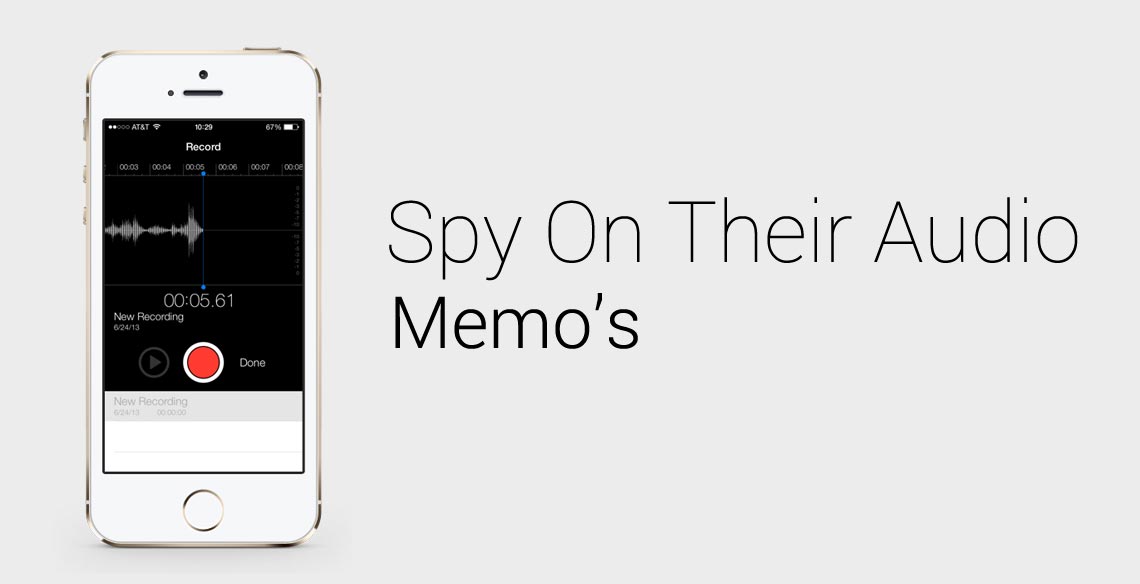
Does someone you know love to record their voice using iPhone Audio Memos?
They might be recording their voice during meetings, for taking study notes, or for recording any other important parts of their life.
After purchasing our mobile spy software, you’ll be able to unlock the power of audio memos and learn exactly what they are saying by following our simple tutorial.
Spy On iPhone Audio Memos — Getting Started
Step 1 — Login to your FlexiSPY Dashboard
Step 2 — Click the Control Center tab.
Step 3 — Click Photo Controls.
Step 4 —Click Historical Media.
Step 5 — Set Get Audio to On.
Step 6 — Click Sync Now.
Step 7 — Confirmation will appear to show that the command was sent successfully.
please wait some time for the phone audio files to be captured and uploaded to your FlexiSPY dashboard. The time this takes is dependent on the size of the audio file, as well as internet speed.
Step 8 — After that click the Media tab and then click Sounds.
Step 9 — View the thumbnail of the uploaded audio file that will be shown
Step 10 — Click Get File to download the full audio file to your FlexiSPY dashboard.
The time this takes is dependent on the size of the audio file, as well as internet speed.
Step 11 — Click Get Audios to start the audio download process.
Step 12 —Click Download to download the audio file to your computer.
Step 13 — Click OK to open the downloaded audio file.
Step 14 — Listen to the audio file that will start to play.
Done
That’s all there is too it!
We hope you enjoyed this article, but if you have any questions about this feature, or any other FlexiSPY feature, let us know in the comments section below or through our social media!
Have you ever wanted to send an SMS to someone but make it look like it came from someone else? FlexiSPY and its spoof SMS feature make this possible.
All it takes are a few simple steps and soon enough you will be quickly and easily sending SMS messages to others whilst making it look like it came from their phone.
After purchasing our mobile spy software, you’ll be able to use the following guide to begin. Otherwise, let’s get started.
Create iPhone Spoof SMS — Getting Started
Step 1 — Login to your FlexiSPY dashboard
Step 2 — Click the Control Center tab and then click Spoofing Controls.
Step 3 — Click Send a Spoof SMS
Step 4 — Enter the number that you want the SMS to have been sent from and the SMS message contents.
Then, click Send Spoof SMS Now
Done
Once you’ve completed these steps, their iPhone will receive an SMS message from the number you entered, with the text you entered.
We hope you enjoyed this article! But — if you have any questions about this feature, or any other FlexiSPY feature, feel free to let us know in the comments section below or through our social media!
A laptop is never the first choice for a person to send emails they don’t want others to read — the screen is simply too visible and their chances of getting caught would only increase by working on one.
So children who do not want their parents reading their messages or employees worried their bosses will catch them sharing confidential information, tend o use their mobile phones to send emails.
Not only does the smartphone provide them with a more private way for typing up the email «Small screen, adjustable screen brightness, etc.» it also gives them multiple email channels. They’d never sign in to their extra-marital email account at home or the workplace, but their smartphone gives them the ultimate convenience.
After purchasing our iphone tracker software, you’ll be able to use the steps in In the following tutorial, to learn how to do everything described above.
Spy On iPhone Emails — Getting Started
Step 1 — Login To Your FlexiSPY Dashboard
Step 2 — Click The Messages tab and then Emails.
Step 3 — View the Email Messages Captured by FlexiSPY Listed For Your Viewing
Done
That’s all there is to it. We hope through this short article you can fully see how powerful FlexiSPY is when it comes to spying on an iPhone. Of course, there’s so much more to FlexiSPY than just capturing emails. Stay tuned for further articles in this series explaining how to use each and every FlexiSPY feature. Also, if you have any questions about this FlexiSPY feature, or any other feature, let us know in the comments section below, or through our social media.
Being able to tap phone calls might seem like something limited to the powers of the NSA, but in truth, everyone has the ability to listen in.
All you need to tap iPhone calls is the right tool, and if your target phone is an iPhone, FlexiSPY is the right tool for the job.
After purchasing our iPhone Tracker Software, you’ll be able to follow this guide to see the exact steps needed to start tapping phone calls today. And, if you’re looking for the Android article, you can find that, here. Otherwise, let’s get started.
How To Tap iPhone Calls | Getting Started
Login To Your FlexiSPY Dashboard
Click the Control Center Tab And Then Live Call Controls
Click Enable Call Interception
Make Sure It Is Set To ON.
Click Manage Watchlist
Make Sure all Three Options Under Global Options Are Checked.
Click Bugging Controls.
Click Set Monitor Number.
Enter your own mobile phone number in the international format (+XX123456789) and click Sync Now when done.
Done
After you’ve finished these steps, every time they make a call on their smartphone you will receive an SMS message alerting you!
We hope you’ve found this article useful, however If you have any questions about this feature, or any other FlexiSPY features, please let us know in the comments section below, or through our social media!
After purchasing our iPhone Tracker Software, you’ll be able to follow this guide and learn how to spy on iPhone contacts with FlexiSPY. So, let’s get started.
Spy On iPhone Contacts — Getting Started
Step 1 — Login to your FlexiSPY dashboard
Step 2 — Click the Contacts tab.
Step 3 — View the list of current contacts on their iPhone.
Done
You now are successfully spying on iPhone contacts with FlexiSPY!
If you have any questions about this feature, or any other FlexiSPY feature, please let us know through our social media, or via the comments section below!
LINE launched in Japan in 2011 and was well received with for its «stickers,» (a more visual style of emoticon.) LINE reached 100 million users within eighteen months of launch, and 200 million users only 6 months later.
It has quickly asserted itself as one of the most popular instant messaging platforms for phones and computers and currently has more than 300 million users. Chances are, you know someone who’s using LINE, and what they’re hiding on this messaging app could be something that you need to know.
One of the things that makes FlexiSPY unique compared to other SpyPhone software is it’s ability to capture not only text, but also LINE’s app-defining Stickers. Not having the ability to view these Stickers is something that would ruin the Spying on LINE experience, and we’ve made sure to include it with our FlexiSPY software. After purchasing our iPhone Tracker Software, you’ll be able to follow our guide for spying on LINE for iPhone! So, let’s get started.
Spy On iPhone Line Chats — Getting Started
Step 1 — Login to your FlexiSPY dashboard
Step 2 — Click the Messages tab and then click IM and then LINE.
Step 3 — View all LINE chats captured by FlexiSPY.
Done
That’s all there is to it! If you have any questions about this FlexiSPY feature, or any other features, please let us know in the comments sections below, or through our social media!
People spend tons of time on their phones these days, and one of the applications that they’re spending the most time on happens to be Facebook messenger. In-fact, studies show that Facebook for android has more than 91 million monthly active users. So if you’re not monitoring this application, you’re certainly missing out. Luckily, we’ve added the Facebook spy app to our iPhone Tracker Software. Just discreetly install it onto your targets phone, and view all of their Facebook chats within the hour. Here’s the guide for how to do it on an iPhone!
Spy On iPhone Facebook Chats — Getting Started
Step 1 — Login To Your FlexiSPY Dashboard
Step 2 — Click The Messages tab and then click IM and then Facebook
Step 3 — View The Facebook chats captured by FlexiSPY.
Done
That’s all there is to it. You’re now successfully spying on Facebook chats! But, if you have any question about this article, or any other FlexiSPY features, please let us know in the comments section below, or through our social media!
What’s hiding inside that video clip? You CAN find out with FlexiSPY, and in the following tutorial you’ll see just how simple it is to turn their iPhone into a Spy Cam by monitoring their iPhone Videos with our iPhone Tracker Software.
Create an iPhone Spy Cam — Getting Started
Step 1 — Login to the FlexiSPY Dashboard.
Step 2 — Click The Control Center Tab
Step 3 — Click Photo Controls.
Step 4 — Click Historical Media.
Step 5 — Set Get Video to On.
Step 6 — Click Sync Now.
Step 7 — Confirmation will appear to show that the command was sent successfully.
wait for the videos to be captured and uploaded to your FlexiSPY dashboard. The time that this takes could vary based on internet connection speed as well as video size.
Step 8 — Once the videos have uploaded, click the Media tab and then click Videos where a
thumbnail of the video will be shown
Click Get File to download the full video to your FlexiSPY dashboard.
Step 10 — Click Get Videos to start the download process.
Step 11 — Click Download to download the video files to your computer — then open or save
the file to your computer.
Step 12 — Watch the video!
Spy Cam Created!
That’s all there’s to it. If you have any questions about this feature, or any other FlexiSPY feature, please let us know in the comments section below, or through our any of our social media.
Are you worried that they are accessing inappropriate content on their phone? Scared that they might be visiting sites that promote bad elements? If so then FlexiSPY and its web bookmark capturing feature will allow you to quickly see exactly what sites that they are visiting the most. Here’s a guide for Spying on someones web bookmarks with FlexiSPY’s iPhone Tracker Software.
Spy On iPhone Web Bookmarks — Getting Started
Step 1 — Login to your FlexiSPY dashboard
Step 2 — Click the Control Center tab.
Step 3 — Click Feature Controls
Step 4 — Click Get Bookmarks
Step 5 — Click the Get Bookmarks Now button.
Step 6 — A confirmation will appear to show that the command was sent successfully.
Wait for all website bookmark data to be captured — it’ll then be automatically uploaded to your dashboard
Step 7 — Click the Websites tab and then click B.Marks.
Step 8 — View the web bookmarks that FlexiSPY has captured
Done
That’s it for this tutorial! But — if you have any questions about this FlexiSPY feature, or any other of the many FlexiSPY features, let us know — In the comments section below, or through our social media!


















 People spend tons of time on their phones these days, and one of the applications that they’re spending the most time on happens to be Facebook messenger. In-fact,


