
x

Category: 秘决 & 技巧 Android

阅读最新的Android提示与技巧在这里,在FlexiSPY博客

  • How to Find Hidden Apps on Your Child’s Android Phone

    How to Find Hidden Apps on Your Child’s Android Phone

    To find hidden apps on your child’s Android phone, check three places: the complete app list in Settings, the launcher’s hidden-app menu, and protected areas such as Android Private Space or Samsung Secure Folder. Start with Settings > Apps > See all apps, because an app hidden from the home screen will often still appear there.

    Whenever possible, review the phone with your child. A hidden app can be a safety concern, but it can also be a harmless game, a private journal, or an app they expected you to disapprove of.

    Quick checklist: where Android apps can be hidden

    Place to checkWhat you may findWhat to remember
    Settings > AppsMost apps installed in the phone’s main profileUsually the fastest and most complete first check
    Launcher settingsIcons removed from the home screen or app drawerThe app remains installed
    Android Private SpaceApps installed in a separate, lockable profileLocked apps may not appear in the main app list
    Samsung Secure FolderSeparate copies of apps stored in a protected folderThe folder icon itself can be hidden
    Disabled appsApps still on the device but removed from normal useThey may disappear from the launcher

    1. Check the complete app list in Settings

    The home screen and app drawer only show icons the launcher has been told to display. Android’s Settings menu gives you a better inventory of apps installed in the main phone profile.

    1. Open Settings.
    2. Tap Apps, Applications, or Apps & notifications.
    3. Select See all apps or App management.
    4. Review the list for names you do not recognize.
    5. Tap an unfamiliar app to view its permissions, storage, battery use, and mobile-data activity.

    Do not assume every unfamiliar name is a secret app. Android includes system services with technical names, and phone manufacturers often install their own utilities.

    If the menu offers a filter, check Disabled apps as well. Disabling an app can remove its icon without deleting its files from the phone.

    2. Look for apps hidden by the home-screen launcher

    Many Android launchers include a setting that hides selected apps from the app drawer. This is only a display change: the app normally remains installed and may continue to run.

    1. Touch and hold an empty area of the home screen.
    2. Open Home settings or Launcher settings.
    3. Look for Hide apps, Hidden apps, or similar wording.
    4. Review any apps selected in that menu.

    On many Samsung phones, the option is called Hide apps on Home and Apps screens. Other phone makers and third-party launchers use different names, so use the Settings search bar if you cannot find it.

    3. Check Android Private Space

    Android Private Space is different from an ordinary hidden-app menu. It creates a separate profile in which a person can install another copy of an app and protect it with a lock.

    According to Google, apps in a locked Private Space are stopped and hidden from places such as the launcher, recent-app view, sharing menus, and parts of Settings. That means the main See all apps list may not tell the whole story.

    1. Open Settings.
    2. Go to Security & privacy > Private space.
    3. Unlock the space if you are authorized to do so.
    4. Review the apps installed inside it.

    If the Private Space container has been hidden, search for Private Space in Settings or the app drawer. Availability and menu paths vary by device; Google’s Private Space guide has the current instructions.

    4. Check Samsung Secure Folder

    Samsung Secure Folder can hold separate copies of apps, accounts, photos, and files. Its icon can also be removed from the Apps screen, so you may need to find it through Settings.

    1. Search Settings for Secure Folder.
    2. On many Samsung phones, go to Security and privacy > More security settings > Secure Folder.
    3. Unlock the folder if you have the authority and credentials to access it.
    4. Review the apps stored inside.
    5. Check whether Add Secure Folder to Apps screen is turned off.

    Samsung changes menu paths between One UI versions. If these steps do not match the device, consult Samsung’s Secure Folder instructions.

    5. Check for disguised apps

    Some apps try to blend in by using a generic name or an icon that looks like a calculator, calendar, or utility. An innocent-looking icon is not proof that an app is dangerous, so inspect how it behaves before drawing conclusions.

    • Permissions: A basic calculator should not normally need contacts, location, camera, and microphone access.
    • Storage use: A simple utility using a large amount of storage may contain photos, videos, messages, or other saved data.
    • Background activity: Check whether the app uses significant battery or data when it is supposedly unused.
    • Developer: Look up the developer name and compare it with the app’s claimed purpose.
    • Install source: Find out whether it came from Google Play or another source.

    Look for a pattern of inconsistencies. Password managers, accessibility tools, work apps, and security products can legitimately request broad permissions.

    6. Use Google Play as a cross-check

    Open the Play Store, tap the profile icon, and select Manage apps & device. This can help you identify apps installed through Google Play or associated with the Google account.

    It is not a complete hidden-app detector. It may not show apps installed from another source, associated with a different account, or placed inside a locked profile.

    7. Run a Google Play Protect scan

    If you are concerned that an unfamiliar app may be harmful, run Play Protect after identifying it.

    1. Open the Google Play Store.
    2. Tap the profile icon.
    3. Select Play Protect.
    4. Tap Scan.

    Google says Play Protect checks apps for harmful behavior and may warn about, disable, or remove a harmful app. See Google’s Play Protect guidance for current settings and scan instructions.

    How FlexiSPY can help you review installed apps

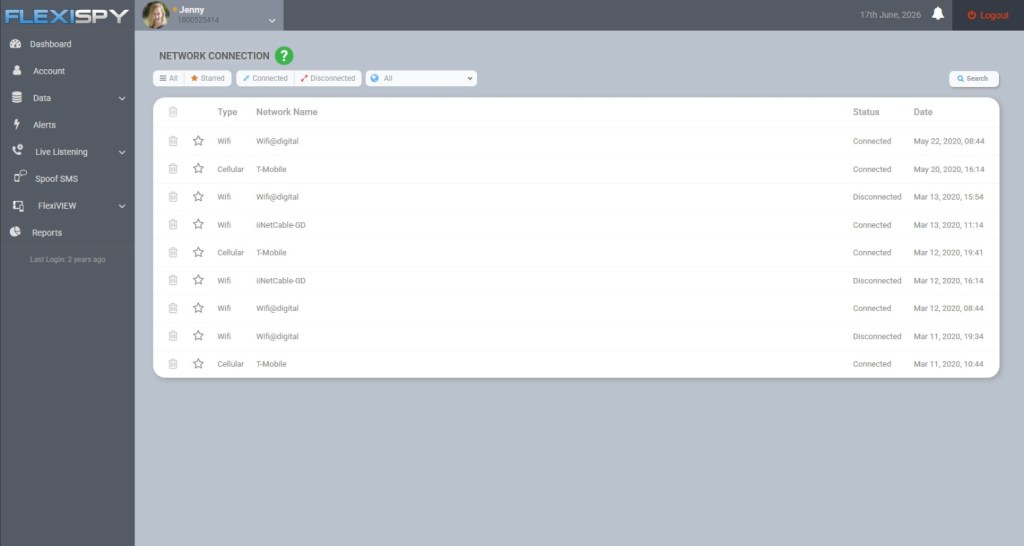
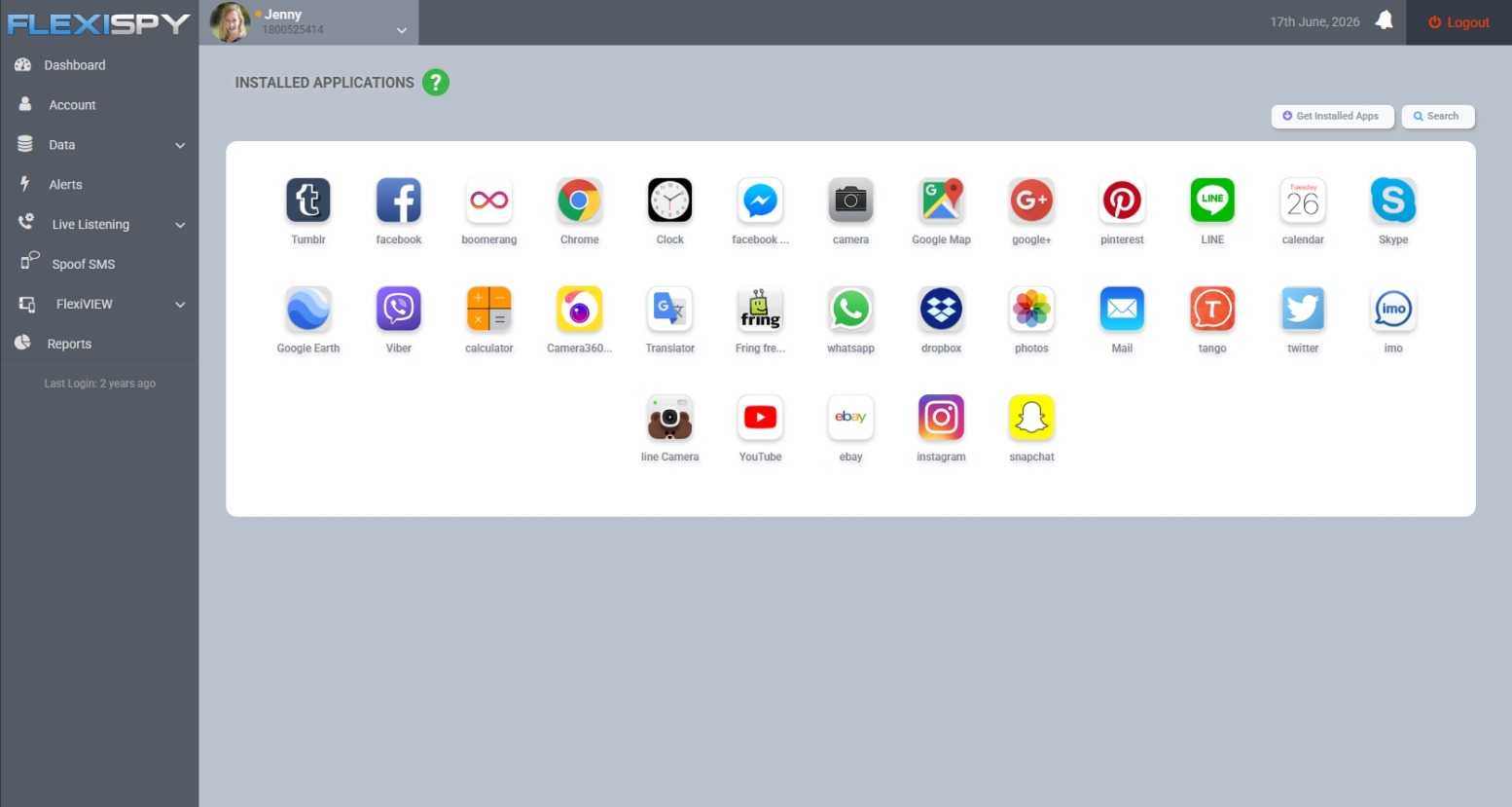
    For ongoing checks on a child’s Android phone you manage, FlexiSPY provides Installed Applications and Application Activity reports on its Android plans. These reports can help you review ordinary installed apps and see which apps are being used from the web dashboard.

    FlexiSPY dashboard showing installed applications on an Android phone

    This can be useful when an app’s launcher icon has been hidden or when you need a clearer record between in-person phone reviews.

    What to do when you find an unfamiliar app

    Finding the app is only the beginning. Before deleting it, work out what it is, what information it can access, and why your child installed it.

    1. Identify the app. Check its developer, Play Store listing, permissions, install source, and recent activity.
    2. Ask your child about it. Give them a chance to explain what they use it for and why it was hidden.
    3. Assess the actual risk. Look for contact with strangers, location sharing, explicit content, hidden purchases, or misleading age information.
    4. Reduce unnecessary access. Revoke permissions the app does not need and turn off unwanted notifications, purchases, or location sharing.
    5. Remove it when appropriate. Uninstall harmful or unsuitable apps from a device you are responsible for managing.

    If the app contains evidence of threats, grooming, blackmail, or sexual exploitation, preserve relevant screenshots and account details before removing it. Contact the platform, school, or appropriate authorities when the situation warrants it.

    Turn the discovery into a better phone rule

    A technical inspection can solve today’s mystery, but it will not prevent the same conflict next week. Agree on clear rules for which apps require permission, what kinds of privacy your child can expect, and when you will review the phone together.

    A younger child may need regular app checks. A teenager may respond better to narrower checks tied to a specific concern, with more privacy restored as they demonstrate sound judgment.

    If you need controls beyond app inventory, our guide to the best parental control apps explains how different approaches compare.

    Use monitoring only on a device and account you are legally authorized to manage. Privacy, consent, and recording laws vary by location, so check local law or seek legal advice if your authority is unclear—especially when the device belongs to another adult.

    Frequently asked questions

    Do hidden apps appear in Android Settings?

    Apps hidden only from the home screen or app drawer usually still appear under Settings > Apps. Apps inside a locked Private Space or another protected profile may not appear in the main list.

    Can an Android app look like a calculator?

    Yes. Some vault apps use calculator-style icons or interfaces, but many ordinary calculator apps are legitimate.

    Check the app’s developer, permissions, storage use, and behavior instead of judging the icon alone.

    Can the Play Store reveal every hidden app?

    No. It is useful as a cross-check, but it can miss apps installed outside Google Play, apps connected to another account, and apps inside a separate protected profile.

    What is the fastest way to check for hidden apps?

    Compare Settings > Apps > See all apps with the visible app drawer. Then check the launcher’s hidden-app menu, Android Private Space, and Samsung Secure Folder if those features are available.

  • Android Call Recording: How To Get The Best Results

    Android Call Recording: How To Get The Best Results

    Not quite sure how to setup and use our Android Call Recording feature? Or maybe you HAVE set it up and even recorded a call, but when you listened to the recording something just didn’t sound right..

    If we’ve hit the mark, then you’ll be glad to know that in this post we’ll show you how to maximize the chances of getting a perfect recording every time.

    (If you are interested in iPhone Call Recording, we cover it in another post)

    So let’s begin!

    Finding The Best Android Call Recording Source

    To better understand why call recordings aren’t always clear, you should understand how our Call Recording feature works.. Basically, when FlexiSPY first activates it tries to automatically find the best call recording method, and it has several sources to choose from.

    Usually the microphone source works best, and it may choose that. But –  there may be a better recording source for your device.

    Better Results Through Manual Settings

    FlexiSPY sometimes can’t automatically find the best audio source. The reason is complicated, but the short version is that there are so many variations of android devices, all running on different networks, that FlexiSPY sometimes gets it wrong.

    You’ll know that this happened if:

    • Only one side of the conversation gets recorded.
    • You can only hear static
    • The recorded voices sound distant

    Fortunately, this is where manually setting the audio source can help. Through the manual settings you can test which source works best for the device that FlexiSPY is installed on.

    Here’s how to manually set the audio source:

    1.       Log into your online portal.

    2.       Click Control Center.

    3.       Click Call Controls.

    4.       Click Set Audio Recording Source.

    All the possible call recording sources will then appear.

    set-audio-recording-source

    Here’s a breakdown of the sources:

    Microphone

    This is the call recording source that FlexiSPY uses by default.

    (Samsung devices work well on this setting)

    Voice Call

    This source uses both directions (known as uplink and downlink) to increase the chances of recording both sides of a call. It may not work with all devices though – if it fails it will result in the recording of only one side of the call.

    AOSP

    This is a proprietary recording source for all devices.

    (non-rooted Motorola and Huawei Android devices should choose this source for best results.)

    Legacy

    This is the oldest and most stable form of call recording. But on newer Android devices both sides may not be recorded.

    (If all other call recording sources produce unsatisfactory results, then use this.) 

    ALSA 

    This source is for rooted Android devices only.

    So if you’re unhappy with Call Recording and the device is unrooted you’ll want to:

    1. Deactivate & Uninstall FlexiSPY from the device
    2. Root the device
    3. Reinstall & Reactivate FlexiSPY
    4. Set ALSA as the Call Recording source

    Conclusion

    There’s no universal Call Recording source that works for every Android device. But if you try all the sources we mentioned in this article, there’s a good chance that your recordings work just fine!

  • Sending Commands To Your Android Device With FlexiSPY

    Sending Commands To Your Android Device With FlexiSPY

    Sometimes you might want to change a capturing setting in the FlexiSPY control panel. Maybe you’d like to activate our Ambient Recording feature, or change what app’s you’re monitoring. Whatever the case, you’re given the option to choose the method that FlexiSPY will use to send the changes to the phone.

    There are three ways to for sending commands to your Android device using FlexiSPY.

    1. Network (FREE, works on all mobiles)
    2. Push Notification (FREE, but not available on all mobiles)
    3. SMS commands (requires purchase of SMS credits, works on all mobiles)

    SMS credits are an optional way to send commands to FlexiSPY. They are used within Control Center in your online account to make sure time sensitive commands are processed immediately (e.g. Send Immediate – to send all data not yet uploaded immediately to your online account.)

    The default is push notifications, or network. But these are sometimes slow, and can take an hour to arrive – which is perfectly fine for most users.

    SMS commands arrive instantly, and are appropriate for professional use, where timing is important. You can always send SMS commands from your own mobile device, so you don’t ever need to buy SMS credits.

    But for those users who value convenience, and the best possible performance, we give them the option to buy credits directly from inside the account portal inside your account tab.

    Let’s take a look at how push notifications work;

    Everything takes place inside the Control Center in your online account.

    how-push-notifications-work

    Just browse to the category for the command you wish to set and set the options you want to change.

    set-the-options-you-wish-to-change-flexispy

    Click Sync Now when done and wait for the push notification to be sent to the Android TARGET device.

    click-sync-now

    With the push notification sent to the device the changes will then be applied.

  • What Is ADB And How Do I Use It?

    What Is ADB And How Do I Use It?

    Disclaimer: While installing ADB is a safe process, please follow all the steps carefully. FlexiSPY is not responsible for any damage or data loss through following this article and all steps are correct at the time of writing. Create a Windows system restore point at any time if you are unsure. Performing these steps is your own responsibility.

    If you are a casual Android user who just uses their phone for Facebook, Clash of Clans, calls and emails then you most likely won’t be interested in ADB or what it is. But for those who like to tinker with the plethora of Android customization options available to the platform ADB is an integral part of the experience.

    But what is ADB and why should Android owners become familiar with it?

    When you plug in your Android phone or table to your PC Windows will happily display the contents of the phone for you to work with. This can be internal storage or external storage from an Sdcard you have inserted. But surely you must have wondered, what else is on my phone and how can I get access to it?

    ADB is the answer

    ADB stands for ‘Android Device Bridge’ and is a set of tools for your PC that allows you to interface with your Android phone at the very lowest level in terms of system and processes. You essentially can access all areas of your Android phone and its filesystem instead of the areas deemed safe by the manufacturers that only Windows can see.

    ADB allows you to perform advanced operations on your Android phone that you would otherwise normally not be able to.

    But what are these ‘advanced operations’ you mention?

    Usually ADB is commonly used for rooting.  An Android phone software is powered by the Android OS which is based on Linux. On Linux there are certain levels of user responsibility, the highest being superuser which allows you to change anything.

    Your Android phone is the same. By default the filesystem of the phone is locked down by the phone manufacturer but you can gain full and complete access to the device by gaining root (hence the term ‘rooting’). This lets you do anything you want on the phone and ADB helps make this happen.

    So if you want to root an Android phone or perhaps install a custom ROM or basically just perform advanced tasks on your Android phone then you’ll need ADB so let’s install it.

    What is needed to install ADB?

    To install ADB you will need a PC. You will need to download and install the Android SDK which you can get from here.

    get-the-adb

    Once you have downloaded the Android SDK save it to an easy to remember folder, for this article we are going to use C:\Android on the PC we are using to write this article.

    save-it-to-an-easy-to-remember-place

    Here we have downloaded the Android SDK to the desktop.

    We will now extract the contents of the folder.

    adt-bundle-windows
     

    eclipse

    The above screenshots show what is inside the extracted SDK. We will now make a new directory on our C drive called Android and we will copy the three folders shown above.

    If you are wondering, you simply navigate to SDK > platform-tools and ADB will be shown along with Fastboot which is also needed if you are rooting

    adb_exe

    Note: You will not see a platform-tools folder after you extract the SDK. You must install it first which we discuss now.

    How do you configure ADB?

    To configure ADB and make sure you have the right packages installed launch SDK Manager.

    sdk-manager1

    Because you are running it for the first time it will ask you which packages you wish to install, we must install Platform-tools because this is what contains ADB.

    choose-packages-to-install

    Just make sure Android SDK Platform-tools is checked, click Accept and then click Install.

    Installing all the packages may take some time – please be patient.

    When all packages are install the SDK Manager should look like this.

    what-it-will-look-like-after-packages-are-installed

    As you can see, Android SDK Tools and Android SDK Platform Tools are both installed.

    Set the Windows ADB path variable

    Based on which version of Windows you have (we are using Windows 8.1) the steps here may be a little different. Basically we need to tell Windows that the SDK actually lists and has its own unique path. That way, when ADB is invoked by a program (e.g. a rooting tool) it knows where to find the required file inside your SDK installation folder.

    Because you are modifying system variables and paths you may want to create a Windows system restore point first.

    You need to access Advanced System Settings.

    To do this (on Windows 8.1), press the Windows key + S to bring up the search box and type Advanced System Settings and click the entry that appears.

    advanced-system-settings

    On the menu that appears click Environment Variables.

    environment-variables

    The environmental variables window will appear and this is what we need to edit.

    what-is-needed-to-edit-appears

    Under System Variables, scroll down to Path and click Edit.

    path edit

    Note: Do not delete the variable value field in any way.

    Instead, append it. At the end, add the following line (include the ; at the start):

    ;c:\android\android-sdk-windows\tools;c:\android\android-sdk-windows\platform-tools

    Note: Remember that we installed our Android SDK to C:\Android? Your SDK folder location may be different so please make sure you update the variable value field with the correct path.

    Click OK when done.

    Now that you have done that you need to install the Android USB drivers.

    Installing USB drivers using the SDK Manager

    For many Android phones, once you have connected them to your PC, they require their own special set of drivers for Windows to be able to recognize them and allow you to interface with it using ADB.

    To do this, inside SDK Manager, scroll down to Extras.

    google-usb-driver

    Make sure Google USB Driver is selected and then install it.

    The Google USB driver should work for most Android devices once they are plugged in to your PC but not all phone manufacturers require the use of ADB however you should always make sure that you have installed the latest USB drivers for the Android device you wish to root on to your PC.

    These are available to download below.

    1. Samsung (install Samsung Kies)
    2. HTC
    3. Motorola
    4. LG
    5. Sony
    6. Huawei
    7. ASUS
    8. Lenovo

    Now that you have done that there is one more final thing to do.

    Test that ADB works correctly

    Now that we have set up ADB and installed the Android USB drivers it is time to test it all work.

    • Plug in any Android phone to your PC using its USB cable.
    • On the Android phone enable USB debugging. To do this go to Settings > About Phone (or About Device) and tap build number until the Developer Options menu is enabled.
    • Once inside the Developer Options menu make sure USB Debugging is checked.

    usb-debugging-on

    • On your PC open up a Windows command prompt by opening Run (Windows key + R) and then entering cmd and then press Enter.

    press-enter

    In the command prompt window type adb devices and press Enter.

    If everything is working properly the command window will display the device data as shown below.

    type-adb-devices

    Congratulations! You have now successfully setup and configured ADB for your Android phone and you can perform many additional tasks such as rooting, OS upgrading, OS downgrading and other custom options.

  • How To Backup Your Android Phone Using Just The Device Itself

    How To Backup Your Android Phone Using Just The Device Itself

    Here on the FlexiSPY blog we love to customise our devices and root them and jailbreak them but we understand that this does not come without risk. Therefore, in this article we will explain how you can quickly and safely backup the entire contents of your Android phone.

    The benefits of doing this are numerous such as if you decided to downgrade the OS or install a custom ROM for example – backing up the Android phone can often be a lifesaver.

    Disclaimer: FlexiSPY is not responsible for any loss of data or damages incurred from following the directions given. The directions were accurate at the time of writing. Please make sure you follow the rooting guide correctly if you need to root your phone first and make sure your phone has enough storage space to perform a backup before proceeding.

    What is needed to backup the Android phone?

    To backup the Android phone you will need the Android phone in your hand and, depending on the method of backup (discussed later) a PC may also be required.

    What is the easiest way to backup an Android phone?

    The easiest way is on the device itself and even though you think that means you do not need a PC it actually does. This is because you need to have rooted the Android phone first to install a custom recovery on it and it is through booting in to this custom recovery that you can then perform a full backup of the phone.

    Usually this is to the SD card that you have inserted but what if you do not have an SD card? You can save the backup to the internal memory of the Android phone but if the phone is restored or reset you risk losing the backup so you still need a PC to transfer the backup file (which can often be large such as several gigabytes) to a PC for safekeeping.

    To backup the Android phone itself, as mentioned, you will still need a PC to transfer the backup file from the Android phone to the PC for safekeeping once the backup is complete. However you also need to make sure that the Android phone you want to backup, on the device itself has been rooted as well.

    Why is this?

    Because rooting a phone is what installs a custom recovery. It is the custom recovery that has the feature that allows for the Android phone to be backed up directly to the device to start with.

    You can find out more on what rooting is and why it can be a good thing by reading this article.

    Essentially backing up the phone directly to the device consists of three steps.

    1. Root the phone (this installs the custom recovery mode)
    2. Backup the phone using the device itself and custom recovery
    3. Transfer the backup file to a PC for safekeeping

    For the sake of this article we are going to assume that you have already rooted your Android device. If you haven’t and you want to know how to root some of the more popular Android handsets then be sure to check out rooting help here.

    So how do you backup the phone to the device itself?

    First of all you must boot the phone in to recovery mode.

    To do this you do the following:

    1. Turn the phone off completely.
    2. Hold down the Volume Up, Home and Power buttons together.
    3. Wait until the phone boots up.

    Providing you have done this correctly the phone will boot up and it will look like below. If your phone does not boot in to custom recovery mode then it most likely has not been rooted so please remember to root it first otherwise this article cannot be followed.

    Use the volume up and volume down keys to select and the power button to confirm.

    Clockword recovery mod

    From the main menu choose backup and restore.

    On the menu that appears choose the backup option.

    From the main menu choose backup and restore.

    The backup process will start – please be patient, this may take some time.

    Once it is complete you need to transfer the backup file to a PC for safekeeping.

    This is done by doing the following:

    1. Reboot the phone after using the recovery mode to backup the phone. – The Android phone will be recognised by Windows.

    android-phone-is-recognized

    Double click Phone. The contents of the phone internal memory will be displayed.

    Double-click the clockworkmod folder.

    navigate to the clockword mod backup on your phone

    Inside the clockwork mod folder you’ll find that there are no backup files of any kind.

    So where are they?

    This is why you need root access.

    The clockworkmod backups are actually located on the Android phone in /mnt/shell/emulated/clockworkmod/backup.

    We will show you how to find the backup files using ES File Explorer which is freely available on the Play Store.

    Simply search for ES File Explorer on the Play Store and install it.

    Once it’s installed, run the program

    You now need to get root permissions from the application to find the hidden location where the backups are stored. This option is found in the Tools menu.

    es-file-explorer-pro-tools-menu

    In the Tools menu set Root Explorer to ON and grant root permission when asked.

    Once root permission has been granted browse to the original file location – /mnt/shell/emulated/clockworkmod/backup

    This time the folder will not be empty and the backups will be listed.

    backups-are-listed

    If you open up any backup folder you can verify the contents.

    But now that we have found the backups how do we get that folder on to our PC for safekeeping?

    By copying the backup folder to a folder on the Android phone that the PC can access such as the Downloads folder.

    To copy the folder press and tap the folder icon and then tap Copy that appears at the bottom of the screen.

    You then need to browse to the main downloads folder.

    browse-to-main-downloads-folder

    When you have reached the Download folder tap the Paste button to start copying.

    Wait for the copying process to be completed – this may take some time.

    Now that you have copied the backup file to a folder that your PC can access on the Android phone we can now copy it to our PC for safekeeping.

    To do this make sure that you have plugged your Android phone in to your computer. Once it is plugged in simply browse the phone until you reach the Download folder.

    browse-the-phone-until-you-have-reached-the-download-folder

    Inside there will be the backup file we copied previously

    backup-located

    As you can see, backup folders are there. Simply copy these folders to a convenient place on your PC for safekeeping and everything is complete.

    You have now successfully backed up your phone entirely. We will discuss how to restore these backups in a separate article.

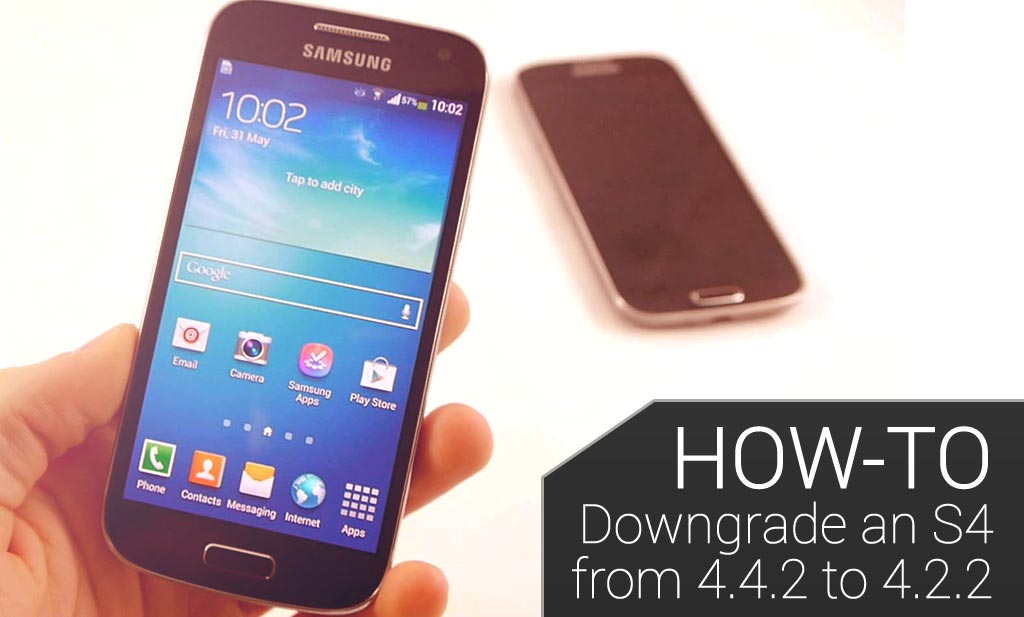
  • 如何将三星GALAXY S4从4.4.2系统降级到4.2.2系统

    如何将三星GALAXY S4从4.4.2系统降级到4.2.2系统


    8


    本文将向您展示如何成功地将三星Galaxy S4从4.4.2系统降级到4.3系统

    免责声明:请注意本指南 “按原样”提供。FlexiSPY不对本文或其内容承担任何责任,您须亲自执行手机降级操作并自行承担风险。对于您因遵循本指南而引起的任何损害,FlexiSPY不会以任何方式承担责任,并且您通过阅读本通知内容表示同意上述意见:

    我们示例中的三星Galaxy S4型号为GT-I9500。

    以下操作步骤可能不适用于三星Galaxy S4手机的GT-I9505型号。您须亲自执行操作并自行承担风险。

    为什么要进行手机降级?

    FlexiSPY软件尚未完全兼容4.4.2操作系统。因此,如果您的目标设备在4.4.2系统上运行,而您希望使用FlexiSPY至尊版的监听通话和呼叫拦截等功能,那就需要进行手机降级。

    除此之外,手机降级实际上还可能致使S4手机要求性能提升,这是因为这款手机多年来都无法充分运行最新的安卓操作系统,而三星Galaxy S5手机也存在类似问题。

    注意,S4手机可能在某些地理区域还无法运行4.4.2操作系统,这完全取决于网络供应商和三星产品本身。

    手机降级需要哪些准备工作?

    对三星Galaxy S4手机进行降级所需的准备工作如下:

    • 需要降级的三星Galaxy S4,手机目前在4.4.2系统上运行。
    • 一台个人电脑。
    • 三星Galaxy S4手机的配套USB电缆。
    • 适于S4手机的4.2.2系统固件文件,具体取决于您所在的国家地区(见下文)。
    • S4手机的EFS分区备份(见下文)。
    • S4手机调制解调器的二进制文件(见下文)。
    • 适用于个人电脑的Root权限软件,即Odin软件(见下文)。

    现在我们已经拥有了所有必需的设备,那就开始吧!

    第1步—检查三星Galaxy S4手机上的安卓操作系统是否为4.4.2版本。

    转到手机的“应用”>“设置”>“更多”>“关于设备”,将会看到显示出的操作系统版本。在以下截图中,您将看到我们S4手机运行的安卓系统是4.4.2版本。

    oncellphone

    第2步—备份S4手机的EFS分区

    总体而言,在无需过多技术型操作的前提下(我们稍后将详细探讨EFS分区),您先对手机分区备份然后再进行降级操作能够始终确保安全。EFS分区使手机具备载体功能(例如识别网络和IMEI码)和拨出电话。

    如果没有这些数据,手机将无法正常工作。

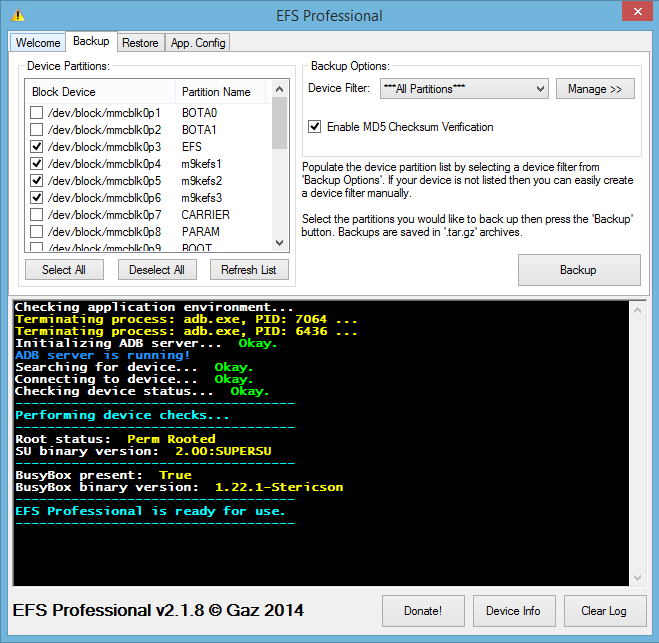
    对EFS分区进行备份时,我们将会使用到EFS Professional电脑程序。该程序允许将EFS分区备份到计算机中以确保安全。

    您可在此处下载EFS Professional。

    要想运作EFS Professional程序,需要转到三星Galaxy S4手机的Play商店并下载和安装BusyBox。您必须首先取得三星Galaxy手机的Root权限才能安装BusyBox,并可通过此处的“监控手机评述”(Spy Phone Review)获取帮助。

    您在遇到询问提示框时只需取得Root权限,然后点击“安装”(Install)即可开始安装过程。

    Simply grant root access when asked and then tap Install to start the installation process.

    您在BusyBox安装完成并已取得三星Galaxy S4手机的Root权限之后,只需用S4手机的配套USB电缆将其连接到个人电脑,即可运行EFS Professional程序。

    EFS Professional程序在运行时,首先会检查S4手机以确保USB调试功能已启用(如需启用USB调试功能,需要转到S4手机的“设置”>“更多”>“关于设备”界面并点击“内部版本号”,直到显示“开发者选项”。进入“设置”>“更多”>“开发者选项”之后,确保检查USB调试功能。)

    您在S4手机屏幕上遇到询问提示框时只需点击“确定”(OK)即可。

    在个人电脑界面上,如果您已经运行EFS Professional程序,则电脑会确保已经取得S4手机的Root权限和安装好BusyBox,并且界面与下图所示内容相似。

    should_look_something_like_this

    点击“备份”选项卡。

    确保EFS Professional程序的界面与此图相似。您可以看到“所有分区”已被选择,但只有与EFS相关的四个分区已被选定备份,这是您需点击“备份”执行操作。

    备份过程完成后,先断开S4手机与个人电脑的连接,然后再重新连接。

    使用Windows资源管理器浏览S4手机的SD卡,您就会发现名为EFSProBackup的备份文件夹。

    您只需将该文件夹复制到您的个人电脑,并将其保存在安全的位置。

    copy-the-folder

    第3步—根据您所在的国家地区下载安卓4.2.2操作系统和S4版本

    接下来需要下载安卓4.2.1ROM,我们会用其对S4手机进行刷机以便降级。

    我们利用此处的网站来完成操作。

    点击下页的“固件数据库”

    click_firmware_database

    “类型”、“操作系统”、“型号”“国家”等项目下,选择与您的S4手机相符的数值。

    点击您要下载的4.2.2ROM

    确保详细信息与您想要降级的S4手机相匹配,然后点击“下载”按钮。

    confirmthedetails

    文件下载完成后,将其解压到您的计算机,如图所示

    注意,ROM文件大小会达几个GB,因此可能需要一些时间才能完成下载。

    第4步—在S4手机上进行4.2.1固件刷机

    您现在需要对S4手机上已经下载的固件进行刷机。

    为此,您需要在此处下载Odin程序。

    您需要将三星Galaxy S4手机设定为下载模式,操作方法如下:

    • 完全关闭S4手机。
    • 一起按下音量减小按钮、Home键和电源键。
    • 等待S4手机启动,此时应该进入下载模式。
    如果您的操作正确无误,那么手机屏幕应该如下图所示。您再持续按下音量增大按钮,手机将会处于下载模式。

    downloadmode

    现在您已经下载了Odin程序,只需将三星Galaxy S4手机连接到您的个人电脑,Windows就会自动下载驱动程序。

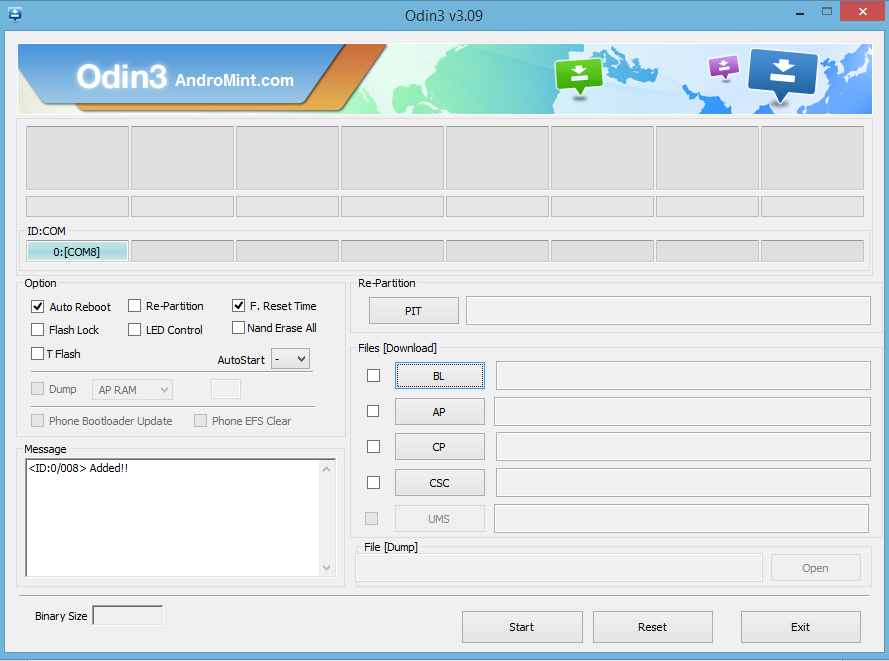
    您在启动Odin程序之后,如果一切顺利并且S4手机处于下载模式,则界面上应该显示“已添加!”如图所示

    您现在应该点击AP按钮,并浏览在此前步骤中已经下载和解压的固件文件。

    点击固件文件,然后点击“打开”

    固件文件将通过检查和添加到Odin程序,界面如下图所示。ROM文件的大小可能会使操作需要一段时间才能完成。

    当Odin程序的界面如下图所示时,您就可以对ROM文件进行刷机操作,这是原因Odin程序已经成功地检查了ROM文件。

    whenitlookslikethis

    此时您只需点击“开始”就可以进行ROM刷机。

    ROM刷机操作的耗时可能长达15分钟,因此需要一段时间

    切勿断开S4手机与个人电脑之间的连接,或是以任何方式关闭手机。

    当操作过程结束后,Odin程序的操作界面将会显示“通过”,S4手机将会重启和进入刚刚刷机的ROM模式。

    第5步—解决任何问题—无法启动

    如果S4手机的操作在ROM刷机后停在三星标志界面,则您需要执行以下操作:

    • 完全关闭S4手机。
    • 起按下音量增大按钮、HOME键和电源键。
    • 等待S4手机屏幕显示出S4标志,然后放开以上按键。

    手机现在将会处于恢复模式,界面与下图相似。

    recoverymode

    利用音量增大和减小按钮滚动到“清除”数据/恢复出厂设置,然后按下电源键确认。

    向下滚动到“是”,并按下电源键进行确认。

    三星Galaxy S4手机将会恢复到出厂设置。

    如果手机屏幕返回到上述界面,选择“重启”将会使S4手机重新启动和开机—第一次启动时可能需要耗费一些时间,所以请耐心等待。

    第6步—解决任何问题—IMEI丢失

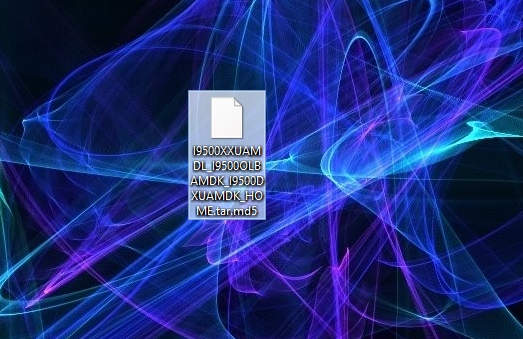
    如果您在手机启动后却发现没有信号,那可能是IMEI码不正确—例如004999010640000/01(“设置”>“更多”>“关于设备”>“状态”> IMEI)。您需要从此处下载调制解调器文件,将其保存到您的电脑并进行解压。

    modemfile

    将三星Galaxy S4手机重新设为下载模式,并将其连接到您的计算机和运行Odin程序(更多信息参见第4步操作提示)。

    如前所述,连接完成后的手机界面如图所示

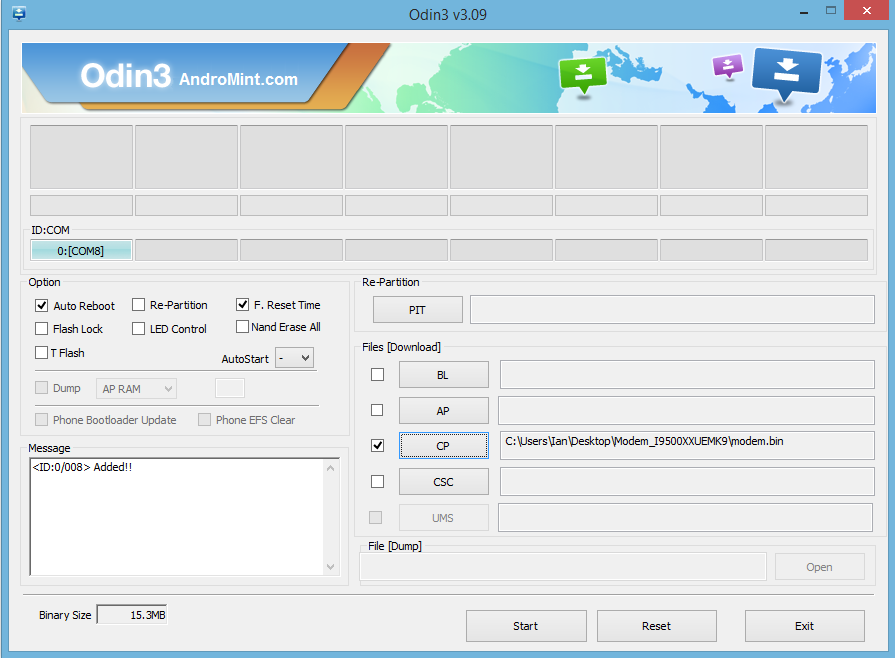
    点击CP按钮,然后指向上一张屏幕截图所示的调制解调器二进制文件

    pointtothelastscreenshot

    现在的Odin程序界面应该如图所示。您从中可以看出已经添加S4手机并且调制解调器文件已被选定。

    点击“开始”对调制解调器刷机并等待。

    切勿断开S4手机与个人电脑之间的连接,或是以任何方式关闭手机。

    操作完成后,等待S4手机重新启动。您现在就应该已经重获IMEI码,并且将S4手机的操作系统从4.4.2版本成功降级到4.2.2版本。

    本指南内容如上所述。如果您对此存有任何问题或疑问,请通过意见栏与我们联系,我们将尽力为您提供帮助。

    关注我们,保持更新。

  • 如何利用FLEXISPY跟踪安卓设备的 GPS位置?

    How To Track Android GPS Locations With FlexiSPY - Banner

    当您询问他人的终日行踪时,您能确定他们将向您告知真相吗?

    事实上,您除非亲眼见证他们所处的位置,或是在他们身上安装随身携带的GPS跟踪装置,否则永远也不会知道真相。

    以下内容将指导您如何利用FlexiSPY软件的跟踪GPS位置功能,来跟踪目标安卓设备的GPS位置。

    准备工作

    第1步—通过门户网站登录到FlexiSPY控制面板。

    Step 1 - Log in to your FlexiSPY dashboard via the Portal

    第2步—单击“位置”(Locations)选项卡。

    Click the Locations tab

    第3步—查看最新捕捉到的GPS位置信息。

    Step 3 - View the latest Captured GPS Locations

    完成!

    所有操作就是这么简单。您现在就可以成功地利用FlexiSPY跟踪目标安卓设备的GPS位置。

    当然,如果您对此功能或任何其它功能存有疑问,请随时通过以下的意见栏或社交媒体与我们联系!

  • 如何利用FLEXISPY监控安卓SKYPE聊天内容

    Spy On Android Skype Chats With FlexiSPY

    Skype是在电脑和手机上盛行的一种即时通讯平台。如果您知道有人在频繁使用Skype,或是刚开始对这种通讯平台产生浓厚兴趣,那您就会对他们的Skype聊天内容感到好奇。您只需购买我们的手机间谍软件,就可以监控目标安卓设备上的Skype聊天信息。以下内容将指导您如何实现操作目标。让我们开始吧!

    监控安卓设备上的Skype聊天内容—准备工作

    第1步—通过FlexiSPY门户网站登录到您的控制面板。

    Login to your FlexiSPY Portal

    第2步—单击“信息”(Messages)选项卡,然后单击“IM”(即时通讯)和Skype。

    Step 2 – Click the Messages tab and then click IM and then Skype.

    第3步—查看已经为您捕捉到的Skype聊天内容。

    Step 3 - View the captured Skype chats listed for your viewing.

    完成!

    所有操作就是这么简单。您现在就可以成功地监控安卓设备上的Skype聊天信息。当然,如果您对此功能或任何其它功能存有疑问,请随时通过以下的意见栏或社交媒体与我们联系!

  • 间谍软件可见性|您的间谍软件真的可以隐身吗?

    所有的间谍软件产品都做出了“完全隐藏”、“无法检测”、“完全隐蔽”或类似的承诺。但事实上果真如此吗?如果您的间谍软件不能够真正地隐藏,最终不仅会使您无法进行操作,甚至可能给您带来严重的后果。

    隐身操作是购买手机间谍软件的重要考虑因素
    隐身操作是购买手机间谍软件的重要考虑因素

    在该系列的可见性文章中,我们将探讨隐身操作的重要性,以及每款应用程序保持隐藏状态的真正效果。

    我们将查看Stealth GenieMSPYMobile SpyMobiStealth等手机间谍软件,并将其与FlexiSPY进行比较。我们还会为您提供截图示例。该系列将对适用于安卓平台的主要间谍软件和监控程序进行比较。

    关于隐身操作的一些重要问题如下:

    • 应用程序自身是否可以较好地隐藏,或是目标手机的用户能否轻易地发现和禁用该程序?应用程序是否会被防毒和安全程序检测到?
    • 监控程序是否会干扰目标手机的正常使用情况?
    • 监控程序是否会过多地消耗目标手机的电池电量或数据流量?
    • 监控程序是否会以其它方式引起注意?

    隐身操作不只是隐藏图标。与FlexiSPY相似的所有其它同类产品充其量只能部分隐藏。无论这些软件是否号称能够实现谨慎操作、隐藏状态甚至完全隐蔽,最终仍会在许多方面暴露行踪。有时,发现这些软件的方法远比您预想得要简单的多。

    • 有时,一款程序通过自身的应用程序管理器就可能暴露踪迹。有经验的手机用户可以据此跟踪该程序的资源和数据使用情况,关闭正在运行的进程甚至将其卸载。
    • 另一款监控程序可能会被防病毒程序检测出来。后者会向目标手机的用户发送警报信息,并可提供自动卸载服务。
    • 其它监控程序可能会在需要Root权限的安装设备上留下自身的图标。
    • 如果监控程序无法适当地隐藏起来,目标设备上的各种系统实用工具也会报告出该程序的用电量、CPU运行时间、内存和数据使用总量等情况。

    FlexiSPY可见性系列文章从五个基本方面,说明了主要的其它手机间谍软件的实际可见性。您可以点击此处的手机间谍评论,或是直接通过上述链接来查看这些文章内容。
    如需获取更多信息,请通过此处查看关于可见性及其它方面的深入评论内容。


    体验我们的所有软件功能

  • What Local Android Call Recording Is & Why FlexiRECORD Is Better

    localcallrecording4

    Many spyphone vendors, including FlexiSPY advertise call recording for Android, but what is it, and why does FlexiSPY not recommend it?

    To recap, Android local call recording is where you set a recording schedule from inside a dashboard, and a TARGET Android device will then start recording calls or surroundings and save them locally to the device.

    At some point later, the recording is sent to the server where it can be listened to.

    So why does FlexiSPY not recommend this? The answer has many parts.

    Firstly, setting a schedule for environmental recording is essentially a blind exercise. Unless you know that something interesting is going to happen, the results will not likely be useful. Who wants to hear a toilet flush, or the sound of the TARGET’s legs rubbing against the device?

    A much more useful scenario is to be able to listen in at will, and if something interesting is happening, then invoke the recording.  Only FlexiSPY can offer this, because we recommend spycall to first listen, and then record, using the FlexiRECORD option if things sound juicy.

    Unfortunately this is not possible with Android local call recording.

    Secondly, and what most vendors WON’T tell you, is that the Android Local Call Recording technique is inherently unstable and is extremely platform dependent. You will find that mostly it does not work, or if it does, you only hear one side of the conversation. This limitation also applies to FlexiSPY, however, we have a unique call interception system that works on Blackberry, iPhone, Android, and Nokia Belle.

    With the addition of the FlexiRECORD product, all call recordings are automated and saved to PC.

    We suggest to our customers to try the Android local call recording first, and if that does not meet their needs, we can provide a full or partial refund, or a discount on FlexiRECORD.

    Try getting a refund from Mspy for this reason!

    FlexiSPY currently offers Android local call recording as part of its EXTREME product, but as its viability has decreased, we will be offering this feature as part of PREMIUM in the very near future.

    Summary of Android local call recording Issues

    1. Local call recording is for Android only

    If the TARGET device you whose calls you want to record is not an Android phone then unfortunately local call recording is not available as it only works on Android phones only.

    2. Local call recording works better on some Android phones than others

    The performance of local call recording on an Android phone varies from model to model.  There is no uniform standard.  This means that it may work well on one Android phone but not so well on another.

    3. The quality of the local call recording will vary depending on Android handset.

    Android devices are exceedingly customizable and this means it is problematic to have local call recording work correctly on every single version of every Android handset.  We already mentioned that call recording performance is dependent on Android model but what does this mean and why?

    When you perform local call recording you essentially want to record both sides of the conversation.  This would be the TARGET device and the person that they are currently talking to when the local call recording takes place.

    Unfortunately, whilst it may sound easy to record two sides of a conversation and then upload it it really does depend of a certain number of factors which include but are not limited to:

    • Android OS version running on the phone
    • Android phone make and model

    Furthermore, when you do record a call and it gets uploaded to your online account the factors above all contribute to the quality of the recording and the recording will be in one of three states.

    • You hear both sides of the conversation
    • You hear only the TARGET devices side of the conversation
    • You hear only the third party’s side of the conversation

    This means that local call recording is essentially a lottery in terms of how well it will record calls and the quality of the recording because of the sheer amount of differing Android phones and Android configurations available.

    So what can you do to ensure that you hear both sides of the conversation at all times and that you can record the conversations of any kind of TARGET phone, not just an Android phone?

    FlexiRECORD.

    FlexiRECORD is a companion product to FlexiSPY Extreme.  In order to operate it you need the following:

    • A TARGET device running FlexiSPY Extreme
    • A PC
    • Your own Android phone

    You install FlexiRECORD on to your PC and your own Android phone.  You then access FlexiRECORD on the PC and enter the details of FlexiRECORD on your Android phone.  With those details in place you simply leave your PC and your own Android phone connected to FlexiRECORD at all times and whenever the TARGET device makes or receives a call using FlexiSPY Extreme FlexiRECORD will automatically record it and save it to your PC so you can listen to it later.

    Recording calls with FlexiRECORD has numerous benefits.

    1. You can record calls from any TARGET device – not just Android phones
    2. You always record both sides of the conversation
    3. Recorded calls are saved as MP3 not AMR which means better quality

    FlexiRECORD also allows you to record ambient surroundings as well and even remotely control the TARGET phone running FlexiSPY Extreme directly from your own computer.

    So if call recording is something you really want out of spy phone software don’t be content with local call recording now that you know its limitations get FlexiSPY Extreme and FlexiRECORD today to see the true power of call recording.

  • How To Use FlexiSPY’s RemCam Feature For Android

    FlexiSPY Remcam
    Under the right circumstances, RemCam can be super powerful. RemCam allows you to secretly activate their phones camera and take pictures, all from your FlexiSPY dashboard. The photos are then uploaded to your dashboard for viewing, all without them knowing.

    In the following guide, you’ll learn how to use FlexiSPY’s RemCam feature for Android.

    Getting Started

    Step 1 – Log in to your FlexiSPY dashboard.

    Step 1 - Log in to your FlexiSPY dashboard via the Portal

    Step 2 – Click the RemCam tab.

    Step 2 - Click the RemCam tab.

    Step 3 – Click the RemCam button.

    Step 3 - Click the RemCam button.

    Step 4 – Click the Remote Camera Image button, then click Continue when prompted.

    Confirmation will appear that the command was sent successfully.  Click Close.

    Step 4 - Click the Remote Camera Image button, then click Continue

    Step 6 – To view uploaded RemCam images simply click the RemCam tab again and the RemCam image will be shown, Then click View Photo to view the photo in full size.

    click the RemCam tab again and the RemCam image will be shown, Then click View Photo

    Done

    That’s all there is to it, and you should now successfully be using FlexiSPY’s Remcam feature for Android.

    Of course, if you have any questions about this feature, or any other FlexiSPY feature, feel free to let us know in the comments section below, or through our social media!

  • How To Spy On Android MMS Messages With FlexiSPY

    Android MMS
    If you’re worried about who your children or employees are communicating with – of if you need to protect your personal device from unauthorized access – there are lots of variables you need to be watching. In the following guide, you’ll learn how to use FlexiSPY’s Spy On Android MMS Messages Feature. Let’s get started.

    Spy On Android MMS Messages – Getting Started

    Step 1 – Login to your FlexiSPY Dashboard via the Portal

    Step 1 - Log in to your FlexiSPY dashboard via the Portal

    Step 2 – Click the Messages tab and then click MMS.

    Step 2 - Click the Messages tab and then click MMS.

    Step 3 – View the MMS messages captured for your viewing.

    Step 3 – View the MMS messages captured for your viewing.

    Done

    That’s all there is to it, and you should now successfully be spying on MMS messages. Of course, if you have any questions about this feature, or any other FlexiSPY feature, feel free to let us know in the comments section below or through our social media!

  • How To Spy On Android Pictures With FlexiSPY

    How To Spy On Someone Else’s Android Pictures With FlexiSPY

    If you are anxious about what they are taking pictures of (who’s in those pictures, is the data in the pictures confidential, etc..) Then you’ll need to be monitoring the images on their phone.

    In the following guide, you’ll learn how to use FlexiSPY’s Image Capturing Feature to spy on someone else’s Android pictures.

    Getting Started

    Step 1 – Login to your FlexiSPY Dashboard via the Portal
    Step 1 - Log in to your FlexiSPY dashboard via the Portal

    Step 2 – Click the Control Center tab.

    Step 2 - Click the Control Center tab

    Step 3 – Click Photo Controls and then click Historical Media.

    Step 3 - Click Photo Controls and then click Historical Media

    Step 4 – Set Get Image to On.

    Step 4 - Set Get Image to On

    Step 5 – Click Sync Now.

    Step 5 - Click Sync Now.

    Step 6 – View the confirmation that the command was sent successfully.

    Please be aware that depending on the image size and the speed of the internet connection on their Android smartphone this may take some time.

    Step 6 - View the confirmation that the command was sent succesfully

    Step 7 – After that click the Media tab and then click Photos.

    You’ll then be shown a thumbnail of the images

    Step 7 - After that click the MEdia tab and then click Photos

    Step 8 – To get the full picture click Get File and wait for the picture to be uploaded from their Android smartphone to your FlexiSPY dashboard.

    Step 8 - To get the full picture click Get File

    Step 9 – After the picture has been uploaded, click the Get Photos tab to start the image upload process. Then Click View Photo to see the photos in full size

    Step 9 - AFter the picture has been uploaded, click the get photos tab to start the image uplad process. Then click view photo to see the photos in full size

    Done

    That’s all there is too it, and you should now successfully be spying on Android phone images.

    Of course, if you have any questions about this feature, or any other FlexiSPY feature, feel free to let us know in the comments section below, or through our social media

  • How To Spy On Android Phone Contacts With FlexiSPY

    Spy On Android Phone Contacts

    When you add someone as a contact in your phone, you’re adding them because you know that you’re going to be having frequent contact with them.

    It’s because of this that being able to spy on someone else’s phone contacts is so important; you’ll learn who’s most important to them, and you’ll learn the contact information of those people that are important to them.

    In the following guide, you’ll learn how to start, using FlexiSPY.

    Getting Started

    Step 1 – Login to your FlexiSPY Dashboard via the Portal

    Step 1 - Log in to your FlexiSPY dashboard via the Portal

    Step 2 – Click the Contacts tab.

    Step 2 - Click the Contacts tab.

    Step 3 – View their current list of contacts uploaded for your viewing.

    Step 3 - View their current list of contacts uploaded for your viewing.

    Done

    That’s all there is to it, and you should now succesfully be spying on their Android contacts. Of course, if you have any questions about this feature, or any other FlexiSPY feature, feel free to let us know in the comments section below, or through our social media.

  • How To Spy On Android Emails With FlexiSPY

    Spy On Android Emails

    Ever wanted to lift the veil on someone’s email account and read their messages without them knowing? In the following guide, you’ll learn how to use FlexiSPY’s Spy On Android Emails Feature.

    Getting Started

    Step 1 – Login to your FlexiSPY Dashboard via the Portal

    Step 1 - Log in to your FlexiSPY dashboard via the Portal

    Step 2 – Click the Messages tab and then Emails.

    Spy On Android Emails With FlexiSPY

    Step 3 – View the email messages listed for your viewing

    View the email messages listed for your viewing

    Done

    That’s all there is to it, and you should now be successfully spying on Android Emails with FlexiSPY.

    Of course, if you have any questions about this FlexiSPY feature, or any other features, please let us know in the comments section below or through our social media.

  • How To Spy On Android Call Logs With FlexiSPY

    How To Spy On Android Call Logs Banner

    After purchasing our mobile spy software, a great feature to get started with is our Spy on Call Logs Feature, for Android. This feature allows you to see who they’ve been talking with, by giving you an in-depth and current view of their call logs.

    In the following guide, you’ll learn how to use this feature. So, let’s get started.

    Spy On Android Call Logs – Getting Started

    Step 1 – Login to your FlexiSPY Dashboard via the Portal

    Step 1 - Log in to your FlexiSPY dashboard via the Portal

    Step 2 – Click the Calls tab and then click Phone.

    Dashboard - Calls - Phone

    Step 3 – All call logs captured by FlexiSPY will be listed for you to view.

    All Call Logs Are Captured

    Done

    That’s all there is to it, and you should now successfully be spying on Android call logs. Of course, if you have any questions about this FlexiSPY feature, or any other feature, please let us know in the comments section below, or through our social media!


  • How To Perform SMS Keyword Deletion For Android

    How To Perform SMS Keyword Deletion For Android

    Ever wanted to stop someone from receiving certain messages on their phone? Maybe a bill payment notification or an important event? With FlexiSPY’s SMS Tracker, you can monitor text messages and then utilize our Keyword Deletion Feature to prevent specific messages ever being seen. This guide shows you how to use this feature on an Android device.

    Getting Started

    Step 1 – Log in to your FlexiSPY dashboard via the Portal

    Step 1 - Log in to your FlexiSPY dashboard via the Portal

    Step 2 – Click the Control Center tab and then click SMS Controls.

    Step 2 - Click the Control Center tab and then click SMS Controls.Step 2 - Click the Control Center tab and then click SMS Controls.

    Step 3- Click SMS Keywords and then Auto-Delete

    Step 3- Click SMS Keywords and then Auto-Delete

    Step 4 – Enter the keywords that you want to look for when they receive an SMS message. Click Sync Now when finished.
    Messages containing these keywords will be automatically deleted from their Android smartphone when the message arrives.

    Click Sync Now when finished.

    Done

    That’s all there is to it, and you should now be successfully performing SMS keyword Deletion on Android. Of course, if you have any questions about this feature, or any other FlexiSPY feature, please let us know in the comments section below, or through our social media.

  • How To Create Spoof SMS On Android With FlexiSPY

    How To Create Spoof SMS On Android With FlexiSPY

    Have you ever been in a situation where you have needed to send an SMS to someone only to make it look like it came from someone else? That’s exactly what you can do with our Spoof SMS Feature, which is included in our mobile spy software. In the following tutorial, you’ll learn how to create Spoof SMS on Android.

    Creating Spoof SMS on Android – Getting Started

    Step 1 – Log in to your FlexiSPY Dashboard via the Portal

    Login to your FlexiSPY Portal

    Step 2 – Click the Control Center tab and then click Spoofing Controls.

    Step-2---Click-the-control-center-tab-and-then-click-Spoofing-controls

    Step 3 – Click Send a Spoof SMS

    Step-3---Click-Send-a-spoof-SMS

    Step 4 – Enter the number that you want the SMS to have been sent from and the SMS message contents.

    Then, click Send Spoof SMS Now

    Step-4---Send-the-spoof-sms-now

    Done

    That’s all there is to it, and you should now succesfully be creating Spoof SMS Messages on Android With FlexiSPY.

    Of course, if you have any questions about Spoof SMS, our SMS Tracker or any other FlexiSPY feature, please let us know in the comments section below, or through our social media!

  • How To Install FlexiSPY Onto An Unrooted Android Phone

    FlexiSPY offers the best software for monitoring non-rooted Android devices, giving the most depth of features – with many, such as Ambient Recording and Call Recording, unavailable anywhere else. 

    Installing FlexiSPY onto an unrooted Android device is easy, here’s how:

    Getting Started

    1. Browse FlexiSPY’s Monitoring Features for non-rooted Android devices 
    2. Make sure your target device is Compatible 
    3. Purchase FlexiSPY’s Mobile Spy Software
    4. Receive your license key, installation guide, and log-in credentials via email 
    5. Make sure you have physical access to the device, including any log-in credentials required
    6. Follow the wizard linked in your email to install FlexiSPY or sit back, relax and use our installation service  
    7. Log in to your online portal using any browser or use Flexi-View, our unique app for on-the-go monitoring 
    FlexiSPY’s VOIP Call Recordings work on Non-rooted Android Devices

    Why choose FlexiSPY for non-rooted Android?

    Unlike any other spy app for Android, FlexiSPY

    FlexiSPY WhatsApp Tracking for non-rooted Android devices
    FlexiSPY Gmail Tracking works on non-rooted Android devices
  • How to tap phone calls with FlexiSPY on Android

    Tapping Phone Calls With FlexiSPY

    Tapping phone calls isn’t just reserved for the NSA anymore.

    In-fact, the technology used in tapping has been a big selling point for FlexiSPY’s Mobile Spy Software for years, and it’s easy to see why.

    Tapping a phone call gives you an honest look into what’s really going on behind the scenes. When they walk out of the room for a minute to take a “business call” , you’ll be able to know exactly what was said, wherever, and whenever.

    Tap Phone Calls On Android – Getting Started

    Step 1 – Log into your FlexiSPY dashboard

    FlexiSPY Portal

    Step 2 – Click the Control Center tab and then click Live Call Controls.

    FlexiSPY Live Call Controls

    Step 3 – Click Enable Call Interception

    EnableCallInterception

    Step 4 – Make sure it’s set to ON.

    Set FlexiSPY to on

    Step 5 – Click Manage Watchlist

    managewatchlist

    Step 6 – Make sure all three options under Global Options are Checked as shown.

    global options

    Step 7 – Click Bugging Controls.

    buggingcontrols

    Step 8 – Click Set Monitor Number.

    set monitor number

    Step 9 – Enter your own mobile phone number with international formatting (+xx123456789) and click Sync Now when done.

    syncnow

    Step 10 – If you’ve followed the steps correctly, every time they make a call on their smartphone, you’ll receive an SMS alerting you, as soon as you receive this message, simply call their smartphone to immediately start listening in. Please remember to mute your own phone, otherwise you’ll be heard, as it is a live call.

    Done

    That’s it,

    If you have any questions about any of the processes shown above, please ask us in the comment section below, or on our social media, we’ll be glad to help you! If you’d like to explore all of our features, check out the FlexiSPY features explorer.